
WhatsApp marketing campaigns
Prepare an approved marketing template, build an audience from CRM or CSV, record permission, approve and send a WhatsApp campaign.
Who can use this
OwnerCompany adminHRDepartment managerMemberRequirements
- WhatsApp Business connected
Campaigns sends one approved marketing WhatsApp template to many numbers you already have in CRM. Each person must have recorded permission; a yes in a spreadsheet is not enough. Dromix checks consent, opt-outs and the sender again before every message.
The pictures on this page are from the English demo workspace. The names and numbers are illustrative (the 555 range). They are not a customer list, and nothing in the pictures was sent.
Campaigns do not replace legal or Meta compliance advice. Your Company admin connects WhatsApp and approves templates in Meta; see Connect WhatsApp Business and WhatsApp templates and the 24-hour rule.
Who sees Campaigns
On a desktop, open the More menu (the three dots in the left rail, after Deals) and select Campaigns.
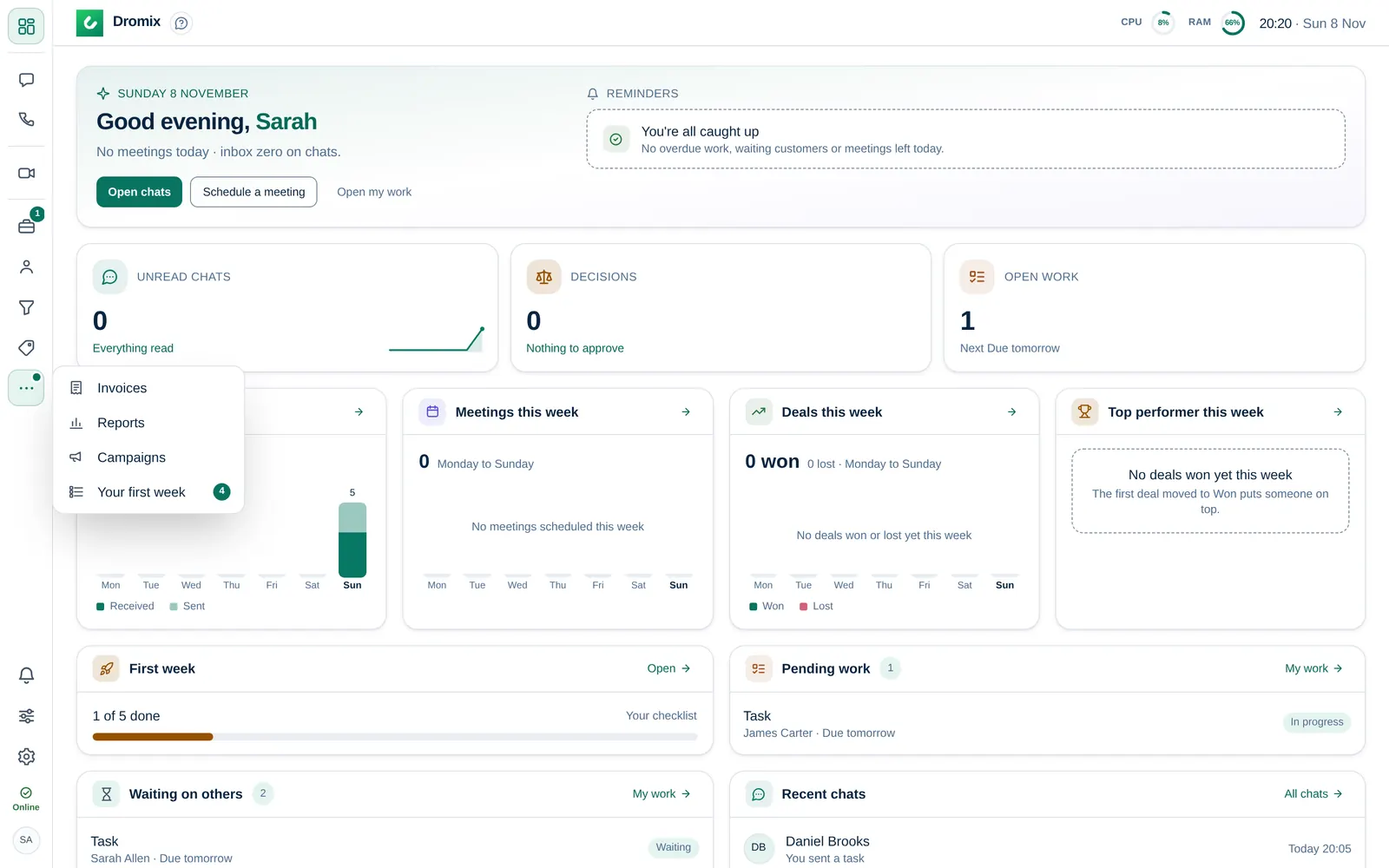
The menu item is there when at least one of these is true:
- You are Owner or Company admin (prepare and approve on every sender).
- A Company admin gave you Prepare and/or Approve and send for your company's WhatsApp sender.
Chat access in Integrations → WhatsApp is separate. A channel agent without a campaign grant does not see the menu item.
Company admins set grants in Campaigns → Access. The panel asks for a Person id (the teammate's id, not their email), then Prepare and/or Approve and send. Select Save access.
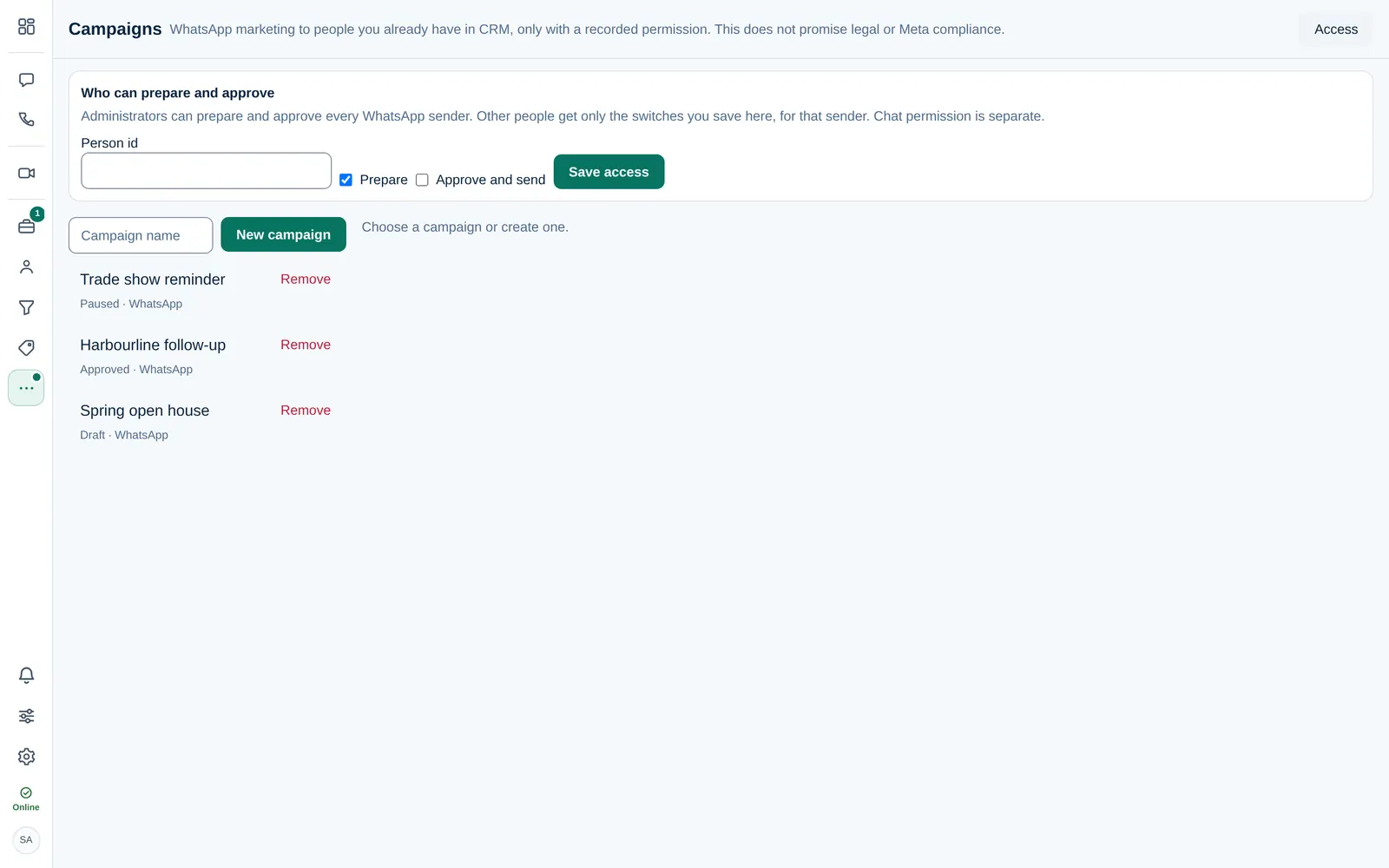
Before you start
- WhatsApp is on and a sender number is configured. Step 1 shows that number, or No WhatsApp sender is configured.
- Meta approved at least one MARKETING template. Step 3 lists only those templates. Utility templates such as
hello_worlddo not appear. - People in the audience exist in CRM with a valid WhatsApp number, or you import them with the CSV flow below.
- For each number you plan to message, an approver records permission (basis + accepted text) on the Review step, or the recipient is excluded as No recorded permission.
Create a campaign
- Open More → Campaigns.
- Type a Campaign name and select New campaign. The new row is a Draft.
- Select the row. The four steps are Channel, Audience, Message and Review.
The list shows the status next to each name: Draft, Approved, Running, Paused, Cancelled or Completed. There is no separate schedule step. Start begins sending; Pause and Cancel stop a campaign that is already running.
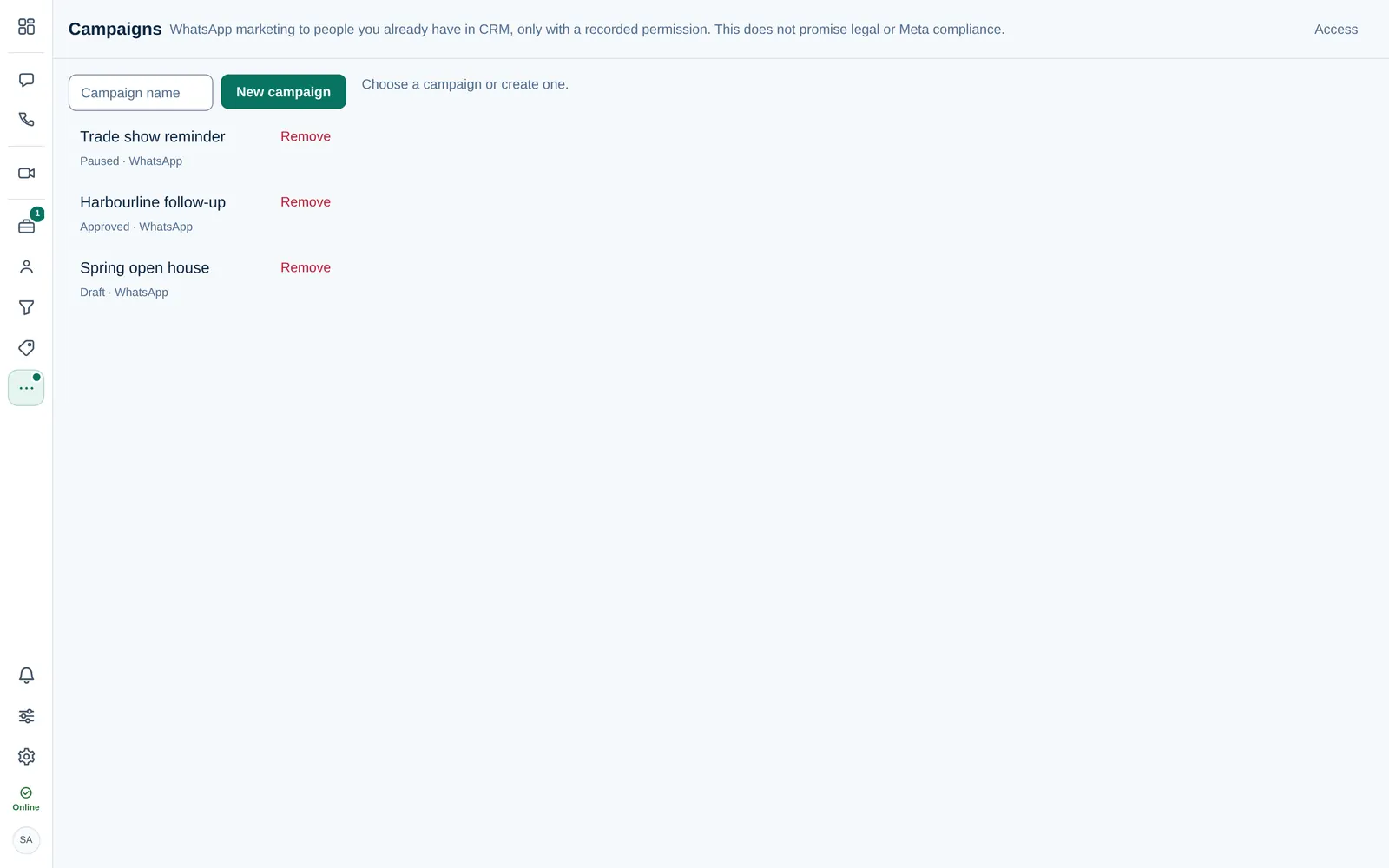
1. Channel
WhatsApp is the only channel in this version. The step shows the sender number when one is configured. Email campaigns are not available. Select Next.
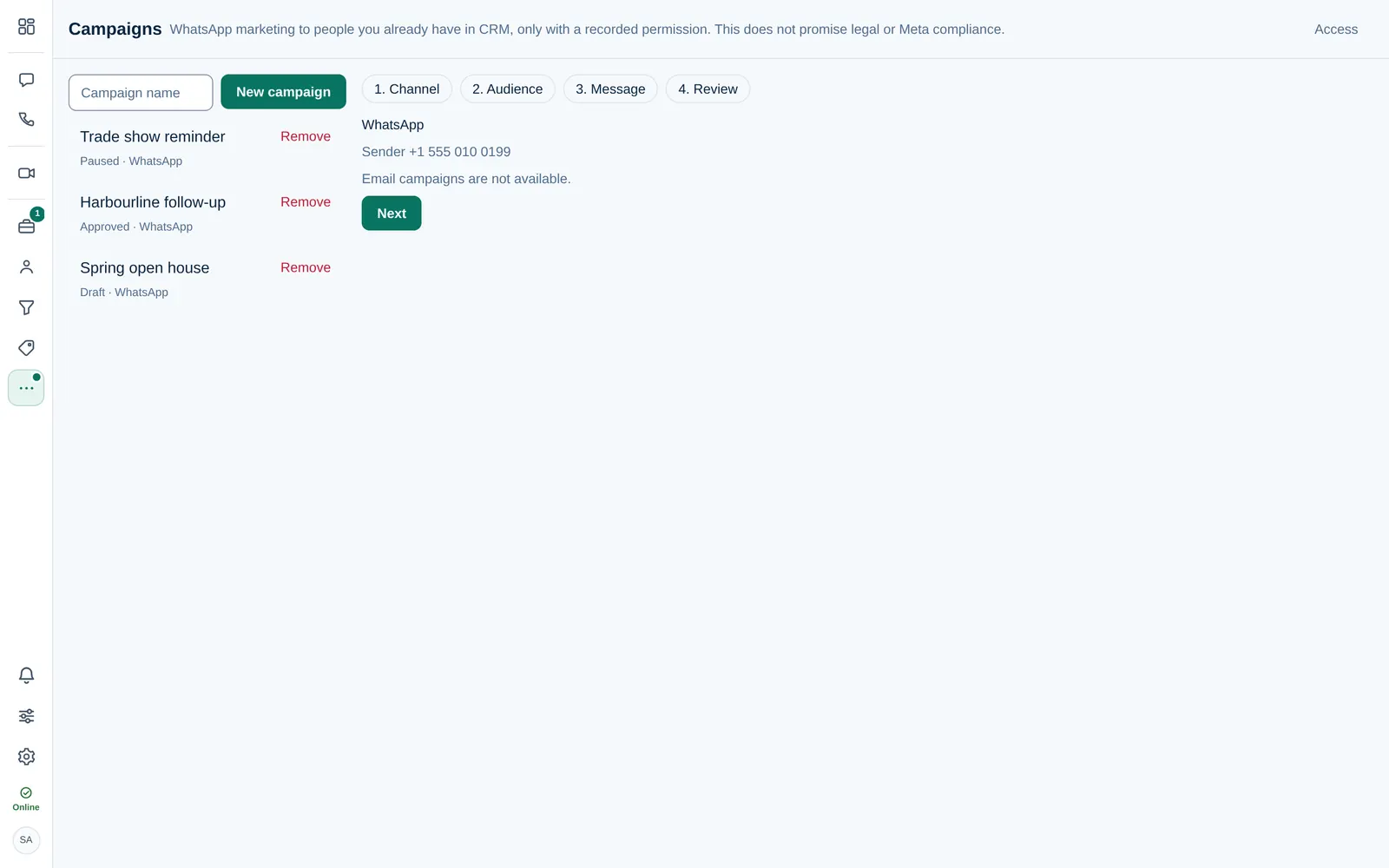
2. Audience
Pick one list:
- Use visible CRM leads and contacts — everyone you may see in CRM with a phone number on this sender's list.
- CSV — Select Download sample CSV, fill it in, then either drag the file onto the upload area, choose a file, or paste rows into the text box. Select Preview CSV. When the preview looks right, select Import into CRM and use that list.
The sample uses the same columns as CRM lead import (see Import and export CRM data). If mapping fails, fix the header row or use the sample file. Preview counts the rows; it does not add them to CRM until you import.
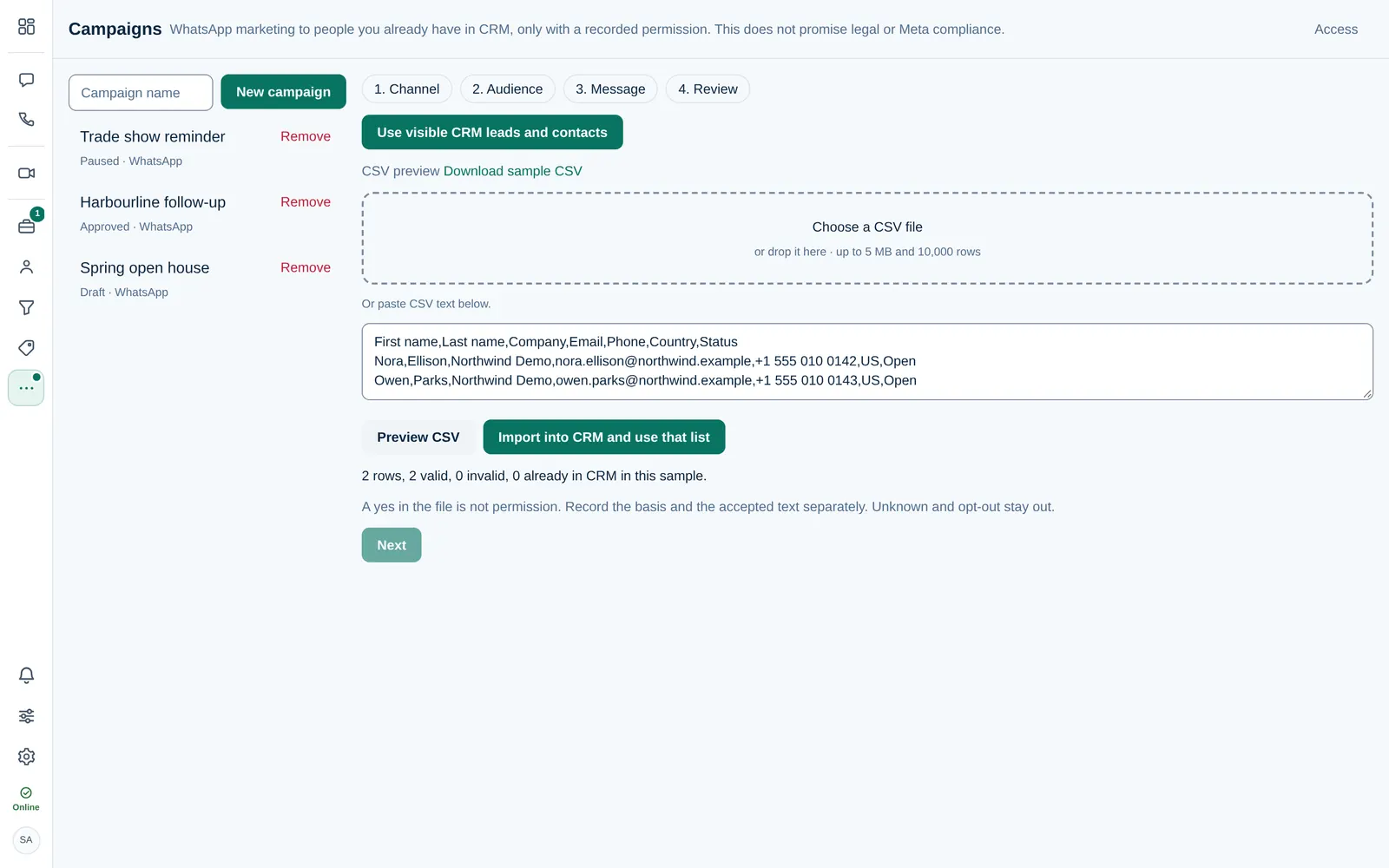
A yes/no column in a file is not marketing permission. Record permission separately on Review. See Contact language and consent.
You cannot continue to Message until the campaign has a list attached. Next stays off until then.
3. Message
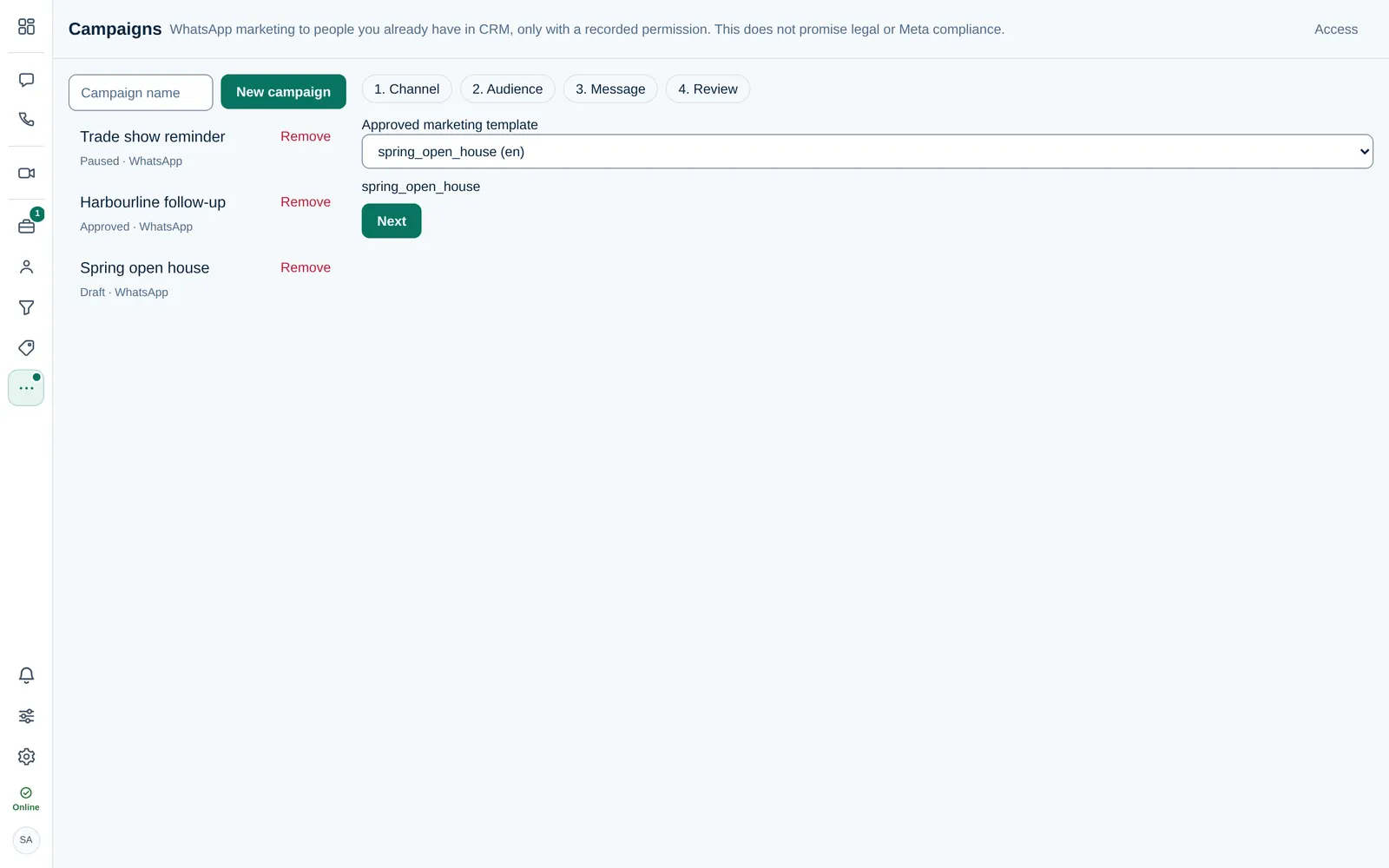
Choose an Approved marketing template from the list (name and language). Dromix maps template variables to lead fields such as the contact name. The chosen name is shown under the list. Select Next. Next stays off until a template is chosen.
4. Review
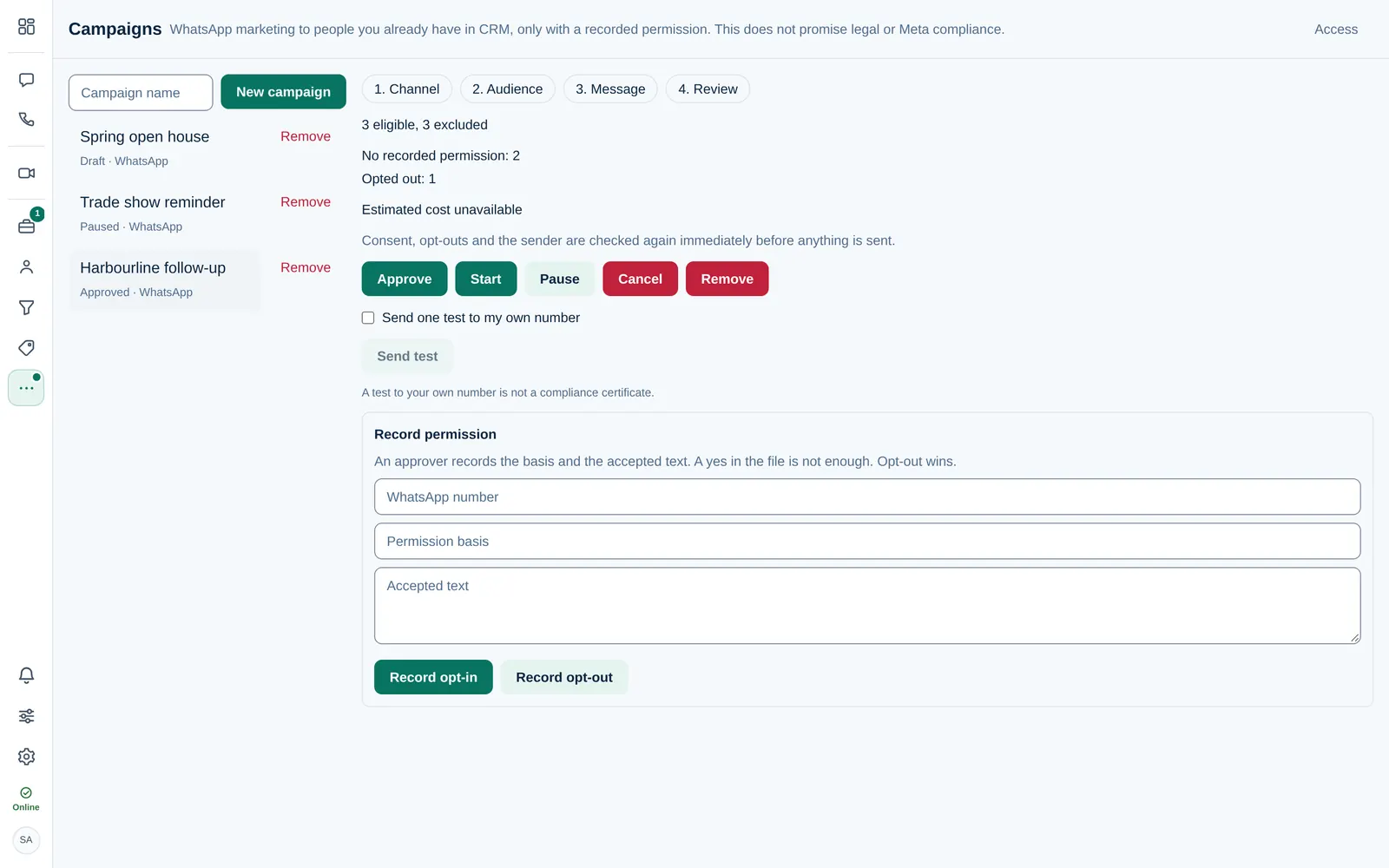
The summary shows how many recipients are eligible and excluded, with reasons (no consent, opted out, invalid number, duplicate, and so on). Meta bills template messages to your WhatsApp account. An estimated cost appears when a price is available; otherwise the line says the estimate is unavailable.
Workflow:
- Someone with Prepare finishes steps 1–3.
- Someone with Approve and send selects Approve (locks the campaign for sending). Approve is available from a draft that has eligible recipients and a marketing template.
- Optionally tick Send one test to my own number, confirm, and Send test (only your own number). A test is not a compliance certificate.
- Select Start. Sending runs in batches while the campaign is Running. You can Pause or Cancel. Remove deletes a campaign that is not running.
While a campaign runs, keep the page open or return later; the server also dispatches about once a minute until the queue finishes or you pause.
Record permission
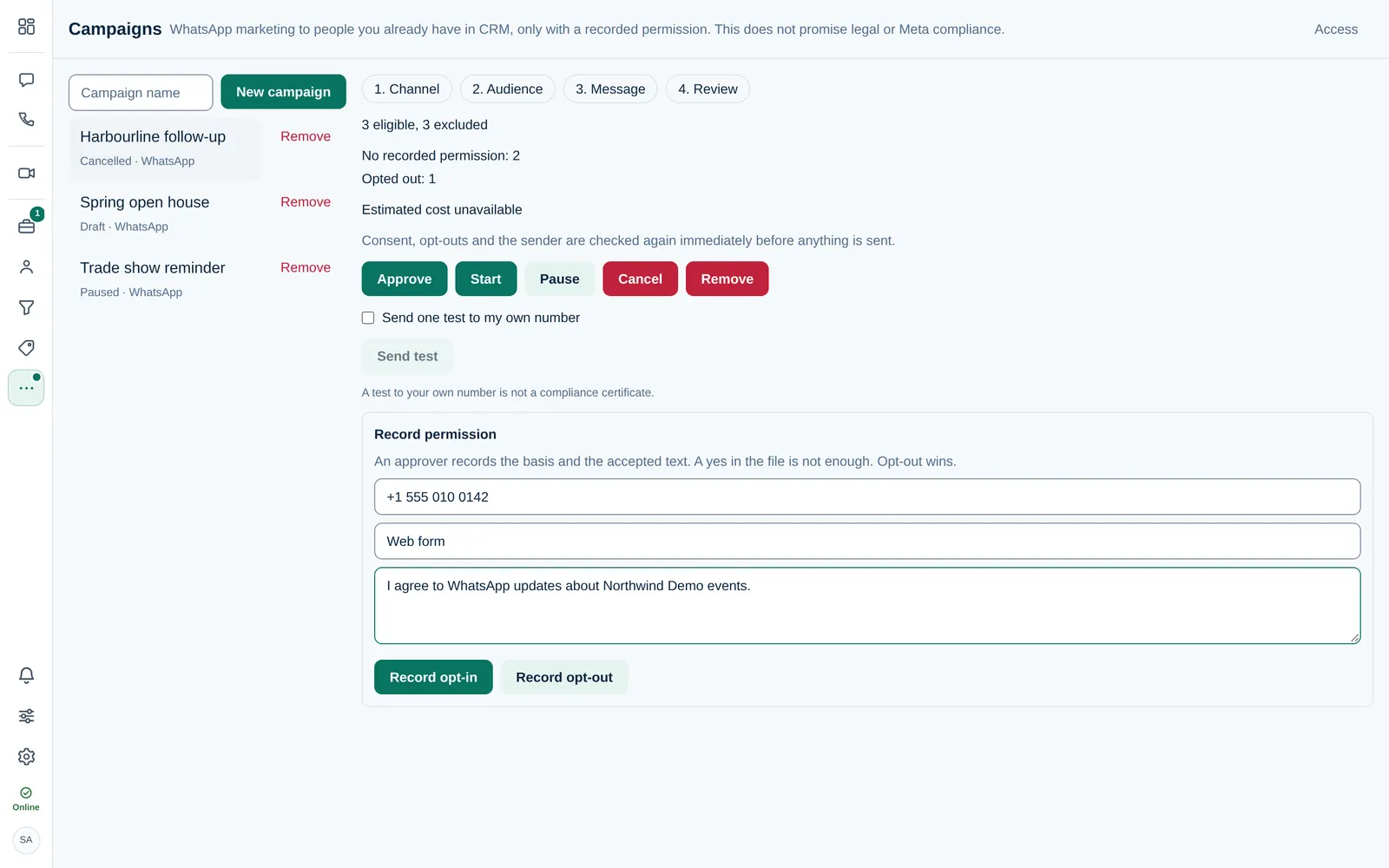
On Review, under Record permission, an approver enters the WhatsApp number, Permission basis (for example web form, written contract) and Accepted text, then Record opt-in or Record opt-out. Opt-out always wins over a file or an old opt-in. The picture shows the fields filled with demo text; select a button to save.
Clean up
Select Remove on a row, or inside a campaign that is not Running. Confirm the name. Cancel or pause a running campaign first; Remove is refused while it is running.
Related reading
- Answer WhatsApp customers — one-to-one chats and the 24-hour window.
- Import and export CRM data — CSV columns and CRM import rules.