
Contacts list and contact card
Find customers and prospects in Contacts, add or edit a contact, follow their pipeline journey, and archive, merge or delete records.
Who can use this
OwnerCompany adminHRDepartment managerMemberRequirements
- CRM access (department, personal grant or channel)
Contacts holds your customers and prospects. Colleagues are not here: they stay in the Directory and Favorites. Guest Guests do not have Contacts.
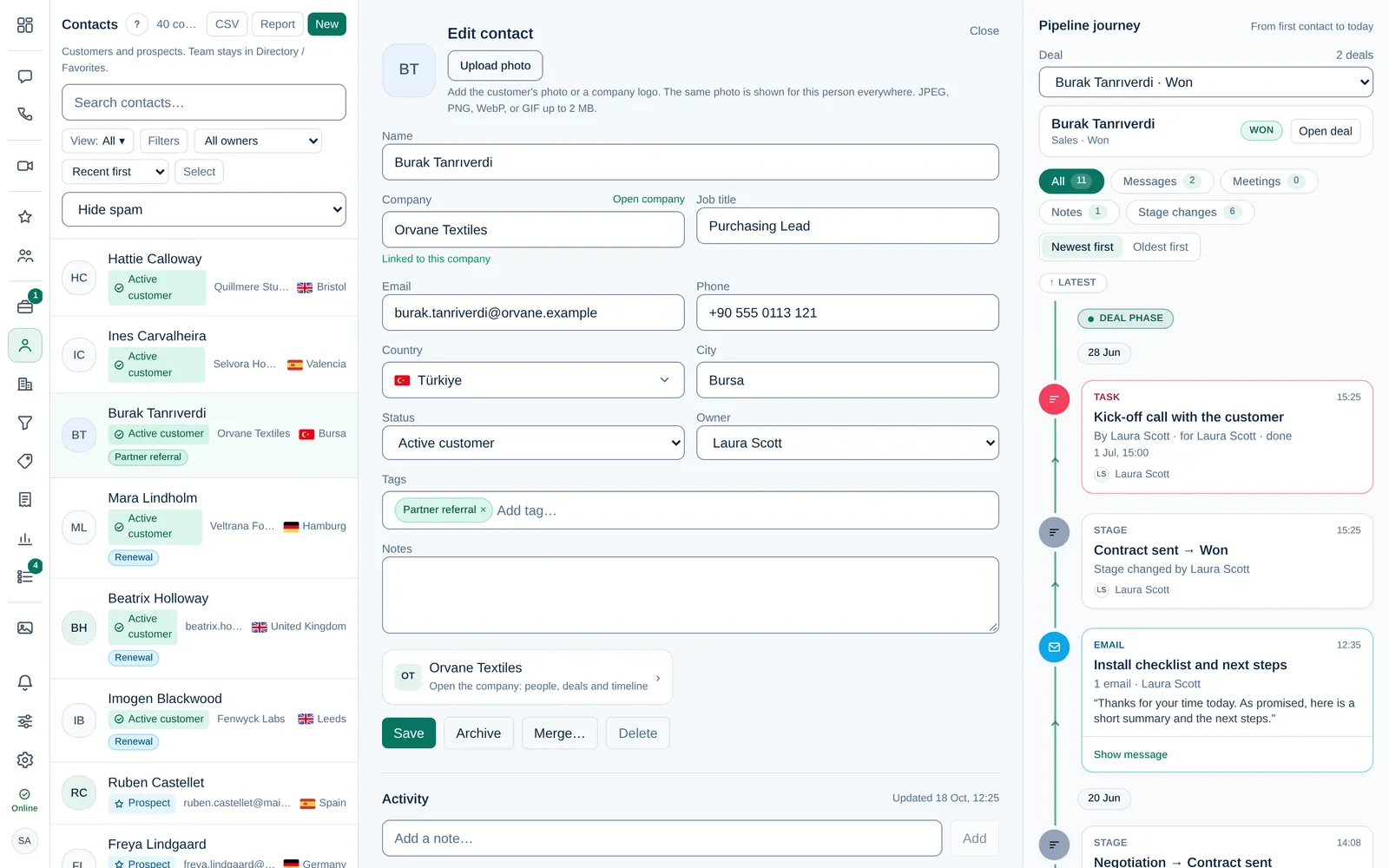
Find a contact
Contacts appear automatically when a customer messages a connected channel, and when you add one yourself.
- Type in Search contacts… to find a contact.
- Filter by Owner (All owners, a person, or Unassigned).
- Choose Hide spam, All statuses or Archived.
- Sort by Recent first, Name A–Z or Company A–Z.
- + Add field filter… filters by tags and your company's custom fields.
Add or edit a contact
- Select New, or select a contact in the list: its card opens as Edit contact.
- Fill in the Name and, if you know them, the company, Job title, Email, Phone, country and city.
- Choose a Status: Prospect, Active customer, Former customer or Spam / unsuitable.
- Choose the Owner and add Notes. More fields shows your company's custom fields.
- Select Create or Save.
Typing a company that does not exist yet creates it. If the email address belongs to a company domain that is already known, Dromix links the contact to that company.
If the person already exists, Dromix says This person is already a contact — opened the existing record.
The contact card
The card shows the contact's details, their Activity (messages, calls, meetings and notes) and the Pipeline journey From first contact to today: the leads and deals they went through. Write in Add a note… to leave a note for the team.
Duplicates, archive and delete
| Action | Who | What happens |
|---|---|---|
| Archive / Restore | Everyone with CRM access | Hidden from the list (find it under Archived); nothing is lost |
| Merge… | Owner Company admin | Combines two records of the same person. When Dromix shows Possible duplicate, select Review & merge |
| Delete | Owner Company admin | Removes the contact, its photo and timeline for good. Linked leads, deals and chats stay but lose the link |
Deleting cannot be undone. Archive the contact instead if you might need the history again.
Report at the top opens the sales reports. See Sales reports.