
Request types and approval chains
Choose which approvals and requests people can send, design the fields of each form, and decide who approves, in which order and above which amounts.
Who can use this
OwnerCompany adminRequirements
None beyond the role
Request types are the forms people see under New in My work. Routing decides who approves them. Both are in Company admin → Work → Work settings.
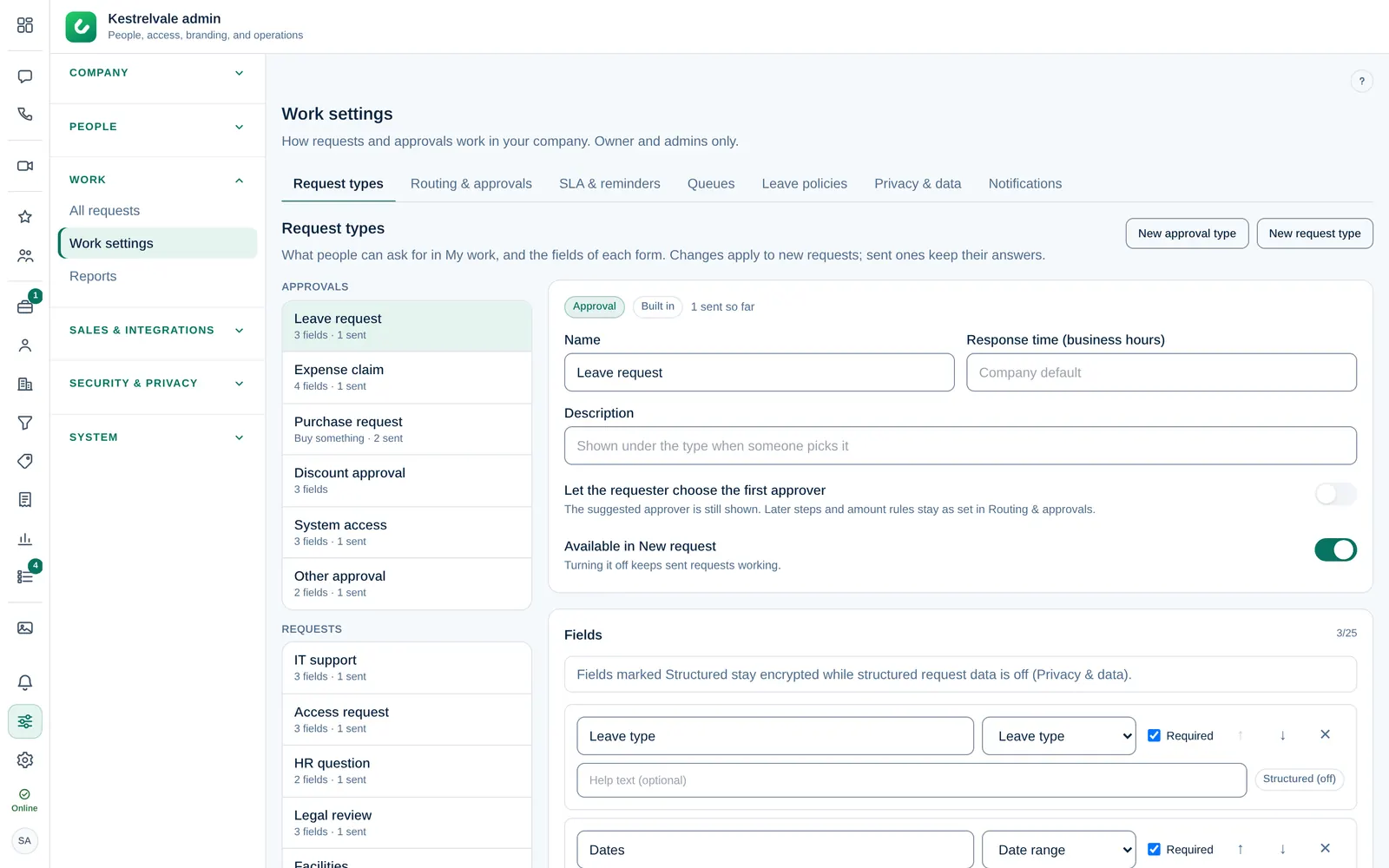
Request types
Open Request types. The list has two groups: Approvals (for example Leave request, Expense claim, Discount approval) and Requests (for example IT support, HR question, Facilities). Types that came with Dromix are marked Built in; your own are marked Custom.
To add one, select New approval type or New request type, then fill in:
- Name and Description (shown under the type when someone picks it).
- Response time (business hours): leave it on Company default or set a target for this type.
- For a request, Goes to queue: the department queue that answers it. See Department queues.
- For an approval, Let the requester choose the first approver. Later steps still follow the routing.
- Available in New request: turn it off to hide the type. Sent requests keep working.
Changes apply to new requests; sent ones keep their answers. Select Save.
The purchase form is fixed by Procurement (product, quantity, budget, needed by). Only its approval steps can be changed, under Routing & approvals.
Fields
Under Fields, select Add field and set the Field name, the Field type (Text, Long text, Number, Amount, Date, Date range, a selection list, Leave type or Attachment) and whether it is Required. A selection list needs Options, one per line. Help text (optional) appears under the field. Use Move up and Move down to reorder.
Also use as lets the server read a field for rules and reports, for example Category (rules, reports) or Urgency (response time). This needs structured request data in Work settings; otherwise choose Nothing (stays encrypted).
Delete type removes a custom type that nobody has used yet. Built-in types and types already in use can only be turned off.
Routing & approvals
Open Routing & approvals and pick the Approval type.
- Standard route: the requester's manager, else an admin (leave goes to the manager, then HR).
- Custom steps: select + Add step and choose each approver by Role, Department, Person or Queue. Steps run in order.
To add steps for larger or special requests, select Add rule under Extra steps when…. Set Amount from, Up to, Currency, Category or Urgency, then the steps under Then also. Every matching rule adds its steps after the ones above. "From" counts, "up to" does not: from 1,000 up to 5,000 means 1,000.00–4,999.99.
Under Preview, choose Requested by and an Amount, then Show who decides to check the chain before you save.
Thresholds need structured request data. While it is off, only the steps without conditions are used.