
Your first 10 minutes
Set up your profile and notifications, say hello, join a meeting and find your work, in six short steps.
Who can use this
HRDepartment managerMemberRequirements
None beyond the role
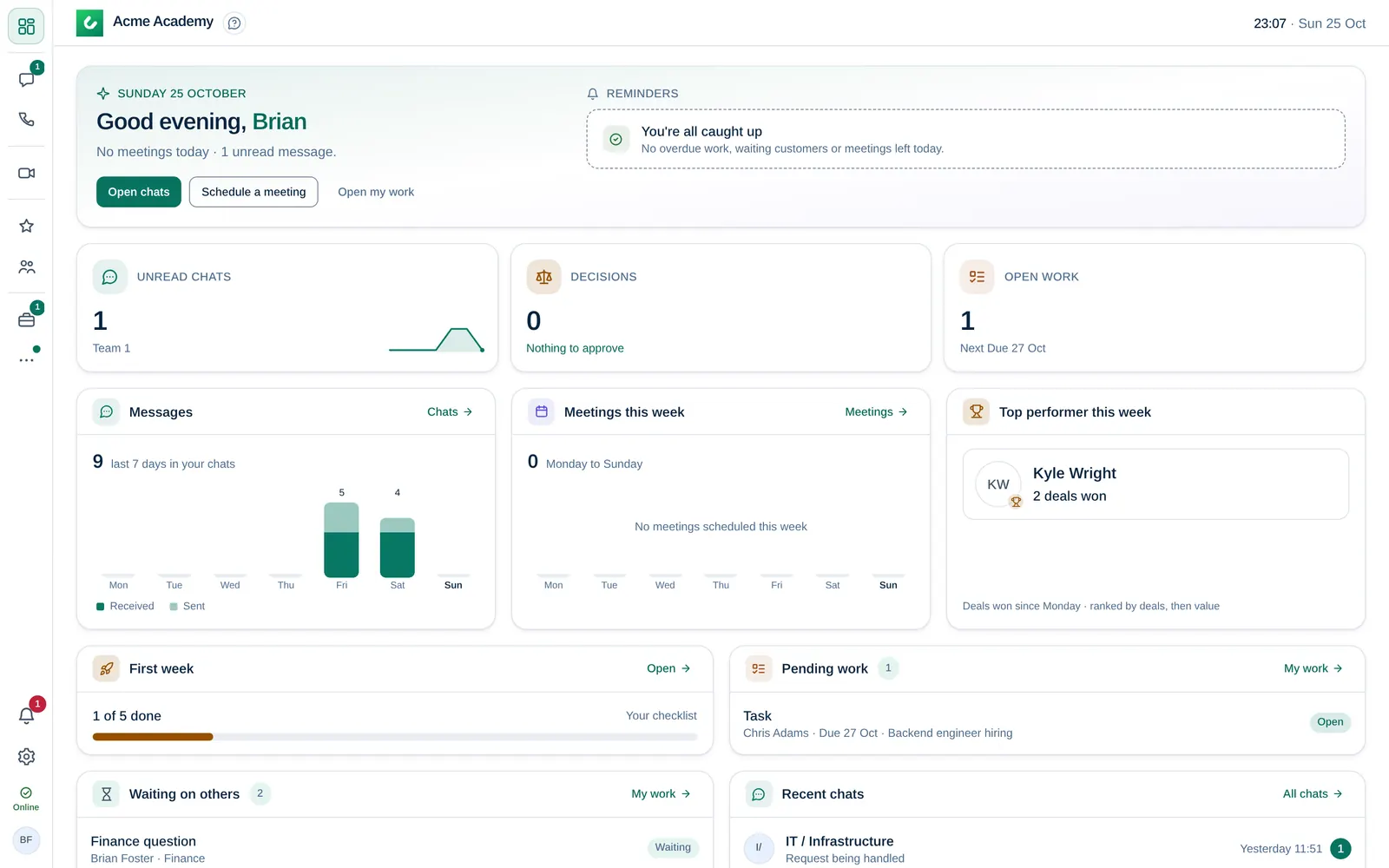
You have signed in and see the Dashboard. These six steps get you ready for your first day.
1. Add your photo and status
- Select your picture at the bottom of the left rail to open the account menu.
- Choose Profile and select Add photo, so colleagues recognise you in chats and meetings.
- Select the status button just above your picture and choose how you are doing right now, for example Available, Busy, Do not disturb or Away.
2. Turn on notifications
- Open the Settings menu (the gear icon at the bottom of the left rail) and choose Enable notifications and allow them when the browser asks.
- Notification settings, in the same menu, lets you decide which messages, mentions and requests notify you.
On Windows you can also install the desktop app from the Settings menu (Download Windows app). Chats already update live in the browser.
3. Say hello
- Open Chats and select + → New message.
- Pick a colleague from the directory and write your first message.
Start a chat or a channel shows group channels and announcements too.
4. Join a meeting
Open Meetings. The Main office room is always open: select it and join to talk to whoever is there. Meetings you are invited to also show up in this list. See Schedule and join a meeting.
5. Find your work
Open My work. Needs you lists approvals, requests and tasks waiting for you; Waiting lists what you sent that is still open. Use New to ask for time off, claim an expense or send a request to IT, HR and other teams. See Send a request or ask for approval.
6. Finish your first-week checklist
If your company prepared an onboarding checklist, Your first week appears in the More menu (three dots) of the left rail and as a card on the Dashboard. Tick off the steps as you go.
Do you work with customers? If your department has CRM accessCRM access Permission to open Leads, Contacts, Companies and the Deals board. Owners and Company admins always have it; other people get it through their department, a personal grant, or access to a messaging channel., you also see Leads, Contacts and Deals. Continue with Your first 10 minutes in sales.