
Attendance and the people map
See who clocked in and out each day, with GPS and server time, and where people last were online on the company map.
Who can use this
OwnerCompany adminRequirements
- Time clock switched on
When your company uses the time clock, the Owner and Company admins can see the results in two places: Attendance and the Map.
Attendance
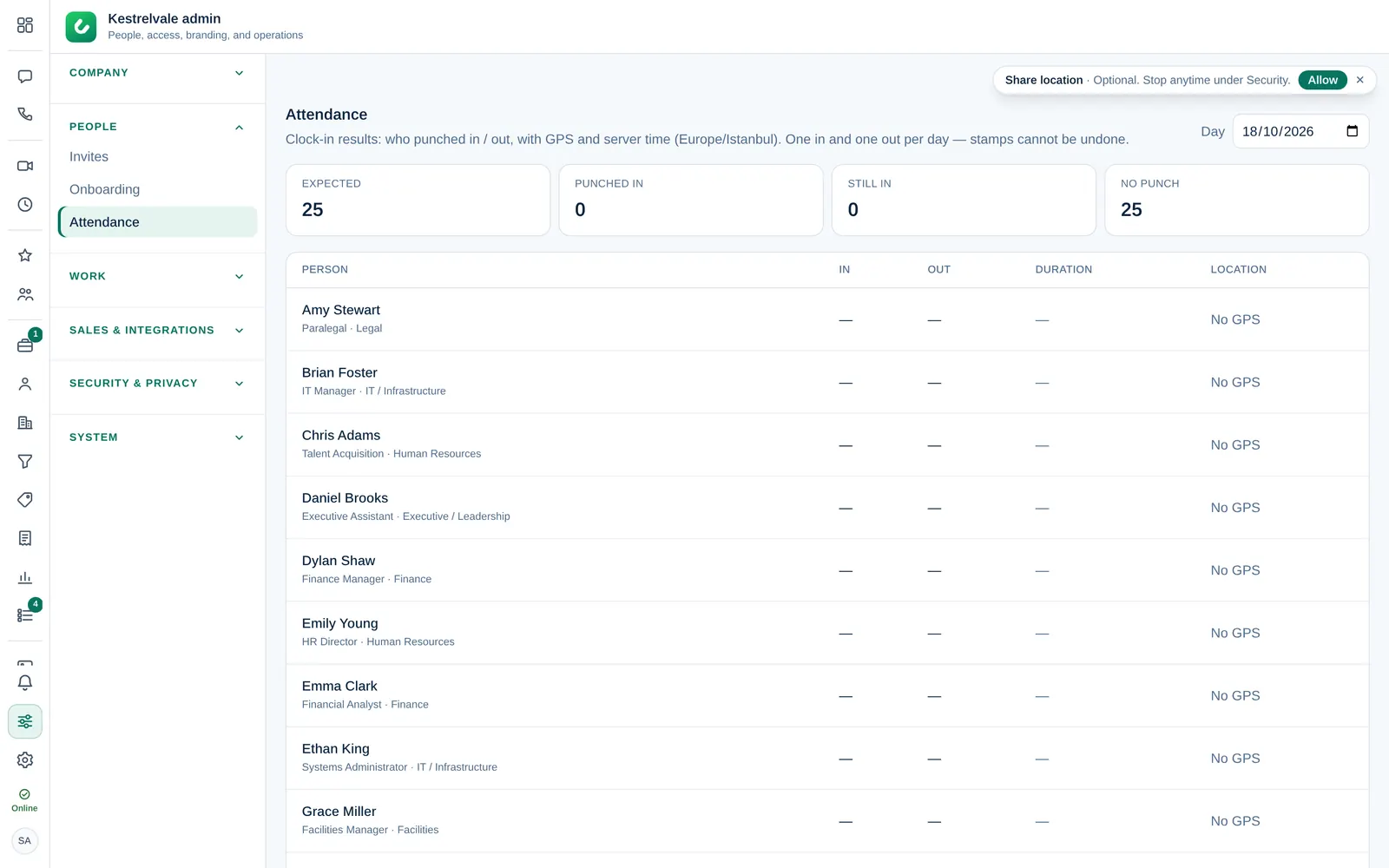
Open Company admin → People → Attendance. It shows the clock-in results for a day: who punched in and out, with GPS and the server time. Each person has one in and one out per day, and stamps cannot be undone.
At the top, four counters sum up the day:
- Expected: people who should clock in;
- Punched in: people who clocked in;
- Still in: people who clocked in but not out yet;
- No punch: people with no stamp yet.
Select Show punch log to see each stamp, with Person, In, Out, Duration and Location. A stamp without location shows No GPS. Hide punch log closes the list again.
If the time clock is turned off, nobody can clock in, but earlier records stay visible. Turn it on in Company admin → Company → Settings → Time clock & location.
The people map
Open Company admin → Company → Map. The tab appears only while the time clock is on.
- Green is online; orange is the last place a person was online. The counters show Online · {count} and Last location · {count}.
- Use Search people to find someone.
- No location yet or Browser location not shared means the person's browser has not sent a location.
Location is only sent while Dromix is open and the browser allows it. Dromix does not track people in the background.
Location data is personal data. Tell your team why you use the time clock and the map, as your local law requires.