
Your first 10 minutes in HR
What HR can do in Dromix from day one, from approving leave and checking who is away to the staff directory and company announcements.
Who can use this
HRRequirements
None beyond the role
As HR, you see more about people than a Member, but you do not have the Company admin console. These five steps show where your HR work lives.
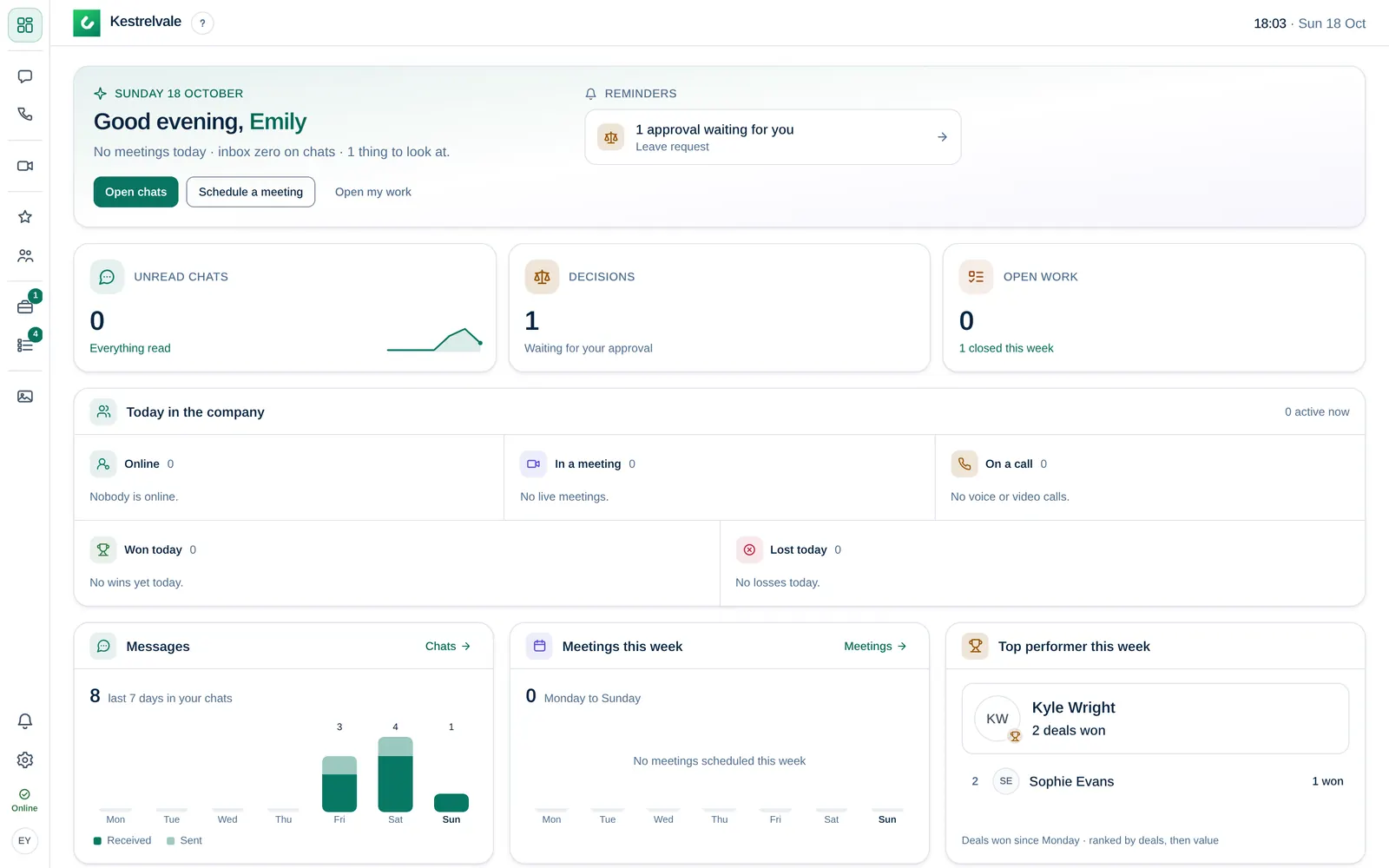
1. Check today in the company
On the Dashboard, Today in the company shows who is online, in a meeting or on a call. See Your dashboard.
2. Decide leave and HR requests
Leave requests go to the person's manager first. When nobody is set as their manager and there is no department manager, they come to HR. Open My work → Needs you to decide them. See Approve or reject a request.
Requests of the type HR question go to the Human Resources department, or to HR when there is no such department. You find them under Team; select Claim to take one.
3. See who is away
Open My work → Time off. Under Who's away, switch to Everyone. HR also sees the kind of leave, for example sick leave or holiday. See Request time off.
4. Use the staff directory
In the Directory, HR sees phone numbers, employee IDs and email addresses of everyone. Other Members only see names, titles and departments.
5. Post an announcement
HR can create announcement channels and post in them, for example for a new policy, and ask everyone to acknowledge it. See Post an announcement and ask for acknowledgement.
Roles, leave policies, onboarding checklists, departments and job titles are set up by the Owner or a Company admin in the admin console. Only they can change someone's role.