
Choose your notifications
Turn on browser and phone notifications, choose what reaches you in the app, by push or by email, and set your own quiet hours.
Who can use this
OwnerCompany adminHRDepartment managerMemberGuestRequirements
None beyond the role
Dromix can notify you in three ways: in the app (the bell), by push on your computer or phone, and by email.
Turn on notifications
- Open Settings in the left rail (on a phone, the account menu).
- Choose Enable notifications and allow them when the browser asks.
It then shows Notifications on. If it shows Notifications blocked, allow notifications for Dromix in your browser settings.
Choose what reaches you
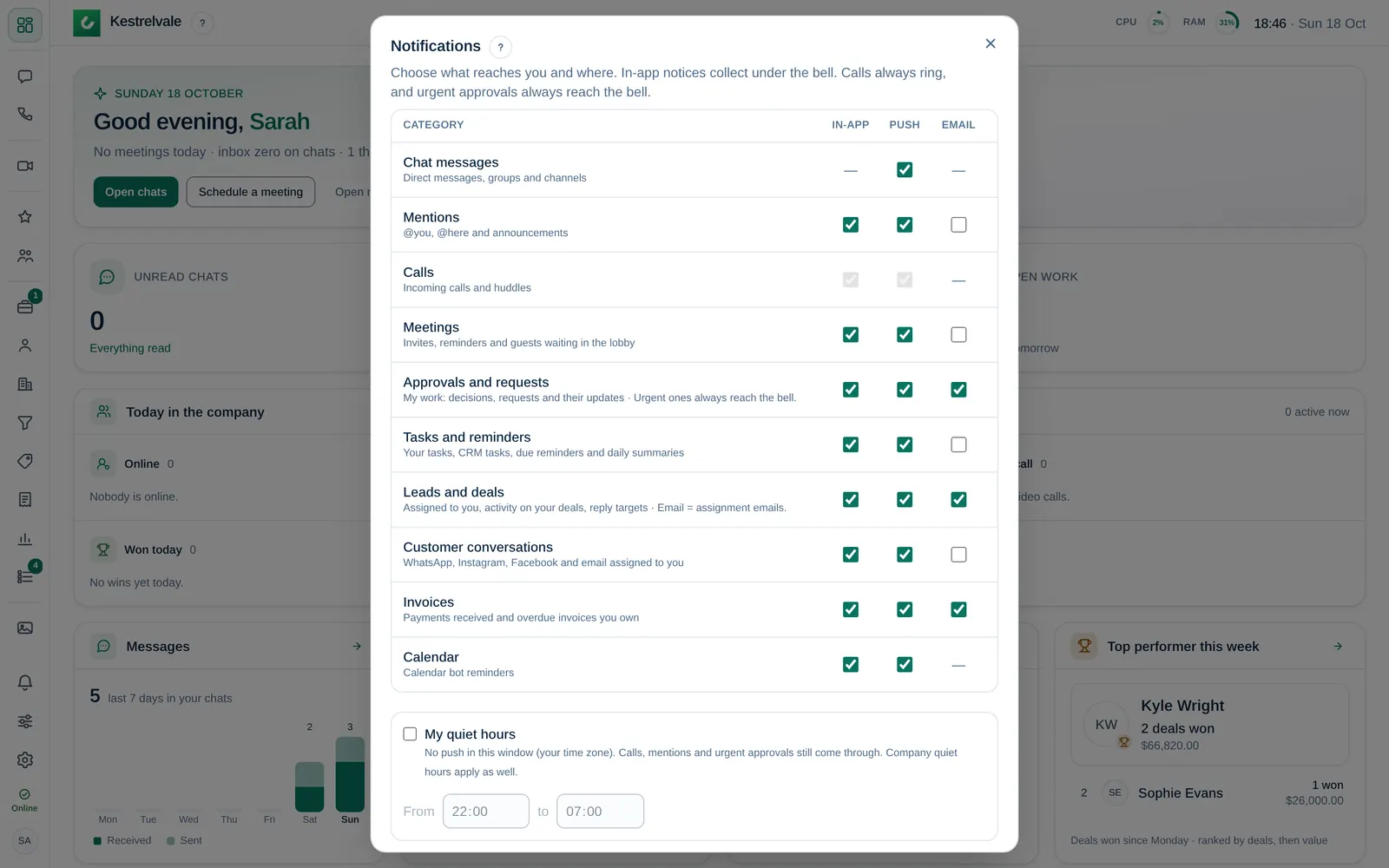
Open Settings → Notification settings (or the gear in the bell). For each category, choose In-app, Push and Email:
| Category | What it covers |
|---|---|
| Chat messages | Direct messages, groups and channels |
| Mentions | @you, @here and announcements |
| Calls | Incoming calls and huddles |
| Meetings | Invites, reminders and guests waiting in the lobby |
| Approvals and requests | My work: decisions, requests and their updates |
| Tasks and reminders | Your tasks, CRM tasks, due reminders and daily summaries |
| Leads and deals | Assigned to you, activity on your deals, reply targets |
| Customer conversations | WhatsApp, Instagram, Facebook and email assigned to you |
| Invoices | Payments received and overdue invoices you own |
| Calendar | Calendar bot reminders |
Some cells are Always on. Calls always ring, and urgent approvals always reach the bell. Reset to defaults restores the original settings.
Your quiet hours
Tick My quiet hours and set the times under From and to. In this window you get no push, in your own time zone. Calls, mentions and urgent approvals still come through. Your company's quiet hours apply as well.
To silence just one chat, mute it from its menu: for 1 hour, for 8 hours or until you turn it back on.
Phones
On an iPhone, notifications need iOS 16.4 or later and Dromix on the Home Screen:
- Open Dromix in Safari, select Share → Add to Home Screen.
- Open Dromix from that icon and turn notifications on there.
Calls only ring while Dromix is closed if you set it up this way. On Android, allow notifications when the browser asks.
Sounds
Settings → Sounds and ringtones lets you choose the sounds for voice calls, video calls, chat messages, meeting invitations and calendar notifications.