
Contracts and e-signatures
Prepare a contract from the accepted proposal, send it for signing online, remind the customer, countersign and download the signed PDF.
Who can use this
OwnerCompany adminHRDepartment managerMemberRequirements
- Owner or observer of the deal
When the customer has accepted your proposal, you send them the contract to sign online. Dromix records the signature and gives both sides a signed PDF.
Create the contract
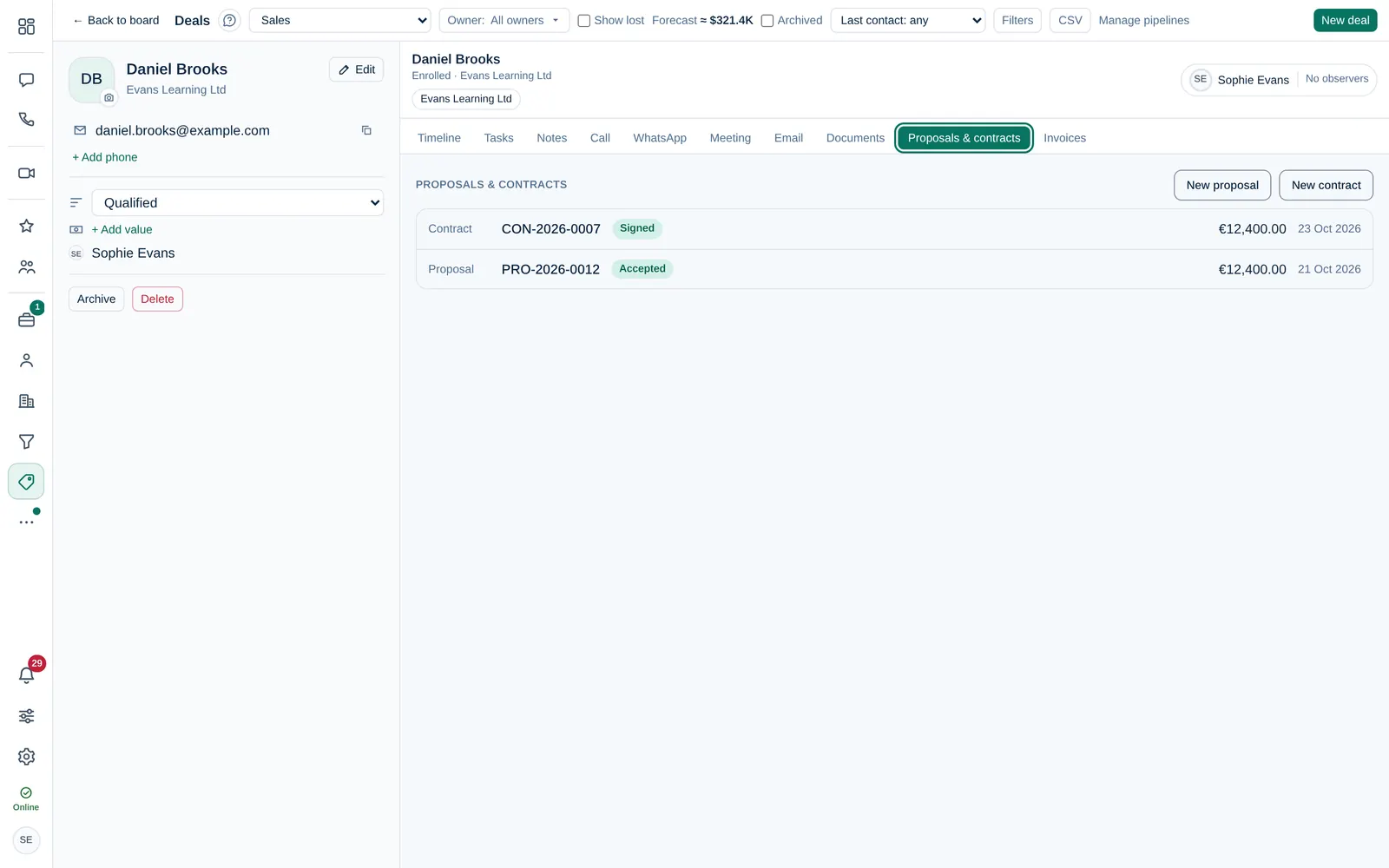
- Open the deal and choose the Proposals & contracts tab.
- Under Proposals & contracts, select New contract.
- Choose a Template and select Create draft.
Prices and line items come from the accepted proposal. With no accepted proposal, they come from the last proposal or from the deal value. Edit the draft like a proposal and select Save draft.
With the sales flow, Dromix prepares the contract for you when the customer accepts the proposal.
Send it for signing
- Select Continue to send.
- Check From, To, Subject and Message.
- Select Send contract and confirm.
The customer gets a link to the signing page. Sent from a mailbox, the PDF is attached too.
How the customer signs
On the signing page, the customer reads the agreement, enters their Full name and Email, and signs by typing their name (Type) or drawing it (Draw). Then they select Sign agreement.
Dromix records their name, email, IP address, browser and the time, with a SHA-256 fingerprint of the document. The customer gets the signed PDF with an audit certificate by email.
Digital seal on the signed PDF
Every signed PDF also carries a digital seal (a PAdES signature) and, when the timestamp service answers, a trusted timestamp. Open the PDF in a reader such as Adobe Acrobat and look at the signature panel: it shows that the document has not been modified since it was sealed. The audit certificate lists the seal and its SHA-256 fingerprint.
By default, Dromix seals with your installation's own certificate. Readers show its identity as not verified, which is expected: the seal proves that the file is unchanged, not who you are. Owner and Company admin can upload the company's own certificate (.p12 or .pfx) in Company admin → Sales & integrations → Document seal; PDFs are then sealed in your company's name.
The seal is integrity proof. It is not a qualified electronic seal unless the certificate comes from a qualified trust service provider. If the timestamp service cannot be reached, the PDF is sealed without a timestamp and signing goes ahead.
After signing
- Activity shows Signed, and Signed PDF downloads the signed copy.
- If your company countersigns, select Countersign; your signature is added to the PDF.
- With the sales flow, the deal moves to Won with the signed PDF attached.
Not signed yet? Select Send reminder. With the sales flow, Dromix also reminds the customer after the number of days your company set.
Void withdraws a contract. The customer's link stops working, and this cannot be undone.