
Logo, email signature and brand color
Upload your company logo, set up the email signature everyone sends with, and on Business and Enterprise use your own brand color.
Who can use this
OwnerCompany adminRequirements
None beyond the role
Your logo and colors appear in Dromix, on invoices and proposals, and in the emails your team sends. All of this is on Company admin → Company → Settings → General.
Upload your logo
- Under Logo, choose an image file (PNG, JPEG, WebP or GIF).
- Dromix uploads it immediately and shows Logo updated.
The logo is available on every plan.
Set up the email signature
Under Email signature, turn On to add a signature under every team member's name in emails sent from Dromix: from the email inbox, from deals, stage emails and meeting invites. It is built from your company profile.
- Closing line, for example Best regards,.
- Link and divider color: empty uses your brand color.
- Choose whether to show the Logo, Company phone and Address.
- Custom HTML (optional): replaces the company part with your own design. Use inline styles and https image links; scripts, forms and unsafe links are removed when you save.
Select Save at the bottom of the tab.
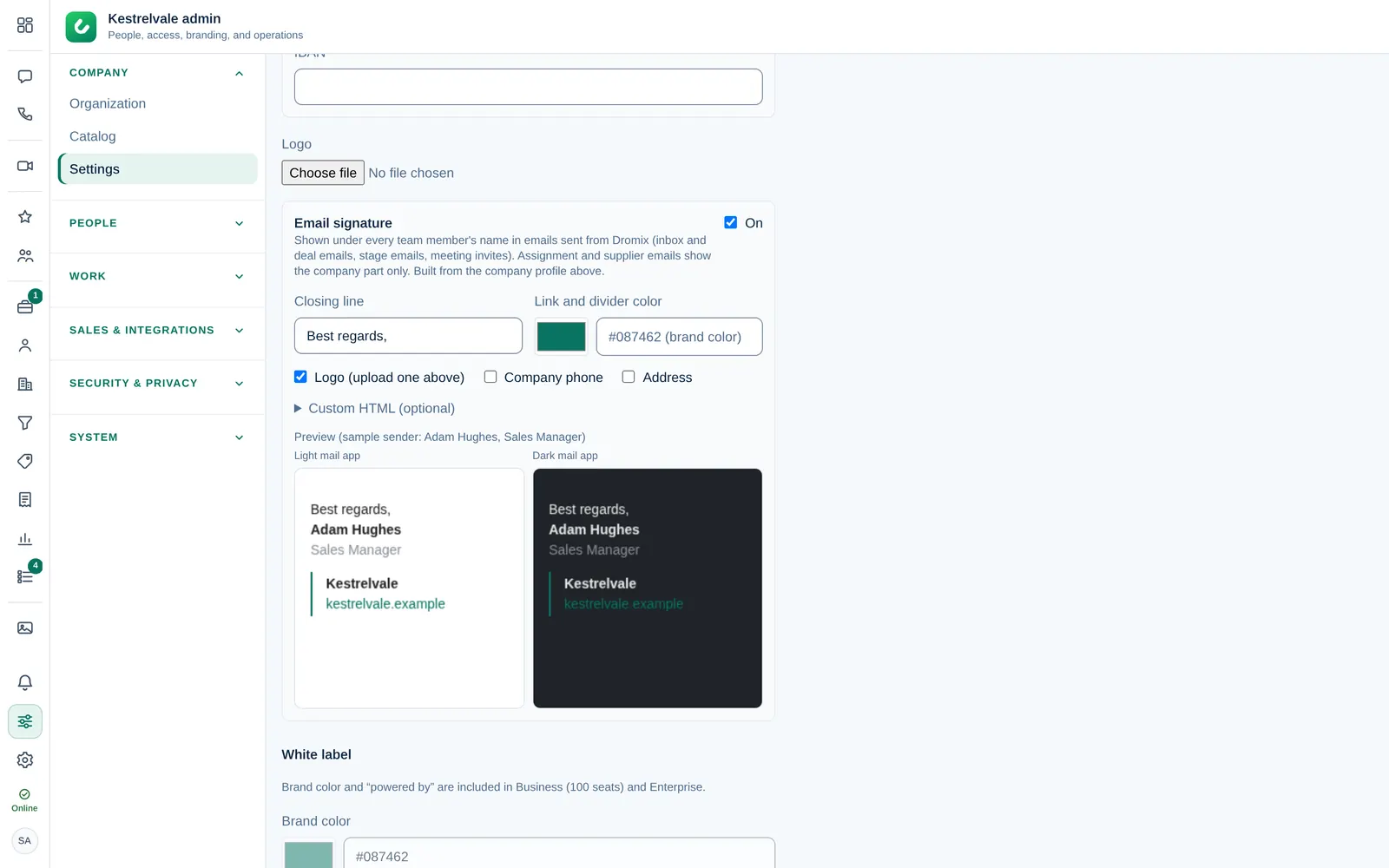
If the logo does not show in emails, ask Dromix support (support@dromix.net) to check the server's public address (APP_URL).
Brand color and "Powered by"
Under White label:
- Brand color: the accent color in Dromix, on the guest meeting page and on the invoice payment page.
- Show "Powered by Dromix" when the company name is customized: turn it off to hide the Dromix name.
These two options are part of the Business and Enterprise plans. On Starter they are greyed out. See Your license and seats.
Brands on documents and public pages
Proposals, contracts, invoices and the customer pages (proposal, signing, payment, booking and document upload) show the brand of the deal's pipeline: its name, logo and color, and the address, contact details, footer and Terms and Privacy links you set for it. Deals of company pipelines show the company.
To set them, open the brand in the setup wizard's Brands step, select Edit and open Documents & public pages:
- Identity on documents: Address, City, Country, Contact email, Phone, Terms link, Privacy link, Document footer and Default invoice notes. Empty fields use the company's details, shown in grey. Select Save identity.
- Brand defaults: the proposal and contract template, default products and booking settings the brand's pipelines inherit. A pipeline can override each one on its General tab.
The legal name and tax ID on invoices stay the company's. Documents created before 1.0.122 keep their stored PDF.