
Password and authenticator app
Change or reset your password with a recovery key, turn on an authenticator app for two-step sign-in, sign out other devices and download your data.
Who can use this
OwnerCompany adminHRDepartment managerMemberGuestRequirements
None beyond the role
Your password and your authenticator app protect your account and your encrypted message history.
Change your password
- Open the account menu and choose Change password.
- Enter your Current password.
- Enter a New password with at least 10 characters. It must differ from the current one.
- Select Save password. You see Password changed.
Your password also locks the key that protects your chats and private notes. When you change the password, this key is locked again with the new password in your browser, so keep the old password until you see Password changed. Nobody else can read your messages for you.
Key still locked with an earlier password
If you changed your password before this was fixed, signing in may stop after the authenticator code with Your encryption key is still locked with an earlier password. Your new password was accepted; only the key still needs the old one.
- In Previous password, enter the password you used before the change.
- Select Unlock and update the key. The previous password is used only in your browser. The key is then locked with your current password, and you are signed in.
- Next time, sign in as usual with your current password.
If that password does not work either, try other passwords you used before. If your account has a recovery key created with version 1.0.132 or later, select Use recovery key instead, paste the key and select Unlock and update the key: the recovery key is used only in your browser. Older recovery keys cannot unlock the key. If none of this works, ask your administrator before you do anything else: new keys would make earlier encrypted messages unreadable.
Recovery key
The recovery key lets you set a new password if you forget the old one, without losing your chats and encrypted notes. New accounts get one when they are created.
Accounts created before version 1.0.132 only have a recovery key that was stored for checking; it cannot unlock anything. The Account and security page then shows You don't have a working recovery key yet. To create one:
- Open the account menu and choose Account and security.
- Under Recovery key, select Create a recovery key.
- Enter your Current password and select Create a recovery key.
- Select Copy recovery key or Download as file and store the key offline. It is shown only once.
- Tick I saved this recovery key somewhere safe and select Done.
You then see Your recovery key works. with the date. To replace it, select Create a new recovery key: the previous recovery key stops working at once.
Forgot your password
- On the sign-in page, select Forgot password? Use your recovery key.
- Enter your Email and your Recovery key. If the authenticator app is on for your account, also enter its code or a backup code.
- Select Continue. Your encryption key is opened in your browser with the recovery key.
- Enter a New password twice and select Save new password.
- Dromix shows a new recovery key; the one you just used stops working. Save it, tick I saved this recovery key somewhere safe and select I saved it — back to sign in.
- Sign in with your new password. The authenticator app stays on.
All your devices are signed out, and your earlier messages stay readable. After several wrong attempts you have to wait a few minutes. Without a working recovery key, ask your Company admin.
Turn on the authenticator app
- Open the account menu and choose Account and security.
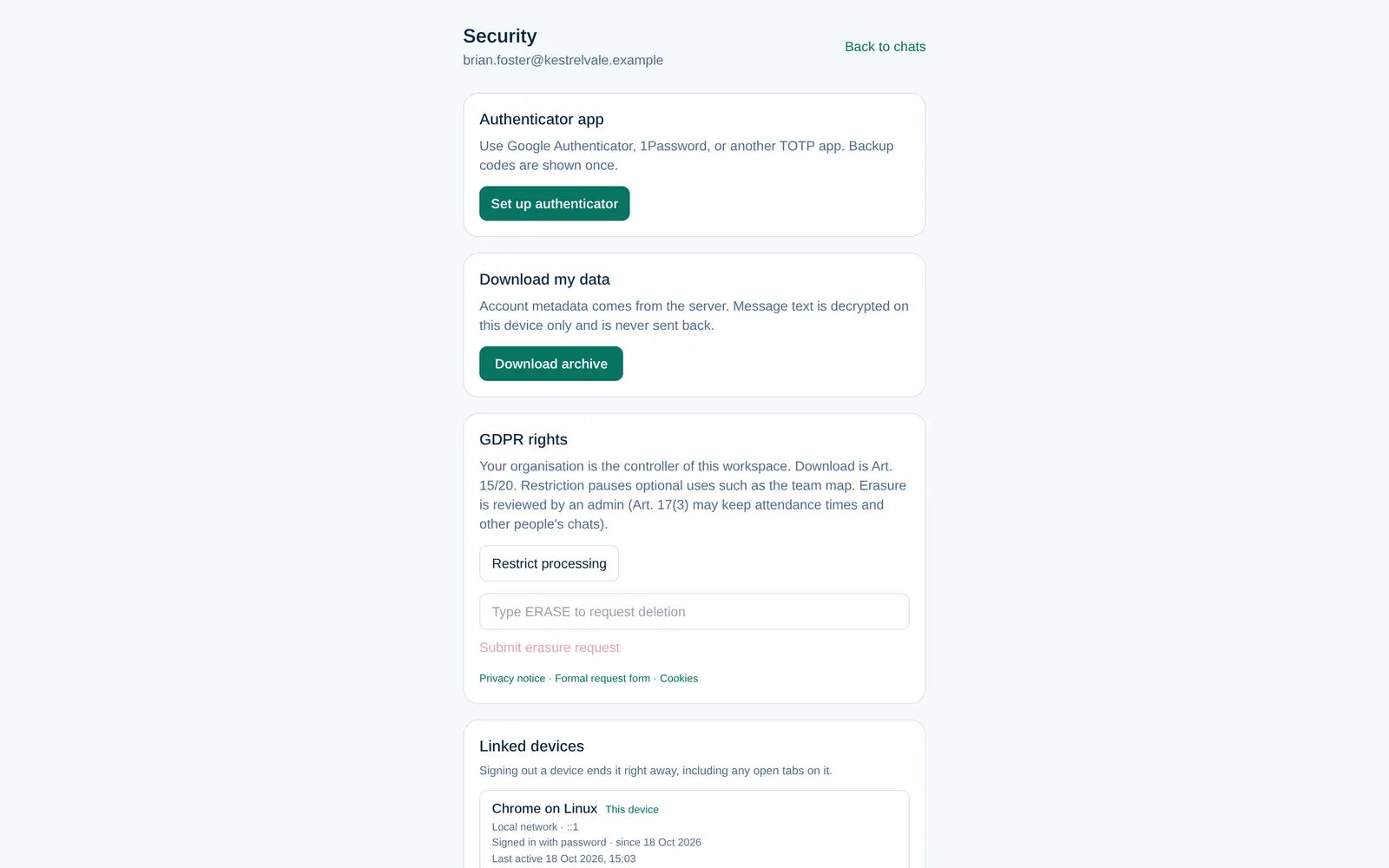
- Under Authenticator app, select Set up authenticator.
- Scan the QR code with Google Authenticator, 1Password or another TOTP app.
- Enter the 6-digit code and select Enable.
- Save these backup codes now. They are shown only once. Each code lets you sign in if you lose your phone.
You then see Authenticator is on. Sign in again to unlock your chats. From now on, Dromix asks for a code from the app when you sign in.
If your company requires it, you see Your company requires an authenticator app before you can use Dromix. and cannot turn it off.
To turn it off, enter your password and a code and select Disable authenticator.
Linked devices
Under Linked devices you see where you are signed in. Sign out one device, or select Sign out all other devices. Signing out a device ends it right away, including any open tabs on it.
Link a device signs in another computer by scanning a QR code with your phone, if your company allows it.
Your data
Under GDPR rights you can:
- Download my data: an archive of your account data. Message text is decrypted on your device only.
- Restrict processing or Lift restriction.
- Stop map location, if your company uses the time clock.
- Request erasure: type ERASE and select Submit erasure request.
Your company is the controller of this workspace and decides on these requests.