
Companies
Group a customer's people, deals and leads under one company, add a logo and notes, and link new contacts automatically by email domain.
Who can use this
OwnerCompany adminHRDepartment managerMemberRequirements
- CRM access (department, personal grant or channel)
A company groups the people, deals and leads you have with one organisation. Guest Guests do not have Companies.
Create a company
- Open Companies and select New.
- Enter the Company name, Website, Email domain and Phone.
- Choose an owner and add notes if you like.
- Select Create company.
You can also just type a company on a contact or deal: Dromix creates it for you. If a company with this name already exists, Dromix opens it instead.
Set the Email domain, for example acme.com. New contacts with this email domain are linked to the company automatically. Free mail domains such as gmail.com do not count.
The company page
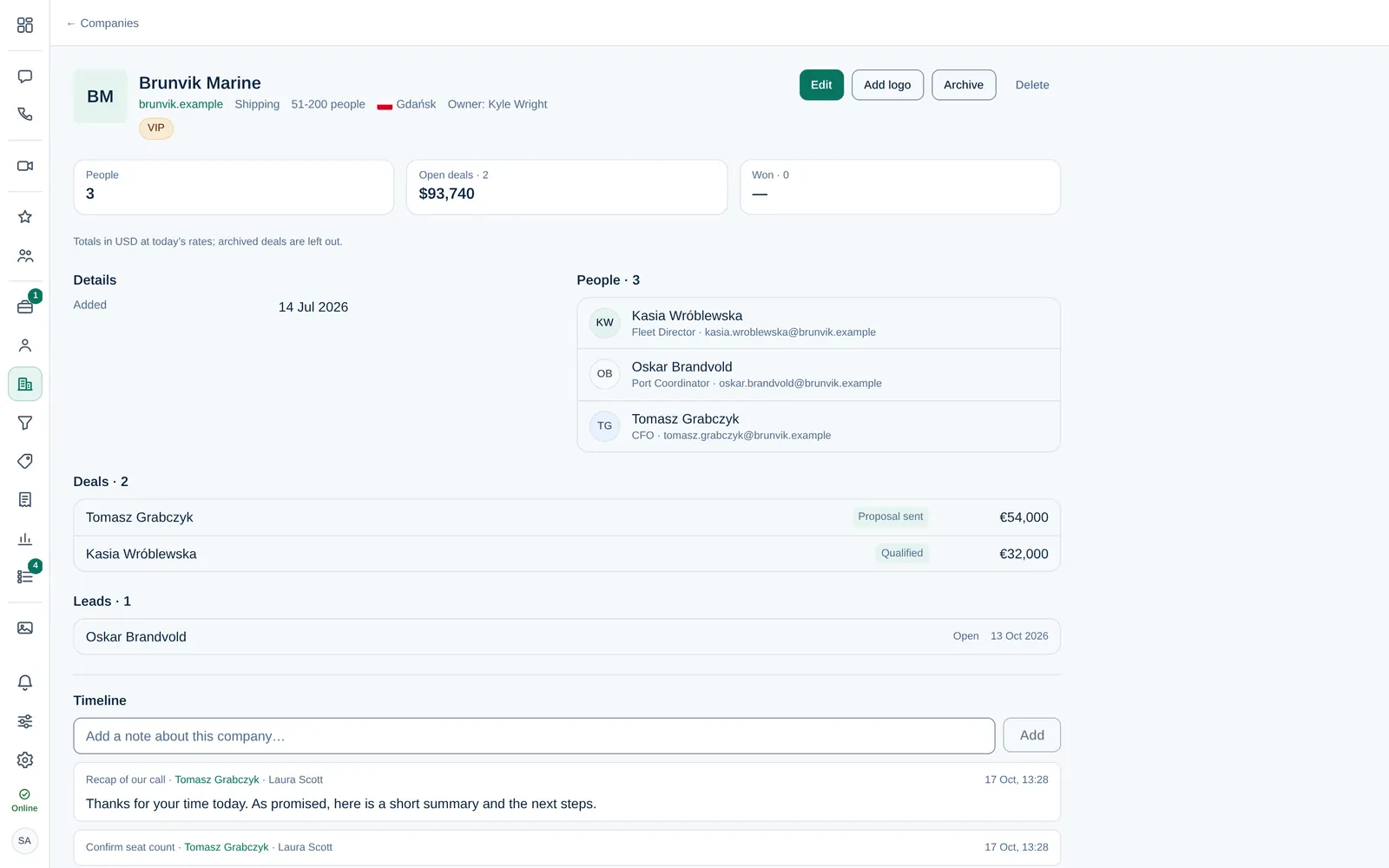
The page shows the Details, the people, the deals (Open deals and Won, totals in your base currency) and the Timeline of everything that happened. Write in Add a note about this company… to leave a note. Select Add logo to upload a logo.
The list
Search with Search companies…, filter by owner and by Active or archived, and choose the Columns you want: Domain, Industry, Size, Location, Owner, People, Open deals, Won, Tags and Updated.
Archive or delete
- Archive hides the company from the list and pickers; its people, deals and leads stay linked. Restore brings it back.
- Owner and Company admin can delete a company. Its people, deals and leads stay, without the company. This cannot be undone.