
Request time off
See your leave balance, request days off for your manager to approve, cancel approved leave and check who in your team is away.
Who can use this
OwnerCompany adminHRDepartment managerMemberRequirements
None beyond the role
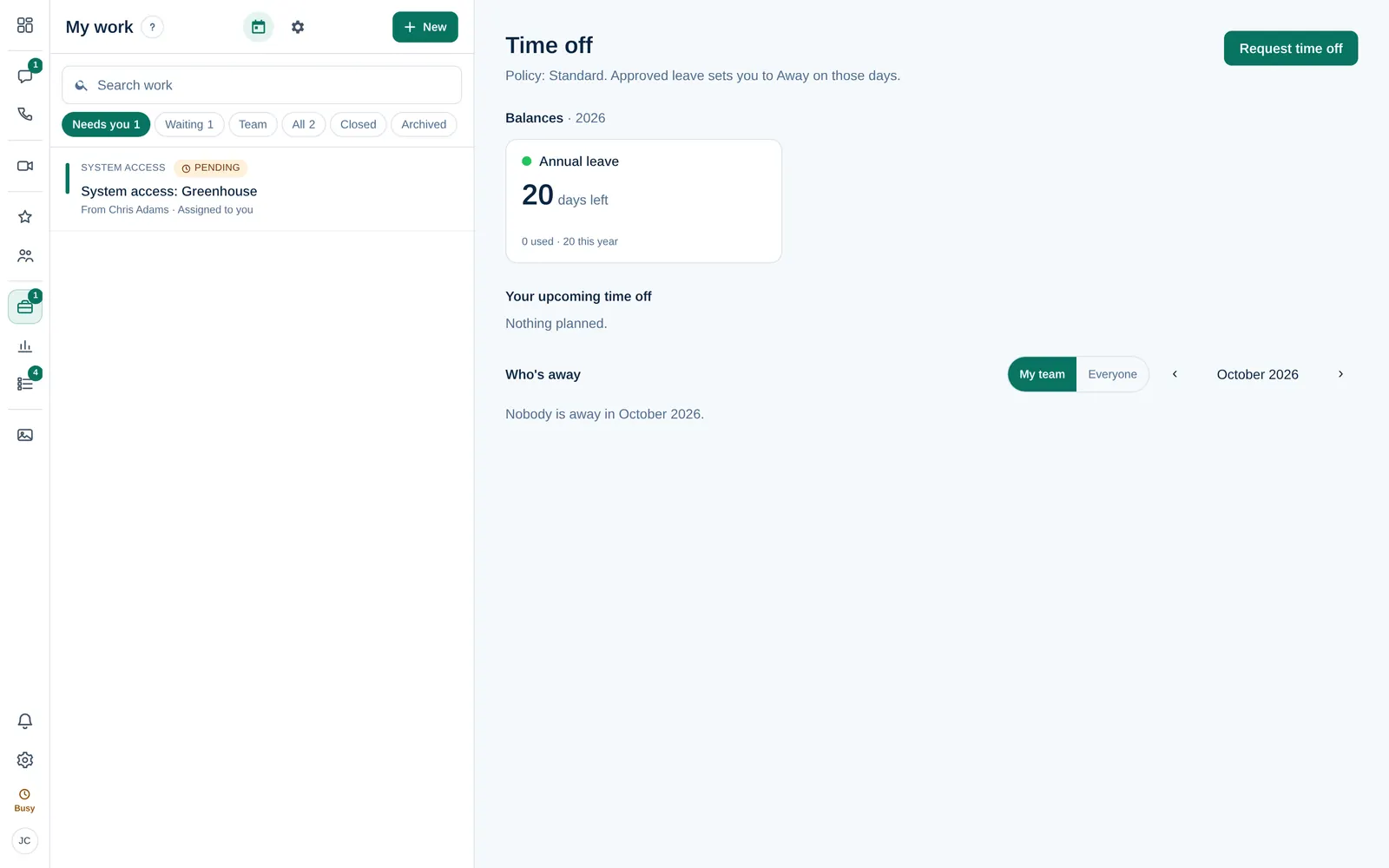
Time off lives in My work. Open it with the calendar button at the top of My work, or with the Time off tile in the overview.
Your balance
For each kind of leave, you see the days left, how many days you have used, how many are waiting for approval and the total for this year, including days carried over.
If you see No tracked leave for you yet, ask HR or a Company admin to add you to a leave policy.
Request time off
- Select Request time off. A Leave request opens.
- Choose the Leave type.
- Choose the Dates. For a single day you can tick Half day.
- Add a reason if you like, then send it.
The request goes to the person you report to. If nobody is set, it goes to your department manager, then to HR, then to a Company admin. Your approver sees how many days you have left.
Approved leave sets your status to Away on those days. If someone covers your approvals, they decide for you while you are away.
Cancel approved time off
You can cancel approved leave that has not started yet:
- Open the approved leave request in My work (or select it under Your upcoming time off).
- Select Cancel time off and confirm.
Your approver is told, the days go back to your balance and the Away days are removed.
Who's away
Who's away shows a month calendar of approved leave. Switch between My team and Everyone, and use the arrows to change the month. Public holidays are listed below.