
Your first week checklist
Work through the Your first week checklist after you join, see which steps tick themselves off and mark the others as done.
Who can use this
OwnerCompany adminHRDepartment managerMemberRequirements
None beyond the role
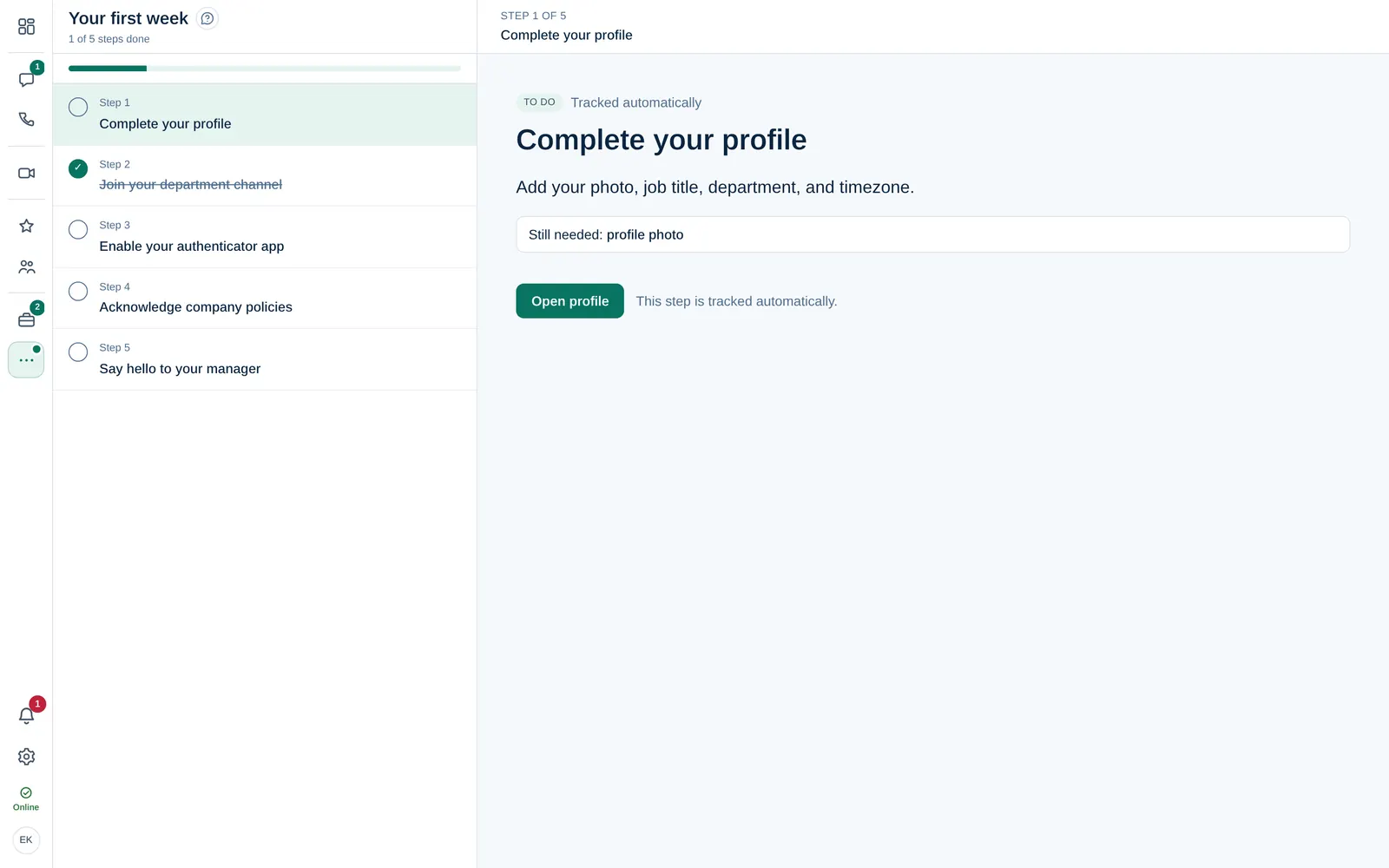
When you join, Dromix gives you a short checklist called Your first week. It appears in the More menu (three dots) of the left rail with the number of open steps (a dot on the three dots tells you there is something open), and the Dashboard shows your progress. Once every step is done, it disappears from the menu. Guest Guests do not get a checklist.
Work through the steps
- Open Your first week.
- Select a step in the list. Its details open on the right.
- Do what the step asks, then select Mark as done. If you marked it by mistake, select Mark as not done.
Your company decides which steps you see. An Owner or Company admin adds steps for everyone and for each department in Company → Onboarding.
Steps that tick themselves off
Some steps are Tracked automatically. You cannot mark them yourself; they are done as soon as Dromix sees the change:
| Step | Done when |
|---|---|
| Complete your profile | Your profile has a photo, a job title, a department and a time zone. Still needed: lists what is missing. Select Open profile. Job title and department are set by a Company admin. |
| Join your department channel | You are in your department's channel. It opens automatically once your department is set. |
| Enable your authenticator app | Two-step sign-in is on. Select Security settings. |
Steps with a link have Open link, which opens the page in a new tab.
The default steps are in English. Your company can rename them or add its own.
If you see No checklist has been set up yet, your company has not added any steps.