
Log calls, meetings and notes
Keep a deal's history complete with notes, logged calls, customer meetings and emails, and read it back on the timeline.
Who can use this
OwnerCompany adminHRDepartment managerMemberRequirements
- Owner or observer of the deal
Everything that happens on a dealDeal A sales opportunity with a value, an owner and a stage in a pipeline. Deals are what the Deals board, the forecast and the sales reports count. lands on its Timeline. Messages and emails are added automatically; calls you made outside Dromix, customer meetings and notes you add yourself from the tabs of the deal.
Who can add what:
- Notes: anyone who can open the deal.
- Calls, meetings and emails: the deal owner, its observers and Company admins, and anyone with CRM access while the deal has no owner. Others see "Only the deal owner, its observers or an admin can log activity on this deal."
Add a note
- Open the deal and select the Notes tab.
Write in Add new note (up to 4000 characters).
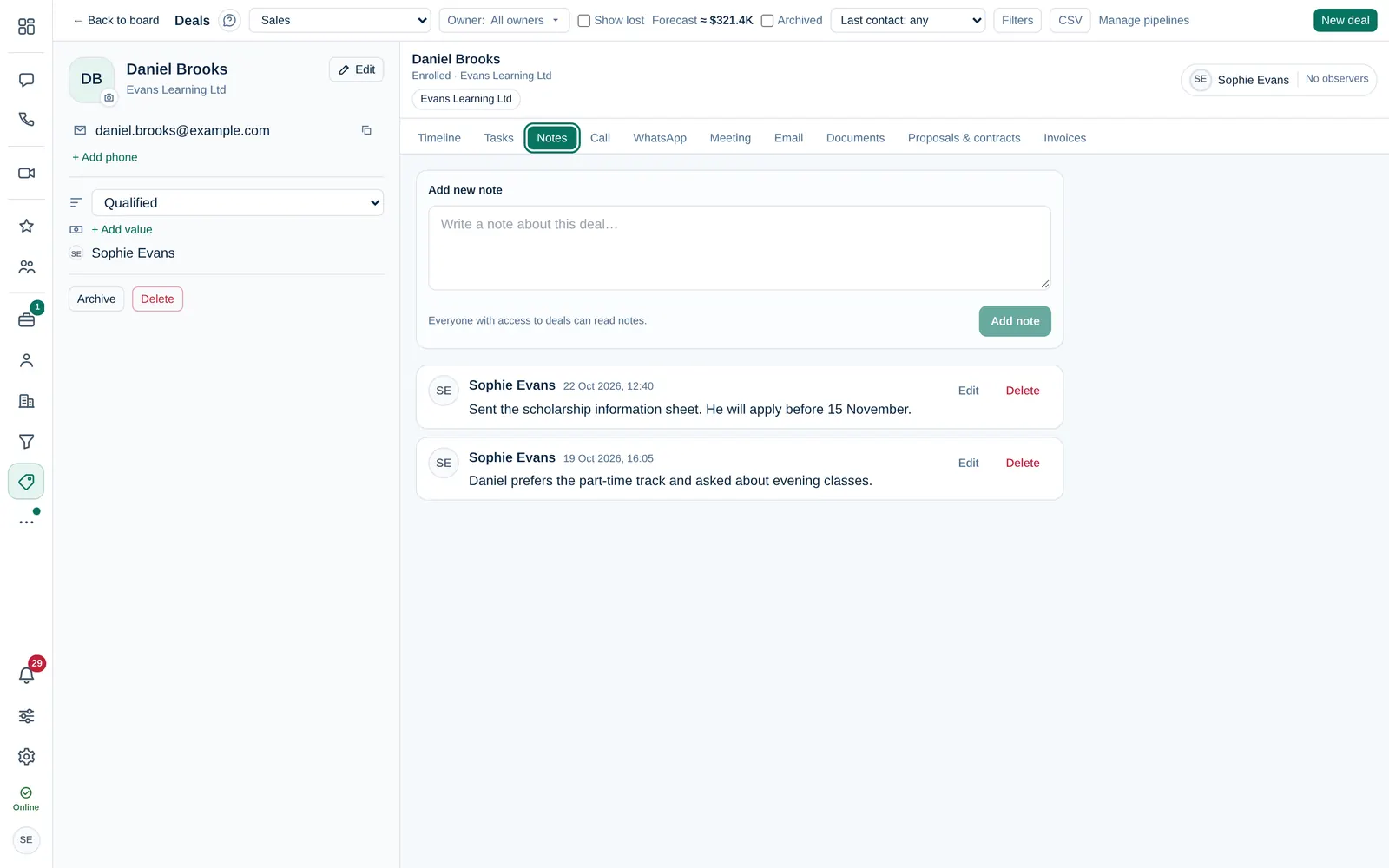
- Select Add note, or press Ctrl+Enter (Cmd+Enter on a Mac).
Everyone with access to the deal can read its notes. You can Edit or Delete your own notes; Company admins can edit any note.
Log a call
- Select the Call tab.
Enter a Subject, for example "Follow-up call", and what was discussed under Notes.
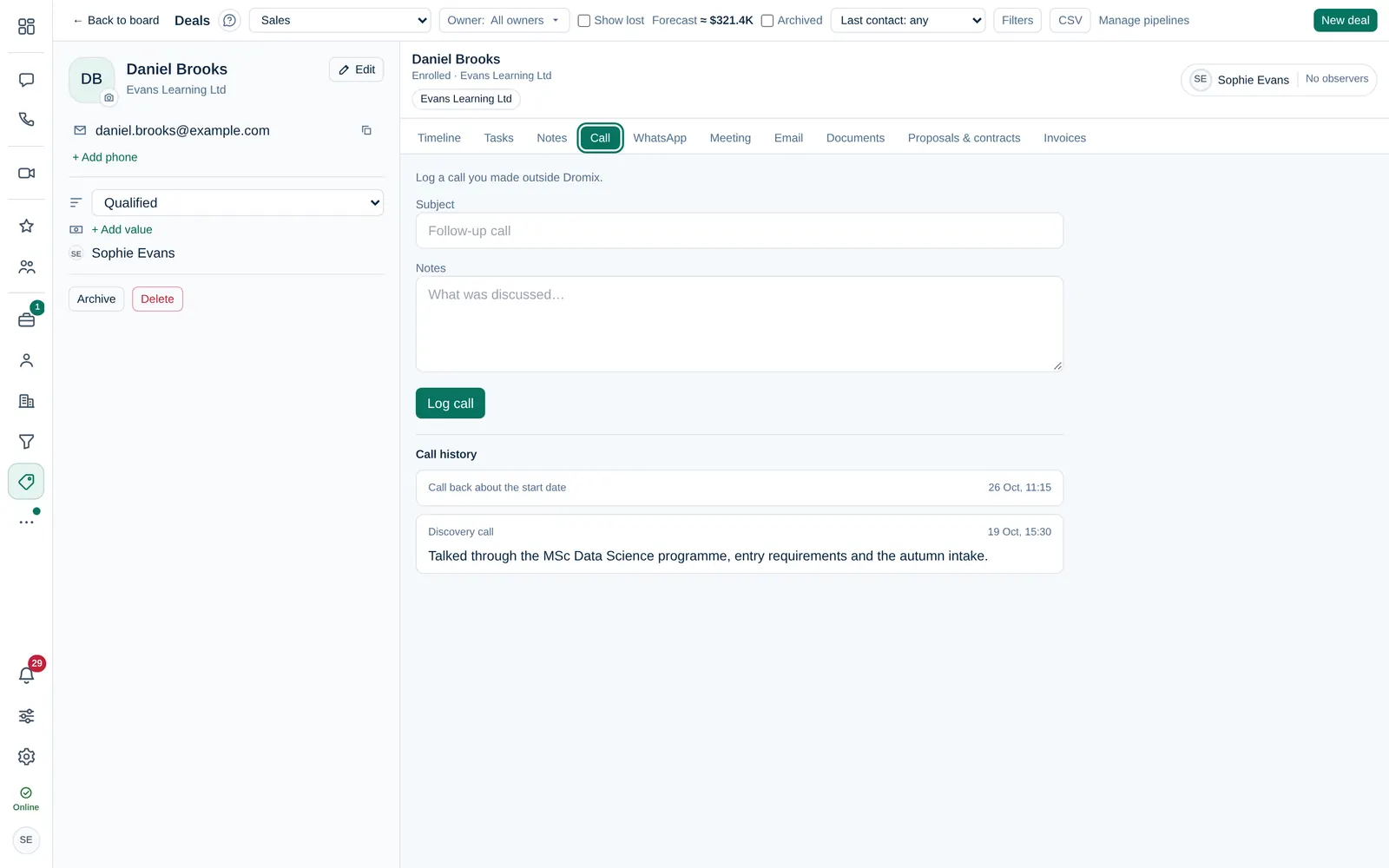
- Select Log call. The call appears under Call history and on the timeline.
Schedule a customer meeting
- Select the Meeting tab.
- Enter a Subject and set Starts and Ends.
- Select Schedule meeting.
Dromix creates a Dromix meeting room and emails the guest link to the deal's email address. The customer joins at the start time without an account. A Company admin or the person who scheduled it can join earlier. The room closes at the end.
Send an email
On the Email tab, choose the mailbox (a team inbox or your own), fill in To, Subject and the message, and select Send email. You need a connected mailbox: see Integrations → Email.
Read the timeline
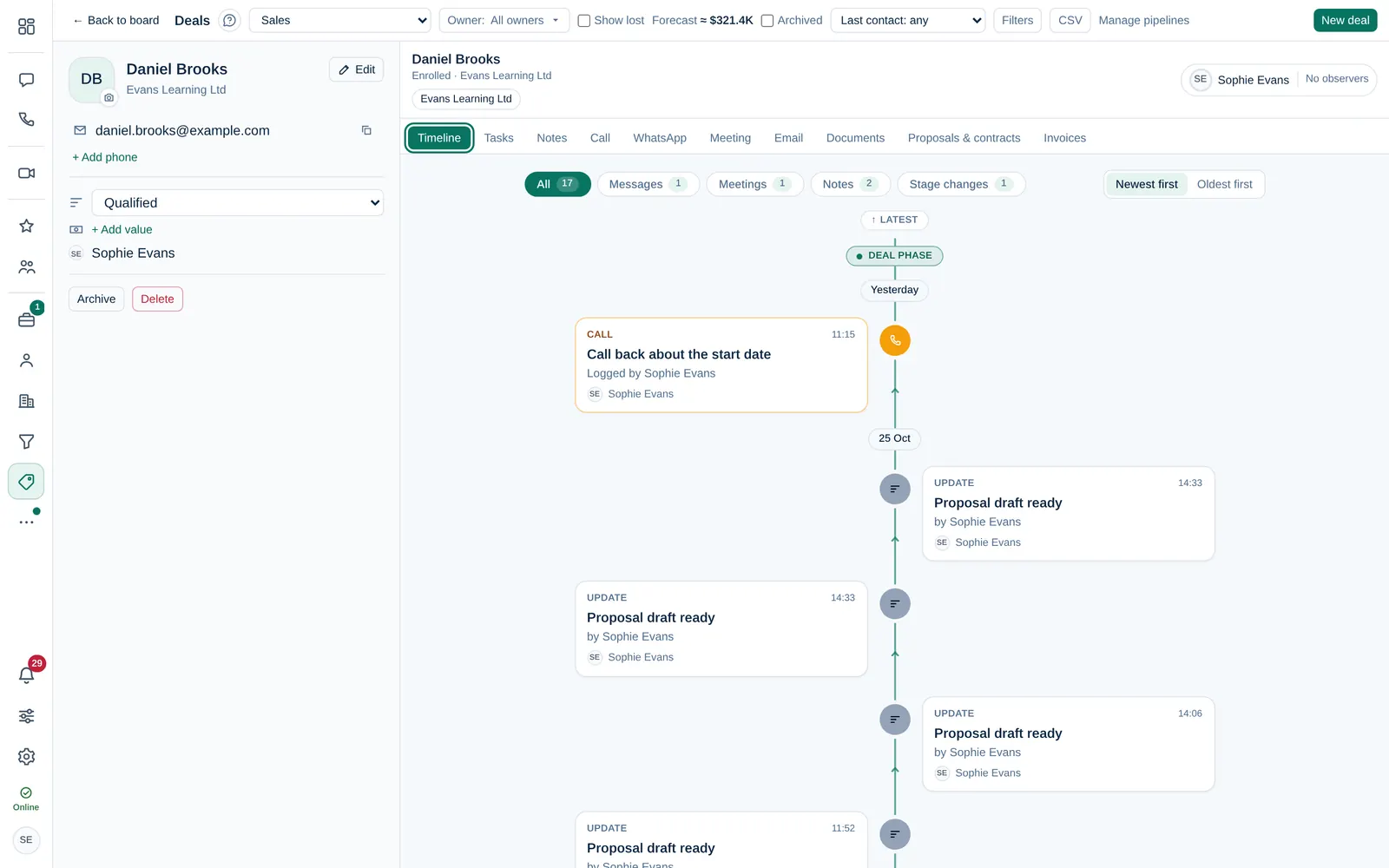
The Timeline tab shows everything in order. Filter by Messages, Meetings, Notes or Stage changes, and switch between Newest first and Oldest first.