
Connect your calendar and email
Link your Google or Outlook calendar for event reminders, and connect your company mailbox with Gmail, Outlook or any IMAP server to use the Inbox.
Who can use this
OwnerCompany adminHRDepartment managerMemberRequirements
None beyond the role
You connect your own calendar and mailbox in Integrations. On a computer, open the Settings menu (the gear icon at the bottom of the left rail) and choose Integrations. On a phone, open More and choose Integrations. A Company admin turns each app on for the company first. Guest Guests do not have Integrations.
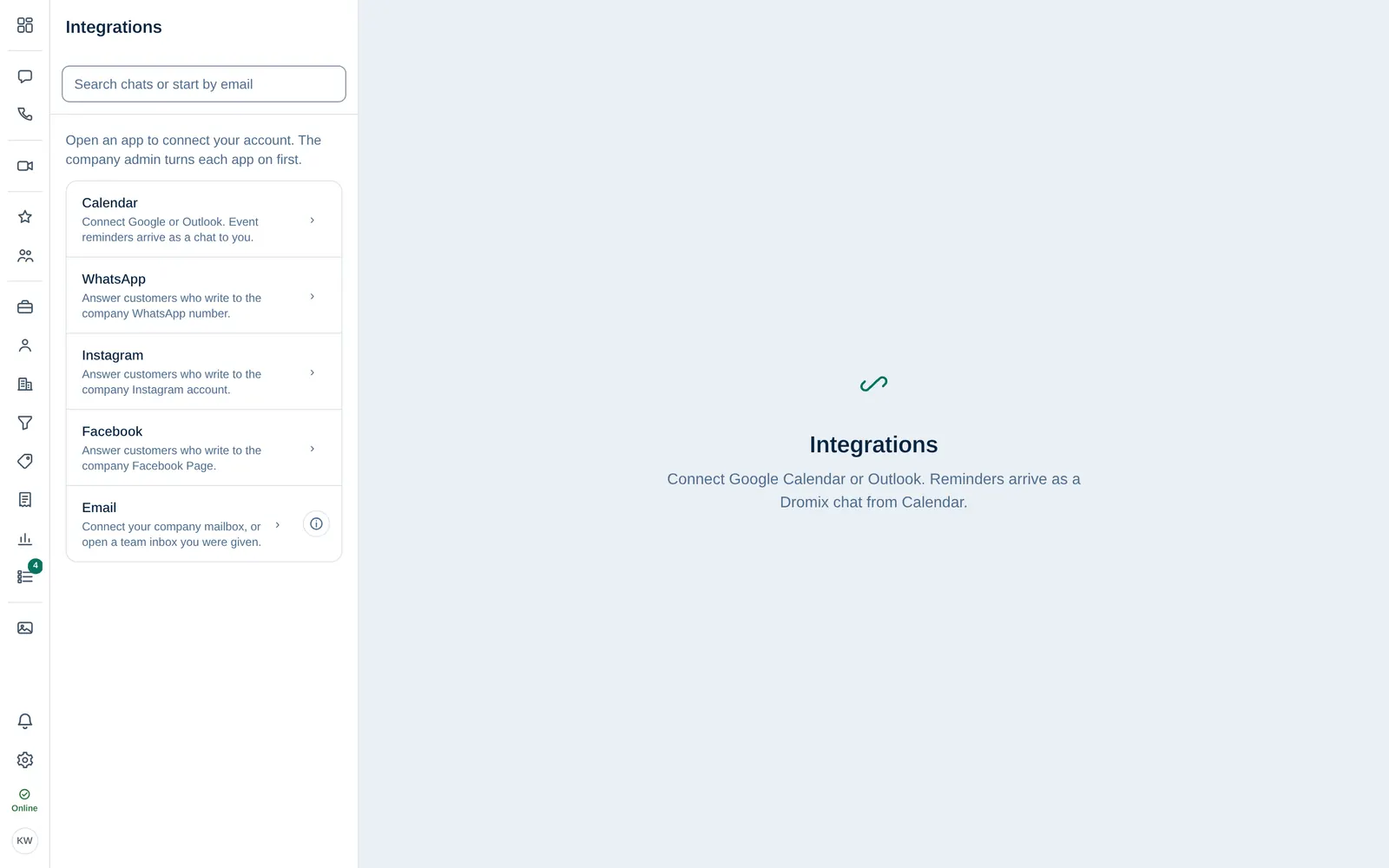
Connect your calendar
- Open Integrations and select Calendar.
- Select Connect Google Calendar or Connect Outlook.
- Sign in on the Google or Microsoft page and allow access.
Back in Dromix you see Calendar connected. Reminders will arrive as a chat from Calendar. Before each event, a chat message from Calendar reminds you. The calendar can be a different account from the email you sign in to Dromix with.
Google and Microsoft ask for access on their own page. Never type your Google or Microsoft password into Dromix.
If you see Calendar is off, ask a Company admin to turn it on.
Connect your mailbox
- Open Integrations and select Email.
- Choose how to connect: - Connect Gmail: enter the Email address and a 16-character Gmail App password (not your normal Google password). Select Gmail app password for step-by-step help from Google. - Connect Outlook: sign in on the Microsoft page. - Other: for any other provider, enter the server address, username and password.
- Dromix checks the login before saving. When it says Mailbox connected. Open Inbox to read and send., select Open Inbox.
Your personal mailbox is only visible to you; it is not shared with the team. Under Team inboxes you can open you see shared mailboxes, such as sales@, that a Company admin gave you access to. See Email inbox.
To get a Gmail app password, two-step verification must be on for that Google account. In Google Workspace, an admin may have to allow app passwords first.
How much past email is imported
Before you connect, choose under Import past email how much history Dromix imports: Don't import old emails (only new mail from now on), the last 7, 30 (the default), 90, 180 or 365 days, or a Custom number of days from 1 to 365. The import runs in the background; new mail arrives as usual.
To change it later, open Integrations → Email and use Email history on your mailbox. A longer window imports the extra days once. A shorter window never deletes emails that were already imported; it only affects future imports.
Disconnect
Open the app again in Integrations and select Disconnect. Your calendar reminders stop, or the mailbox disappears from your Inbox. Messages already in your mailbox provider stay there.
For Company admins
Owner Company admin In Company admin → Sales & integrations → Integrations, open Calendar and turn it on, then select Save Calendar. Google works through Dromix without any setup; for Outlook, paste the Microsoft app credentials. See Set up calendars. Connected people shows who has linked a calendar.