
Products
Keep the products your company sells, with price, tax, types, custom fields and variants, so proposals, contracts and invoices pick their lines from one list.
Who can use this
OwnerCompany adminRequirements
None beyond the role
Owner and Company admin open Company admin → Sales & integrations → Products. Sales people pick from this list with + Add from products when they write a proposal, a contract or an invoice.
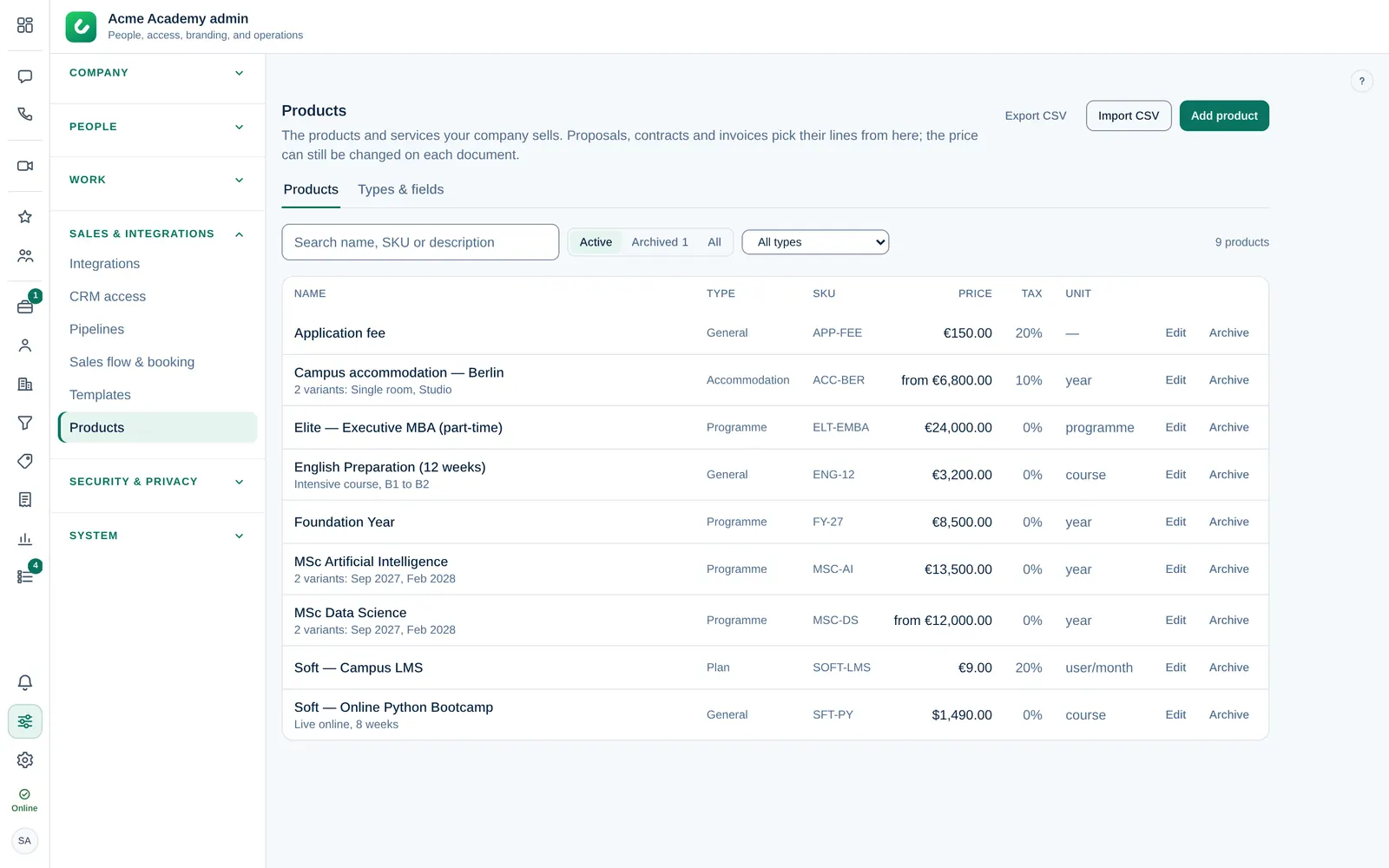
Add a product
- Select Add product.
- Enter the Name, for example MSc Data Science, and choose the Type. New products are General unless you choose another type.
- Optionally enter a Description. It goes on the document line after the name.
- Enter the Price, choose the Currency and enter the Tax %. Optionally enter the Unit, for example year or user/month, and an SKU (your product code).
- Fill in the type's details, for example Start, Duration and Campus. Fields marked * are required.
- Select Add product.
To change a product, select Edit. Changes apply to new lines only: proposals, contracts and invoices that already use the product keep their lines.
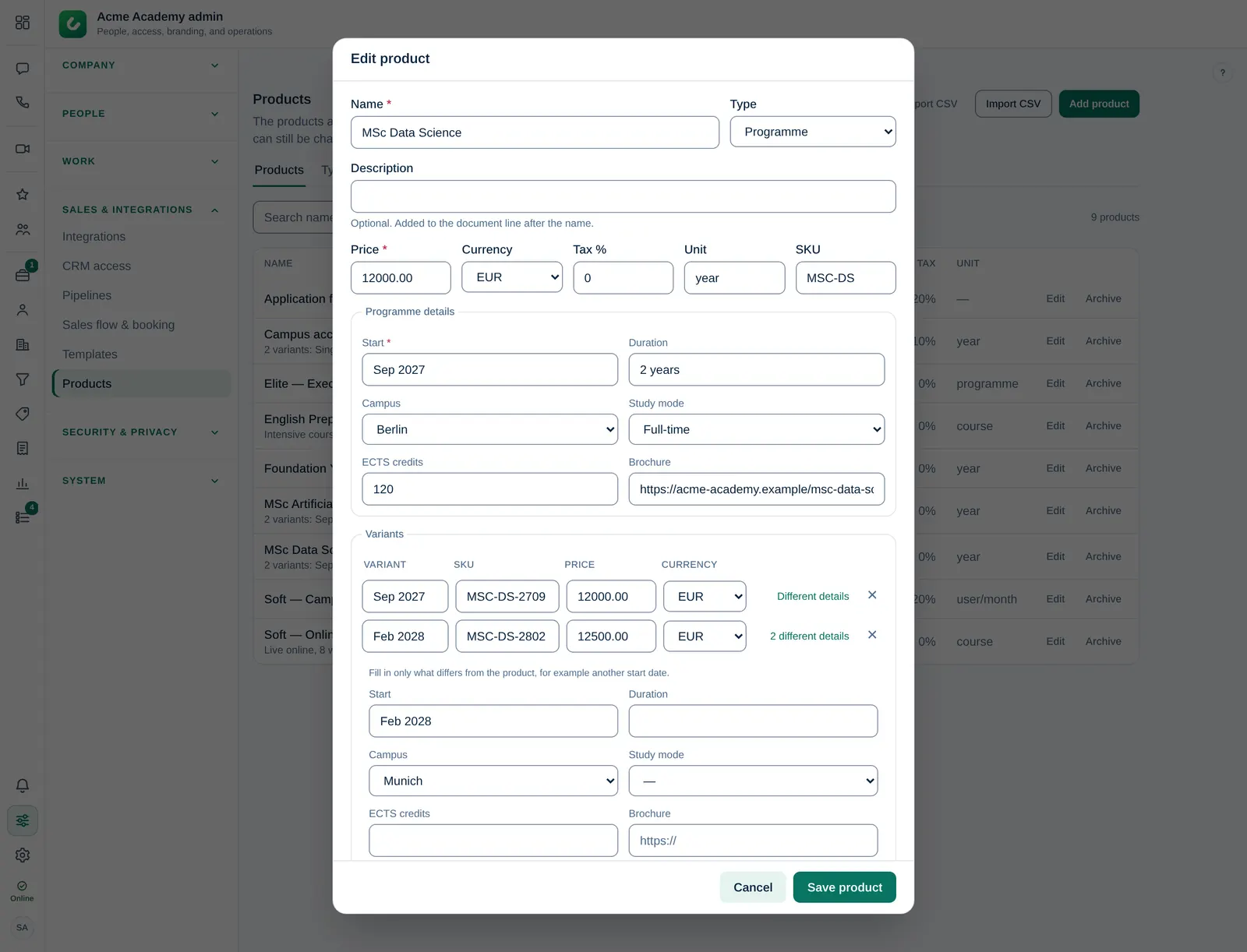
Product types and fields
Types group products that need the same details, for example Programme, Accommodation or Plan. Open the Types & fields tab:
- Select + Add type, enter a name and select Add type.
- With the type selected, select + Add field. Enter a name and choose the field type: text, long text, number, date, single choice, multiple choice or link.
- Tick Required if every product of this type needs a value.
- Tick Show on proposal/contract line to print the value under the line name (see below).
- Select Add field. Use the arrows to change the order.
Each product has one type. Every product starts as General, and products that existed before types keep working as General. Fields and types are archived, never deleted: an archived field leaves the form, and saved values stay. General cannot be archived.
Details on proposal and contract lines
When a product is added to a proposal or contract, its details are copied onto the line. Fields with Show on proposal/contract line appear under the line name in the editor, on the customer's proposal page and in the PDF, for example Start: Sep 2027 · Duration: 2 years · Campus: Berlin.
The copy belongs to the document: select Edit details under a line to change a value or untick it to hide it in this document only. Later changes in the catalog never change a document that was already made. Invoices have no detail rows, so the shown details are added to the line text.
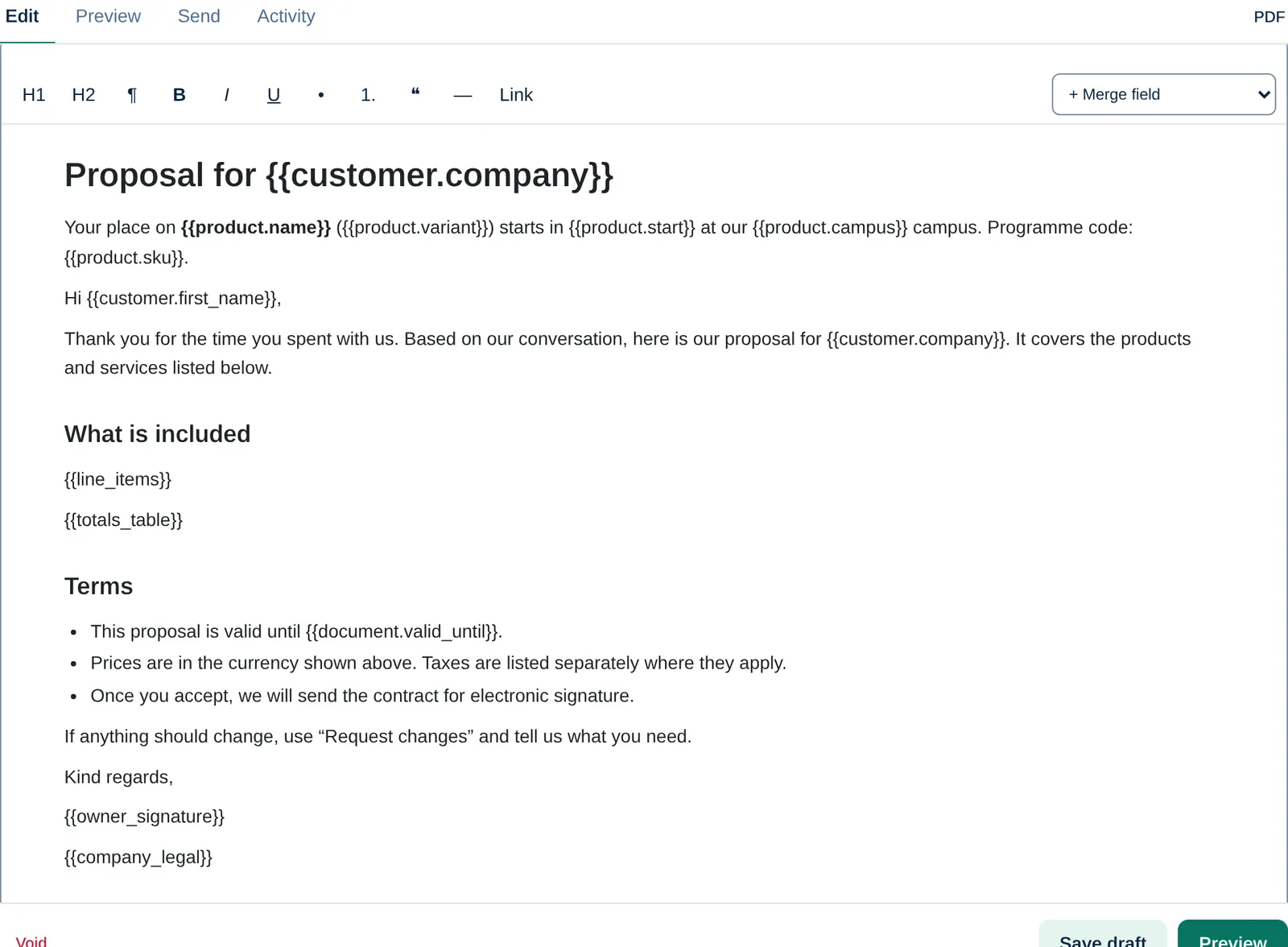
Variants
Use variants when one product is sold in several versions, for example the Sep 2027 and Feb 2028 intakes of a programme.
- In the product form, select + Add variant.
- Enter the variant name, which is added to the product name (MSc Data Science — Sep 2027), and optionally its own SKU.
- Enter the variant's Price and Currency.
- Select Different details to fill in what differs from the product, for example another start date. Leave the rest empty to use the product's values.
In + Add from products, a product with variants lists its variants; tick the one you want. The product's own price is not offered while it has variants.
Placeholders in templates
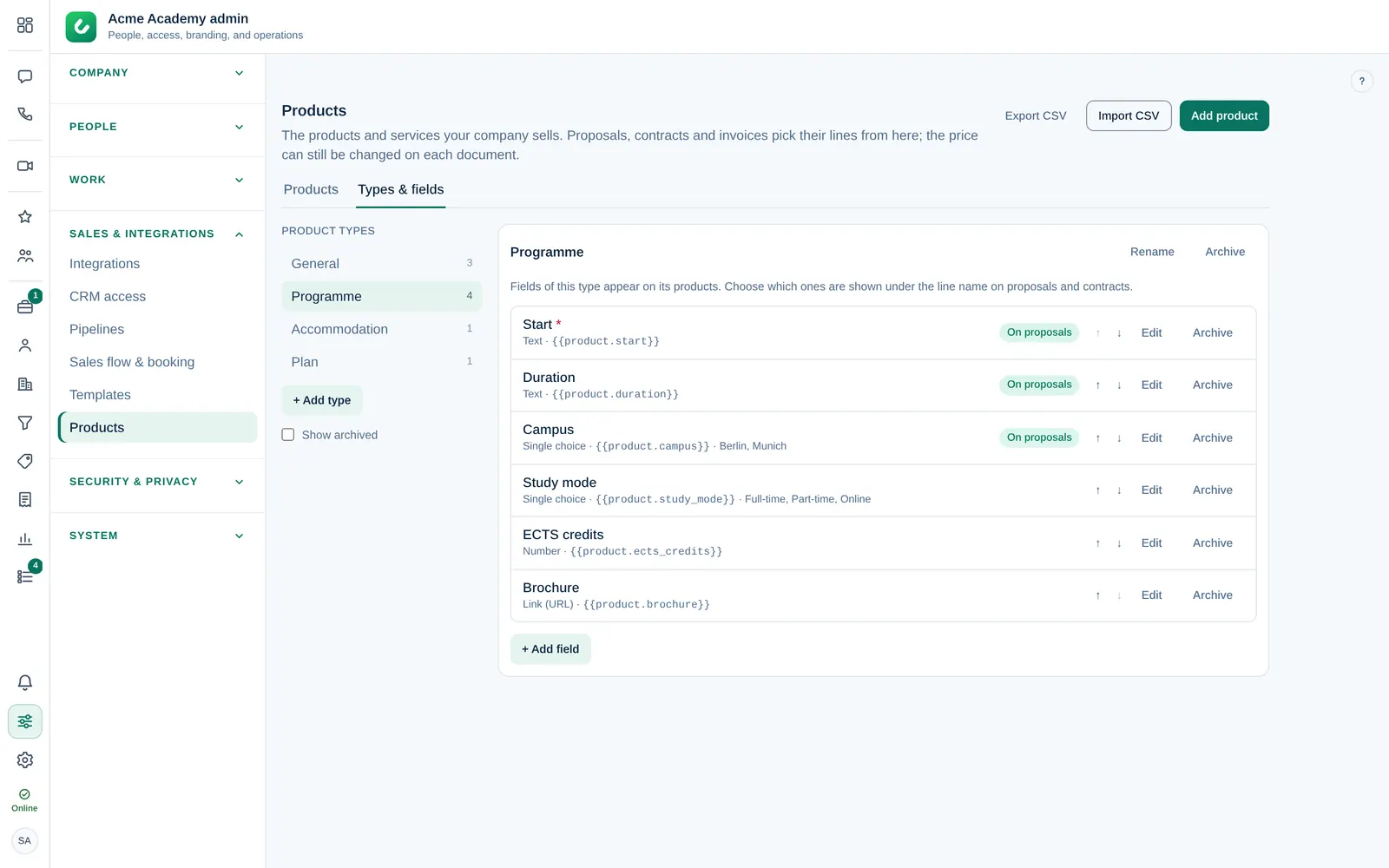
Proposal and contract templates can use the first product line of a document:
{{product.name}}: product name, without the variant{{product.variant}}: variant name, for example Sep 2027{{product.sku}}: SKU of the variant, else of the product{{product.<field_key>}}: any field, for example{{product.start}}or{{product.campus}}
The key of each field is shown on the Types & fields tab, and the fields appear under Product in the template editor's merge field list. A field the first product line does not have is left empty. The {{line_items}} table shows every line with its own details. See Proposal and contract templates.
Find a product
Type in the search box to find a product by name, SKU, description or variant. Active shows the products sales people can pick, Archived the ones you took out, All both. With more than one type, choose a type to see only its products.
Archive or restore a product
Select Archive when you stop selling something. It leaves + Add from products, but documents that already use it keep their lines. Products are never deleted. Select Restore on the Archived list to bring one back.
Import and export CSV
- Select Import CSV.
- Select Choose CSV file, or paste the rows. Download a sample file shows the format.
- Select Check file. Dromix shows how many products are new, updated or skipped, and why a line was skipped.
- Select the import button, for example Import 4 products.
The columns are name (required), sku, type, description, price, currency, tax, unit, variant and variant_sku, plus one column per field key (for example start, campus), in any order, separated by commas or semicolons. An empty currency or tax uses your invoicing defaults, and an empty type is General. Each variant is its own row that repeats the product's name and SKU and fills variant. A row whose SKU matches an existing product updates that product; when the file has variant rows for it, they replace its variants.
Export CSV downloads the active products in the same format, so you can edit them in a spreadsheet and import them again.
Currencies
Each product and variant has one currency: USD, EUR, GBP or TRY. In a document, + Add from products only adds prices in the document's currency; the others are shown greyed out. Dromix does not convert prices. To sell a programme in two currencies, add a variant per currency, for example Sep 2027 (USD).
Many brands, one list: products are shared by all your brands and pipelines. Put the brand in the name if a product is only sold by one brand, for example Elite — Executive MBA.