
Sales flow and booking
Set up the 7-step sales flow with its ready rules, and set the rules for discounts, proposals, contracts and the customer booking page.
Who can use this
OwnerCompany adminRequirements
None beyond the role
The sales flow guides a deal through seven steps: Qualified → Discovery / Meeting → Proposal sent → Negotiation → Contract sent → Won / Lost. At each step Dromix can prepare the next document or task for the deal owner. Proposals and contracts are never sent without the owner.
Set up the sales steps
- Open Company admin → Sales & integrations → Pipelines and select the pipeline's card.
- On the Stages tab, select Edit on a stage and choose its Sales step, for example Proposal sent, and its Win %. Each sales step can be on one stage only. Select Save stages.
- On the Automations tab, select Add from templates, tick the rules you want and select Add rules. Rules that need a sales step your pipeline does not have say which one.
Pipelines created from a Dromix template already have their sales steps and rules. Adding rules sends no emails; while the pipeline is in Test mode, emails and chat messages to customers are held.
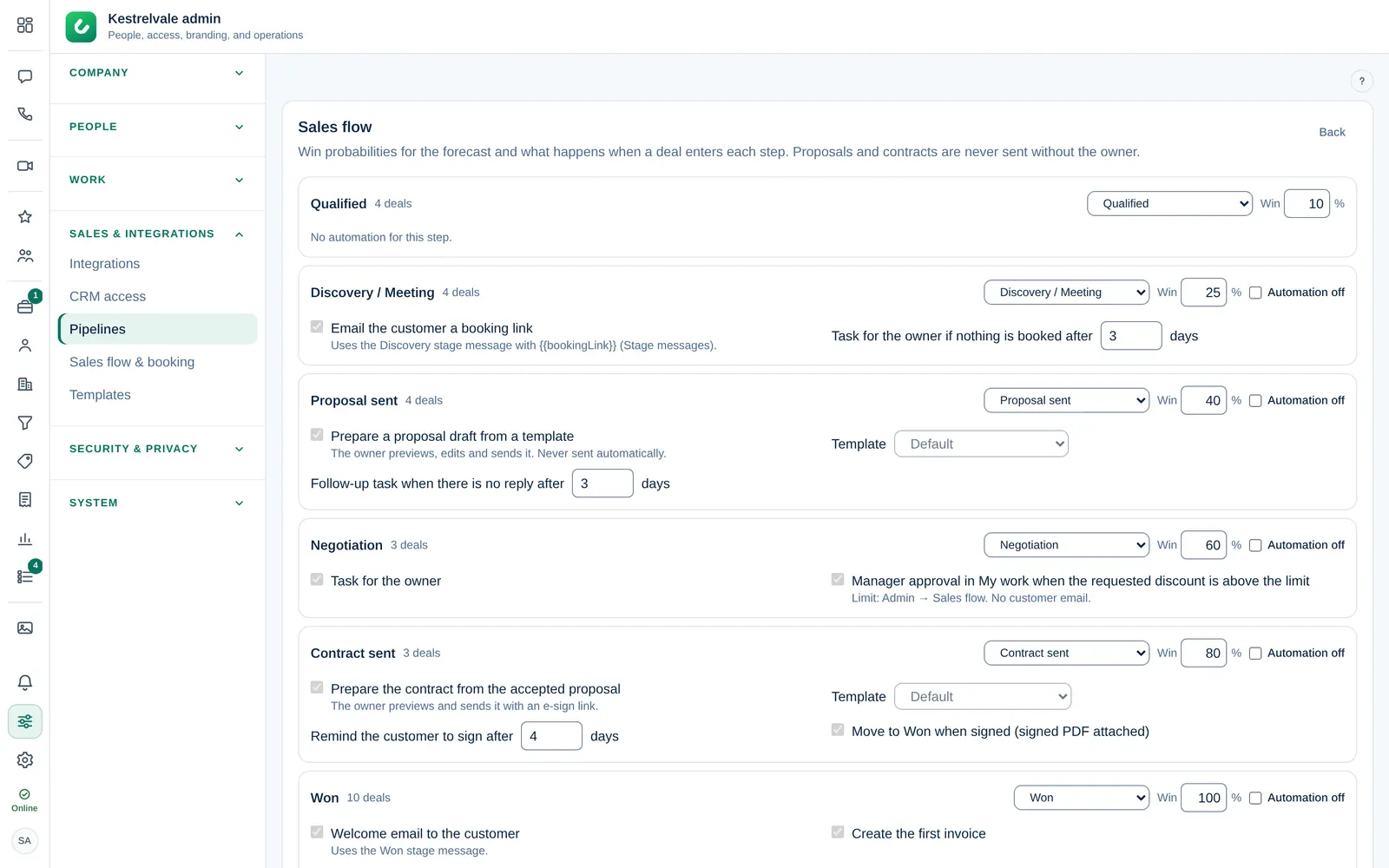
What happens at each step
The ready rules are normal pipeline rules: you can turn each one on or off, change it or delete it. Reset to template in a rule's ⋯ menu brings back Dromix's version.
| Step | Ready rules |
|---|---|
| Qualified | Welcome email when qualified |
| Discovery / Meeting | Booking link email; a task for the owner when no meeting is booked after 3 days |
| Proposal sent | Prepare a proposal draft; a follow-up task when there is no reply; an accepted proposal moves the deal to Contract sent |
| Negotiation | A task to agree the terms; when the customer asks for changes, the deal moves here; discount approval (off at first) |
| Contract sent | Prepare the contract from the accepted proposal; remind the customer to sign; a signed contract moves the deal to Won, with the signed PDF attached |
| Won | Welcome email; mark the contact as a customer and tell the team; first invoice and onboarding request (off at first) |
| Lost | Goodbye email (off at first); a "Try again" task after 6 months |
The owner always previews, edits and sends proposals and contracts. Invoices are never sent automatically unless you tick Send it to the customer in the rule.
Emails go out from the pipeline's sending inbox: the pipeline's own inbox, else its brand's inbox, else (company pipelines) the company main inbox. They are skipped if there is none, and held while the pipeline is in Test mode.
Rules for proposals and contracts
Open Company admin → Sales & integrations → Sales flow & booking. Under Proposals, approvals and onboarding:
- Discount needing approval (%): above this, a manager approves in My work before the proposal is sent.
- Proposal valid for (days).
- Onboarding queue (Won): where the onboarding request goes, or No queue: task for the owner.
- Company countersigns contracts: after the customer signs, a signature from your side is added to the PDF. Choose Who countersigns, or Any owner or admin.
Select Save settings.
Default products
Under Default products, choose the products and quantities that new proposals start with. This is the company default: brands and pipelines can set their own in Documents & booking defaults. Select Save defaults.
The customer booking page
On the same page, under Customer booking page, you set when customers can book a meeting with the deal owner:
- Meeting title and Duration, and the time zone of the hours (the company's or another one).
- Working hours: per weekday one or more time ranges, for example 09:00–12:30 and 13:30–17:00, or none for a closed day. These are the default hours for everyone.
- Lunch break: On with its time takes the lunch break out of the working hours for everyone who follows them. It is off at first.
- Buffer (min): free time before and after meetings and calendar events (not around closed time, lunch or leave).
- Notice (hours): the earliest booking. Days ahead: the latest booking (7 = today and the next 6 days).
- Skip public holidays.
Select Save settings. Until you save working hours, the earlier single window (days, from, until) keeps applying exactly as before.
Each team member can follow the company working hours or set Own hours, and open or close single times on a date. A brand or pipeline with its own days or hours uses those for its deals. Free times also leave out the deal owner's Dromix meetings, approved leave and Away status, and Google or Outlook busy times when they connected a calendar. Team availability shows each person's week. See Let customers book a meeting.