
Sign in for the first time
Accept your invite, choose a password, save your recovery key and set up the authenticator app if your company asks for it.
Who can use this
OwnerCompany adminHRDepartment managerMemberGuestRequirements
None beyond the role
Dromix is invite-only. You cannot sign up on your own: a Company admin sends you a personal link, and that link creates your account.
Accept your invite
Open the invite link you received. It works once and expires after 7 days.
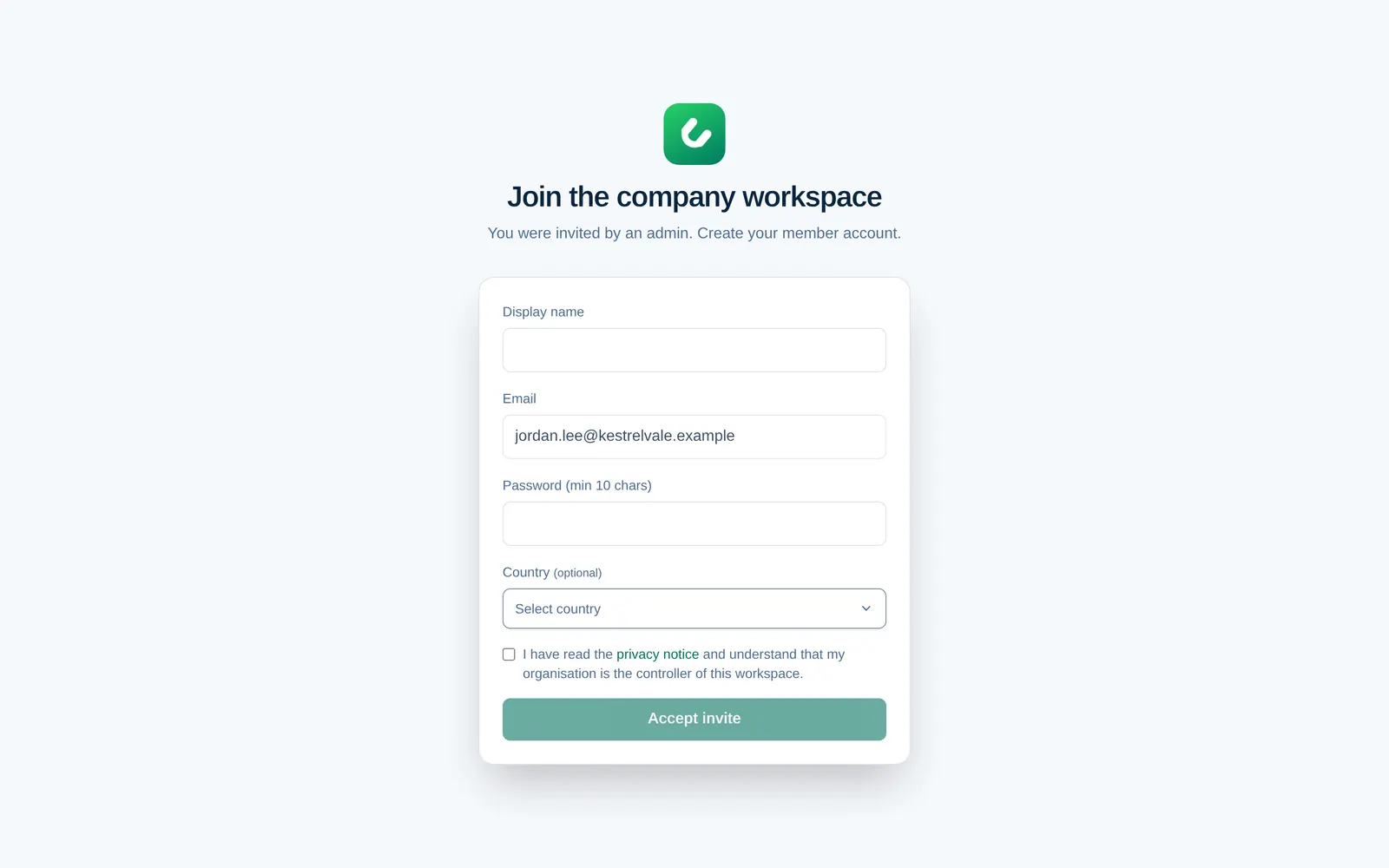
- Enter your Display name. This is how colleagues see you.
- Your Email is already filled in and cannot be changed. It is the address the invite was sent to.
- Choose a Password of at least 10 characters.
- Pick your Country if you like (optional).
- Tick the box to confirm that you read the privacy notice, then select Accept invite.
The invite page says "Create your member account" for everyone. Your actual role is the one the admin chose in the invite, for example HR.
If the page says Invite unavailable, the link was already used, has expired, or was replaced by a newer invite. Ask your admin for a new one.
Save your recovery key
Right after you accept, Dromix shows a recovery key.
- Select Copy recovery key or Download as file and store it somewhere safe and offline, for example in a password manager.
- Tick I saved this recovery key somewhere safe, then select I saved it — continue to Dromix.
Your password locks the key that protects your chats and private notes. If you forget your password, the recovery key lets you set a new one on the sign-in page (Forgot password? Use your recovery key) and keep reading your earlier messages. Dromix cannot show the recovery key again.
Recovery keys from before version 1.0.132 were stored only for checking and cannot unlock anything. If your account is older, open Account and security and select Create a recovery key. See Recovery key.
Set up the authenticator app
If your company requires an authenticator app, Dromix opens the Security page next and asks you to set it up before you continue. You can also turn it on yourself any time from your account menu → Account and security.
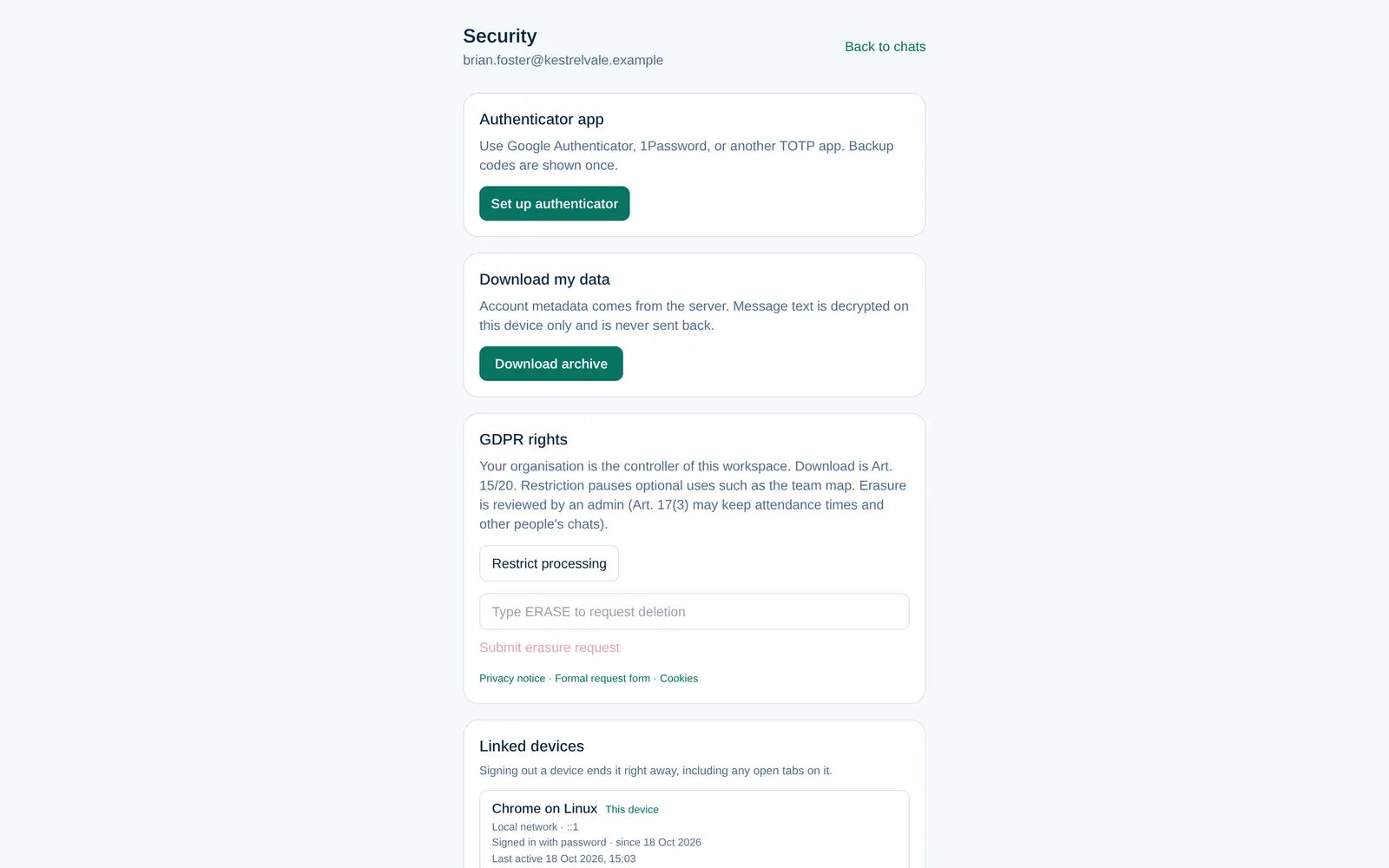
- Install an authenticator app on your phone, such as Google Authenticator or 1Password.
- Select Set up authenticator and scan the QR code with the app.
- Enter the 6-digit code from the app and select Enable.
- Save the backup codes. They are shown once, and each one works instead of a code if you lose your phone.
- Sign in again to unlock your chats.
Signing in later
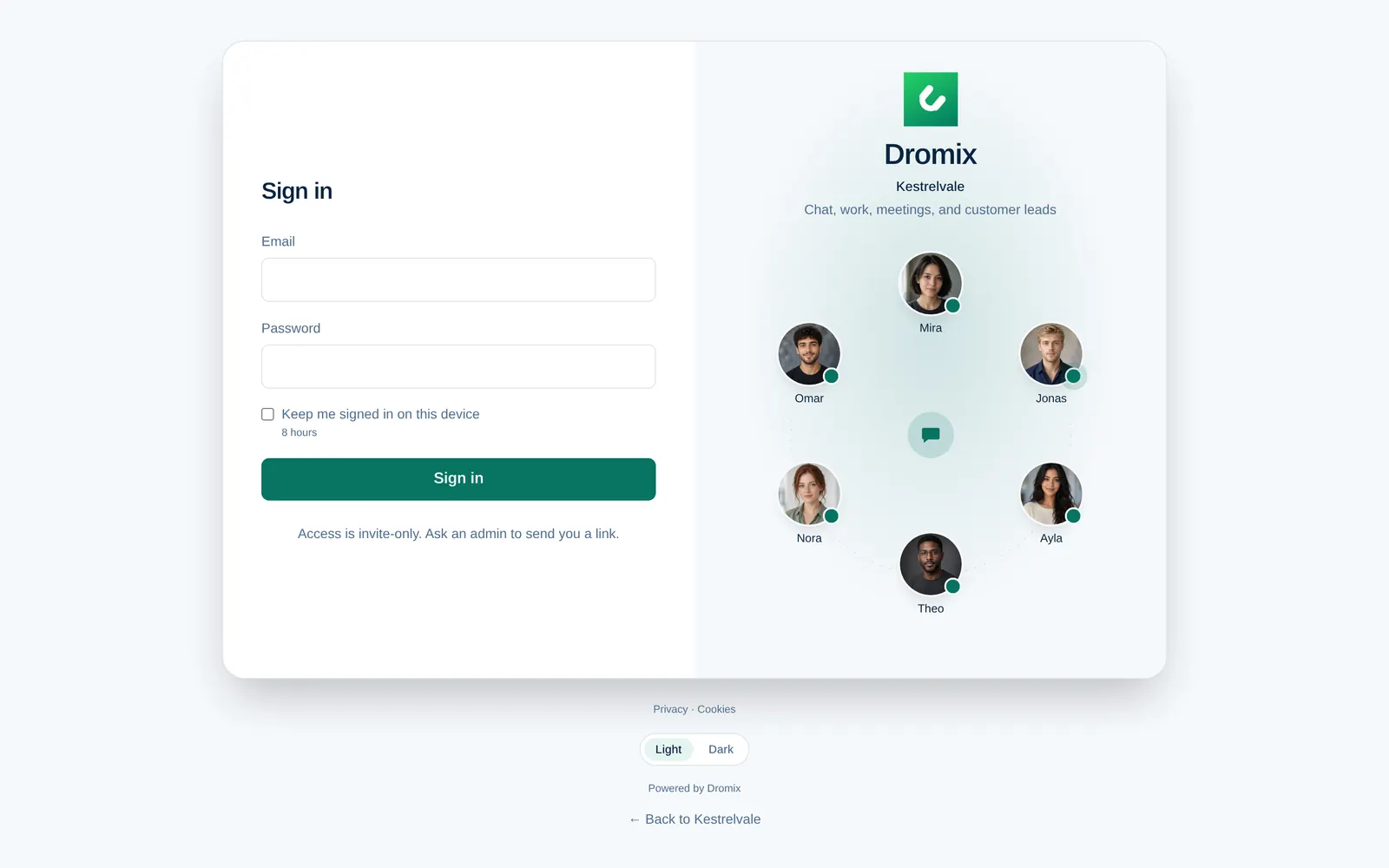
- Open your company's Dromix address and enter your email and password.
- Tick Keep me signed in on this device only on your own computer or phone.
- If you use the authenticator, enter the 6-digit code from the app, or one of your backup codes.
Already signed in on your phone? On the computer, choose Use QR code instead on the sign-in page, then scan the code with Link a device in your phone's account menu. You do not need to type your password.
Trouble signing in
- Forgot your password? Select Forgot password? Use your recovery key on the sign-in page. See Forgot your password. Without a working recovery key, contact your Company admin.
- Lost your phone with the authenticator? Sign in with a backup code. If you have none left, a Company admin can reset your authenticator in Organization (Reset MFA), and you set it up again at your next sign-in.