
Schedule and join a meeting
Open a video room now or schedule one with a calendar invite, join the Main office, and invite customers with a guest link.
Who can use this
OwnerCompany adminHRDepartment managerMemberRequirements
None beyond the role
Meetings holds your company's video rooms. Every room has video, chat and screen sharing.
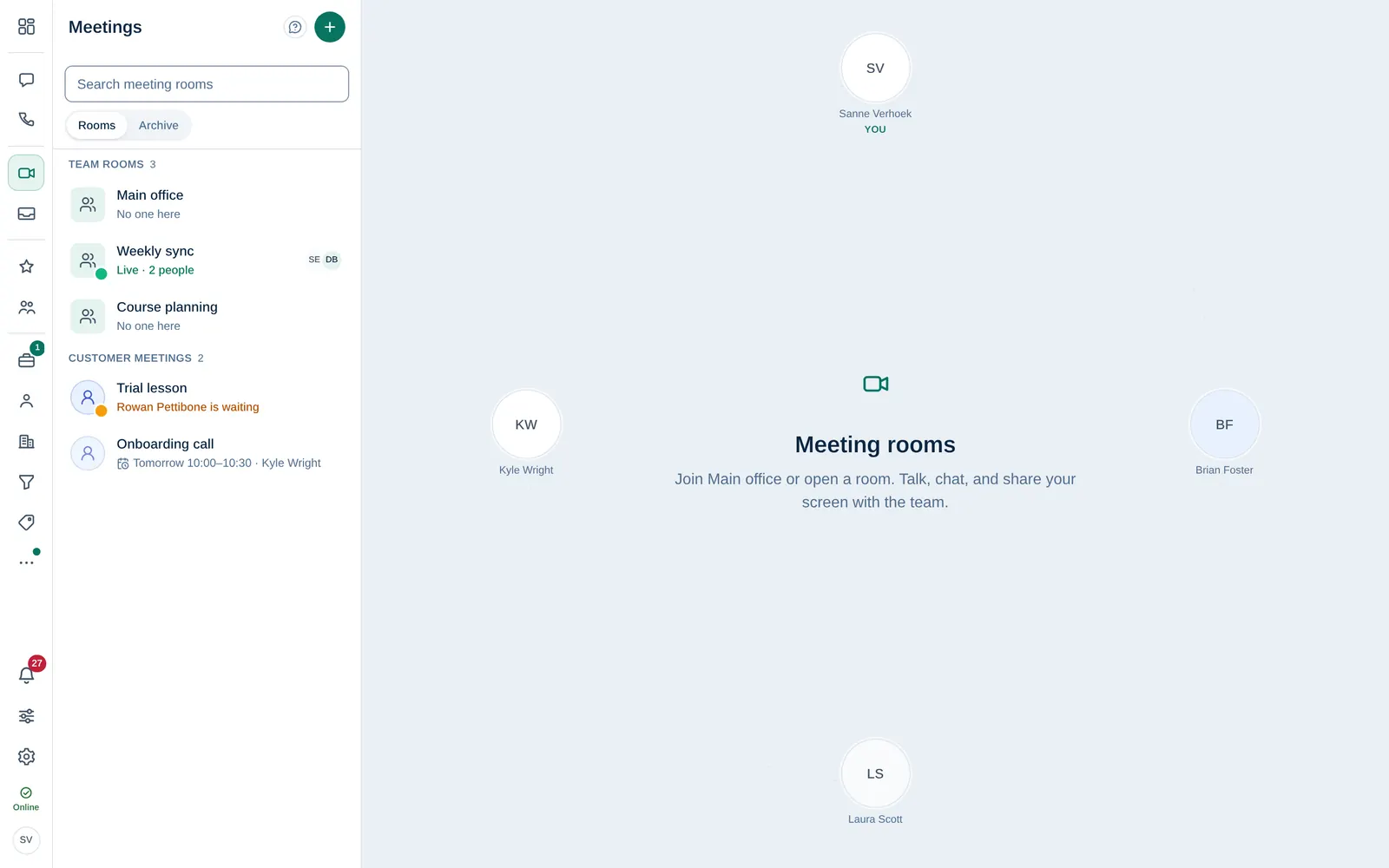
Join a room
- Open Meetings in the left rail.
- Select a room in the list and join it.
- Main office is always open. Every team member can join it at any time, like walking into the office. Its name is shown in your language; if the room was given another name, that name is shown.
- A room you were invited to shows up in your list. A scheduled room opens at its start time.
- A Locked room asks the host to let you in from the waiting room.
The list has two parts: Team rooms (the Main office first, then the rooms your team opened) and Customer meetings (meetings with a guest link, a lead or a deal, with the customer's name). Each row shows one status, for example Live · 2 people, Rowan Pettibone is waiting, Starts in 12 min, the scheduled time or No one here. Green means people are inside; amber means a guest is in the waiting room. Both pulse softly, unless your device is set to reduce motion. Everyone who can join the room sees who is waiting, and a host lets them in. The phone app shows the same two parts in each tab.
To blur or replace what is behind you, see Blur or replace your video background.
Start a meeting now
- In Meetings, select +.
- Enter a Meeting name and keep Start now selected.
- Under Invite people, search coworkers and select Add next to each.
- Select Open room. Invitees are called right away and see the room in their list.
Schedule a meeting
- In Meetings, select + (or Schedule a meeting on the Dashboard).
- Enter a Meeting name and choose Schedule.
- Set the Date, Time and Length. Times are in your time zone; invitees see them in theirs.
- Add a Description with the agenda if you like.
Under Invite people, add your coworkers.
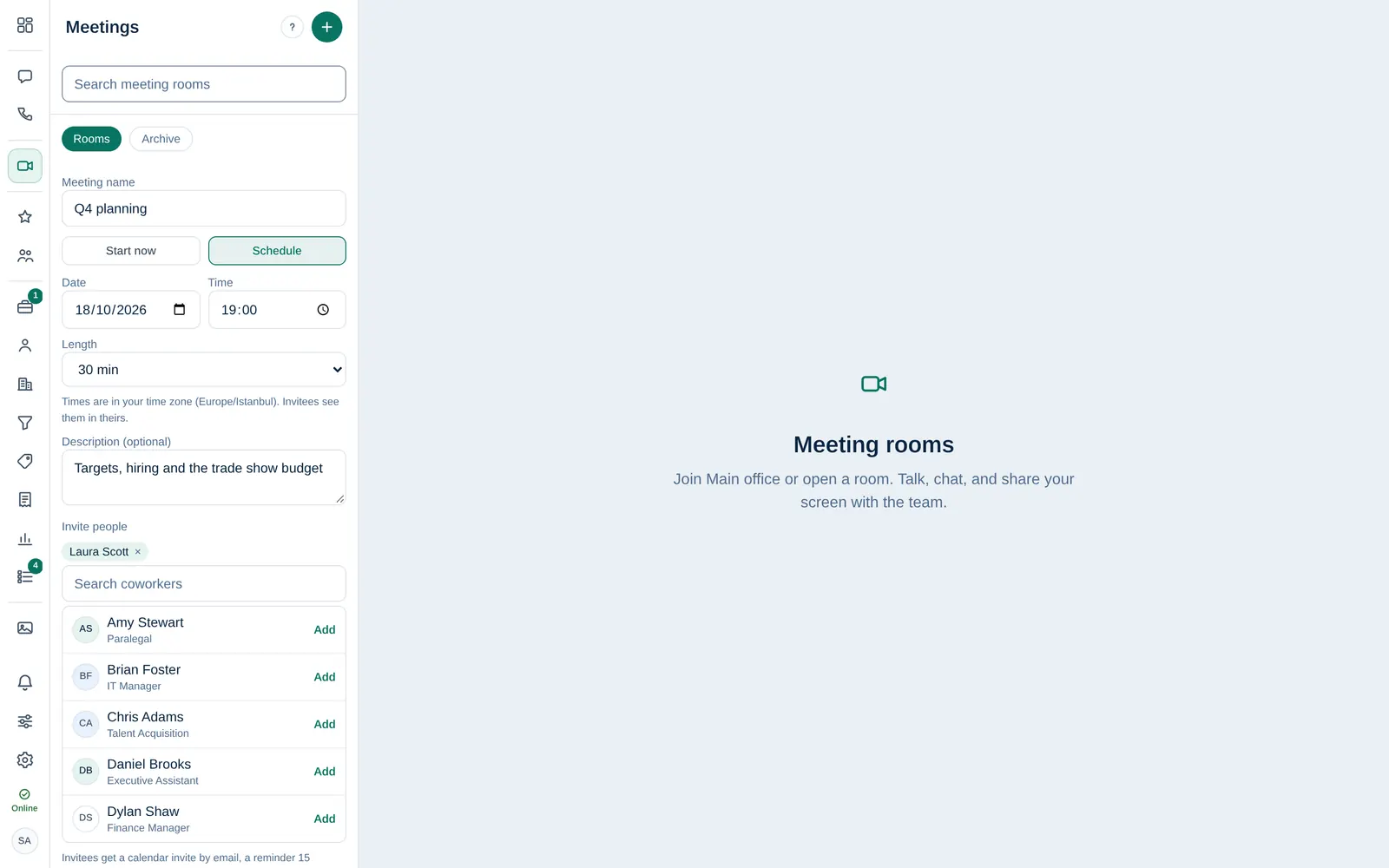
- Select Schedule.
Invitees get a calendar invite by email, a reminder 15 minutes before the start, and the room in their Meetings list.
Who can join, who hosts
| Room | Who can join | Hosts |
|---|---|---|
| Main office | Every active team member | Owner and Company admins |
| A team room | Its creator, the people invited, Owner, Company admins and HR | The creator, Owner, Company admins and co-hosts |
| A customer meeting | The organiser, invited colleagues, people who can see the linked lead or deal, Owner and Company admins, plus customers with the guest link | The organiser, Owner, Company admins and co-hosts |
Hosts can lock the room, record, let people in from the waiting room, mute or remove people and end the meeting for everyone.
Meet a customer
Customer meetings with a guest link are scheduled from a lead or a deal, on its Meeting tab, so the meeting is linked to the sale. Dromix emails the guest link to the customer, who joins at the start time without an account. See Log calls, meetings and notes.
In the Meetings list, a room with a guest link has a copy button: select it to Copy guest link again.
Guests (the role) do not have Meetings. Invite them to a customer meeting with its guest link instead.