
Threads, reactions and pins
Reply to one message in a side thread, react with an emoji, and pin important messages to the top of a chat so everyone finds them.
Who can use this
OwnerCompany adminHRDepartment managerMemberGuestRequirements
None beyond the role
Threads keep side discussions out of the main chat, reactions answer without a new message, and pins keep the important things at the top.
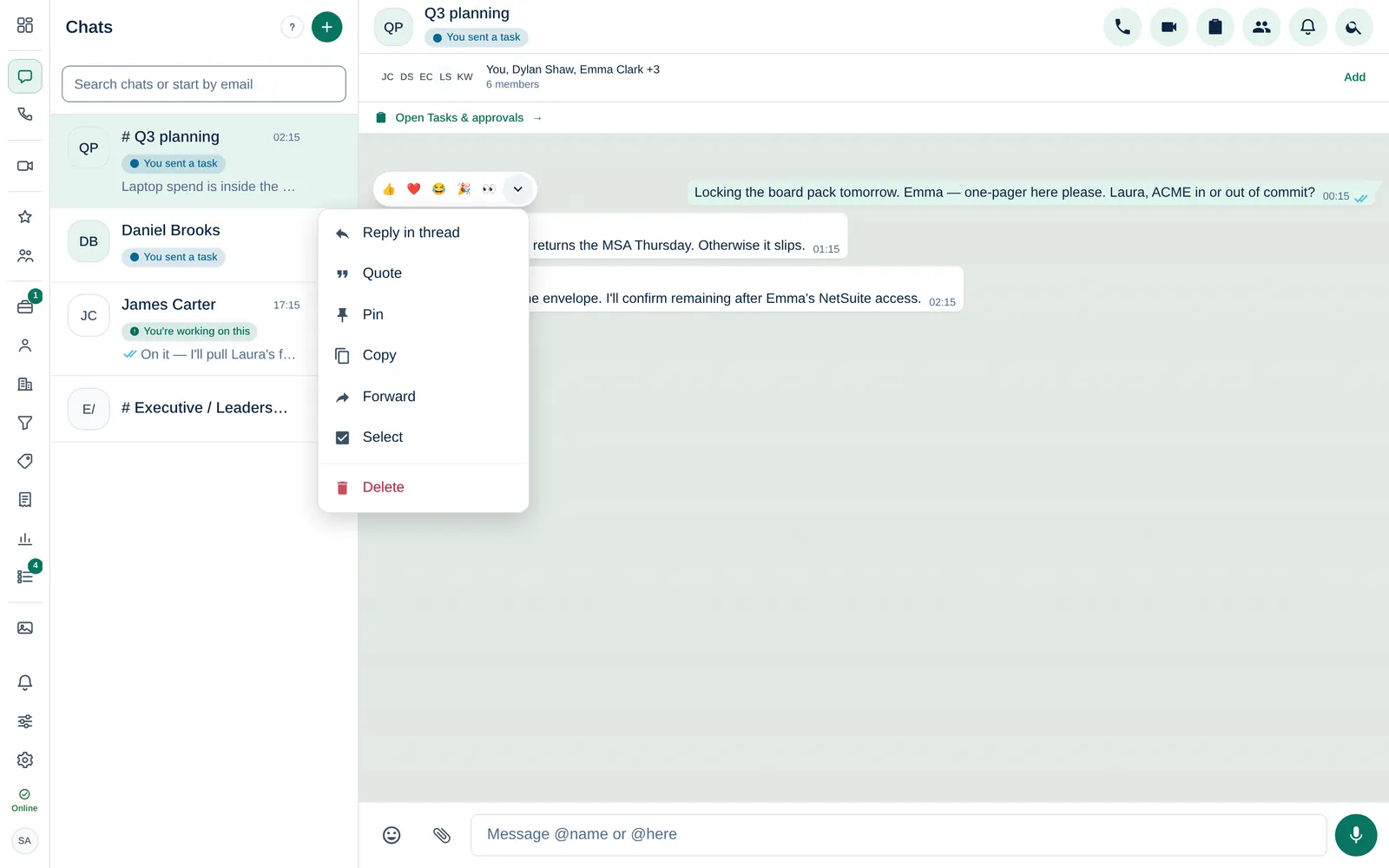
Reply in a thread
- Point at a message (on a phone, press and hold it) and open the message menu.
- Choose Reply in thread. The Thread panel opens beside the chat with the original message at the top.
- Write your reply and send it.
Under the original message the chat shows how many replies there are, for example 3 replies. Select it to open the thread again. A new thread shows No replies yet. Close thread closes the panel.
In a customer chat (WhatsApp, Instagram, Facebook), a thread reply is an internal note for your team. The customer never sees it.
React with an emoji
Point at a message and pick one of 👍 ❤️ 😂 🎉 👀. Under the message you see each emoji with how many people chose it. Select an emoji there to add or take back your own reaction.
Pin a message
- Open the message menu of the message.
- Choose Pin.
The pinned bar at the top of the chat shows the newest pin and, when there are several, how many. Select the bar to jump to that message (or open its thread). Pinned messages also carry a small Pinned tag.
A chat can have up to 50 pins. To remove one, open its message menu and choose Unpin.
Who can do what
| Action | Who |
|---|---|
| Reply in a thread, react | Everyone in the chat, including Guest Guests |
| Pin | Every team member in the chat; not Guests |
| Unpin | The person who pinned it, a manager of the channel, the Owner, Company admins and HR |