
The deal page
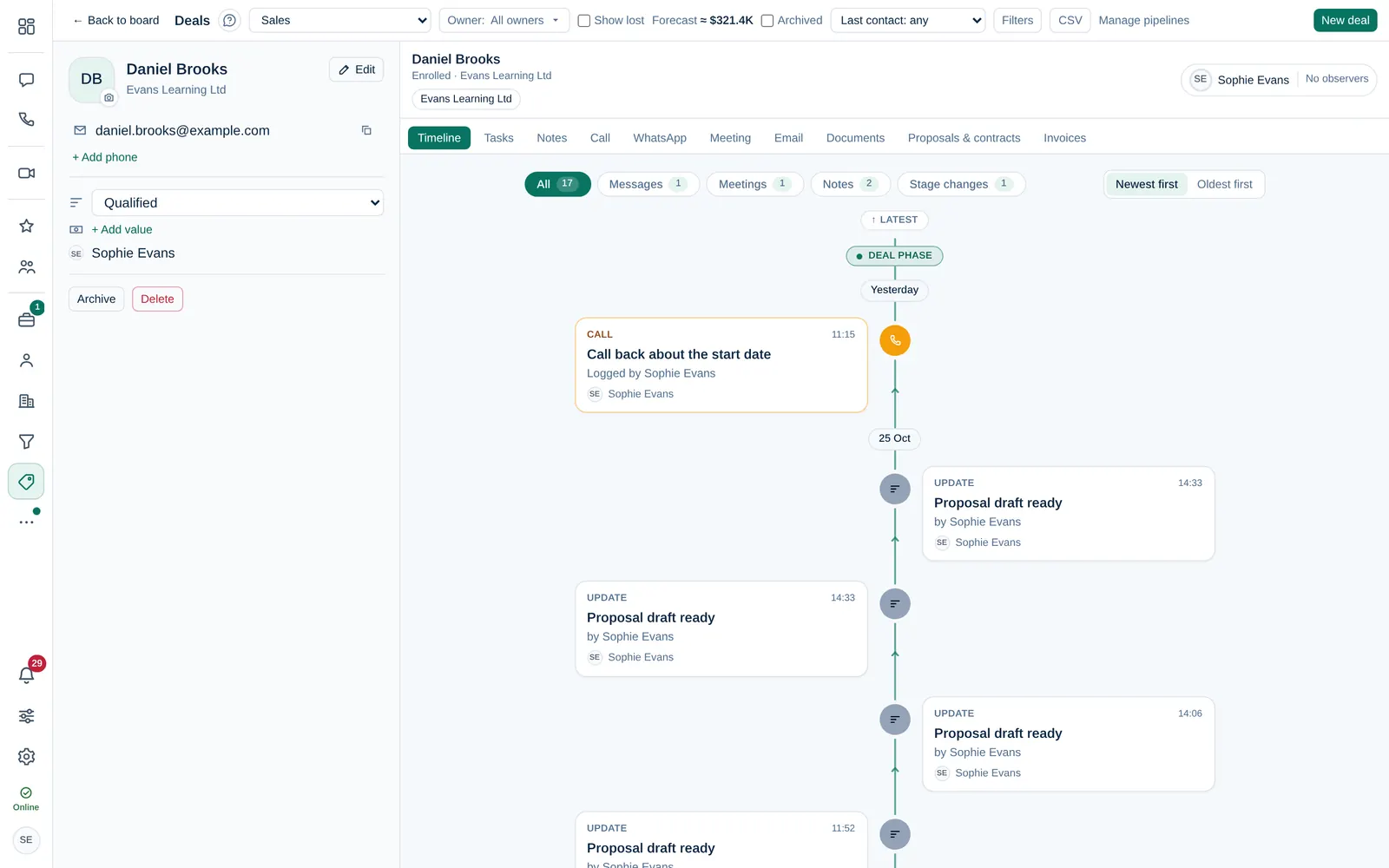
A tour of the deal page, from the details, people and pipeline journey to the tabs for timeline, tasks, notes, calls, meetings, email and documents.
Who can use this
OwnerCompany adminHRDepartment managerMemberRequirements
- CRM access (department, personal grant or channel)
Select a deal on the board or in the list to open its page.
Details and people
At the top, the person card shows the customer's photo, name and company, their email, phone and location, and the deal's Stage, value, owner and expected close date. Filled custom fields are folded under More details. Select Edit to change the details, tags and custom fields; Save or Cancel (or Esc) brings you back to the card. Above the card, the owner and observers. See Deal owner and observers.
The Pipeline journey shows the whole history of the customer, from the Lead phase to the Deal phase. Filter it by Messages, Meetings, Notes or Stage changes, and choose Newest first or Oldest first.
The tabs
| Tab | What you do there |
|---|---|
| Timeline | Read everything that happened on the deal |
| Tasks | Plan the next steps. See Deal tasks and reminders |
| Notes | Notes for the team |
| Call | Log call for a call you made outside Dromix |
| Open WhatsApp chat with the customer | |
| Meeting | Customer booking (the booking link), Schedule meeting and send the guest link |
| Send email from a team or personal mailbox | |
| Documents | Customer documents: the upload link and the files the customer uploaded |
| Proposals & contracts | Proposals and contracts: create, send and follow them |
| Invoices | Invoices for this deal, Online payments and, for won deals, Refund |
Calls, meetings, notes and email are explained in Log calls, meetings and notes.
What you can do depends on your role on the deal
| You are | You can |
|---|---|
| The deal owner, an Owner or a Company admin | Everything: edit, move, log activity, change the owner |
| An observer | Read everything, add notes and log activity, but not edit the deal |
| Someone else with CRM access | See a summary: what happened and when, without message contents. You can add notes |
If you only see a summary, see Why do I only see a summary?.
Archive or delete a deal
Archive hides a deal from the board, reports and the dashboard; Restore brings it back. Owner and Company admin can delete a deal permanently. It then drops out of reports.