
Suspend, offboard or remove someone
Pause someone's access, end it for good when they leave, or remove them and hand their open work to a teammate. Which option fits when.
Who can use this
OwnerCompany adminRequirements
None beyond the role
When someone goes on long leave or leaves the company, you decide what happens to their account and their work. All of this happens in the person panel in Organization.
- Open Company admin → Company → Organization.
- Search for the person and select them.
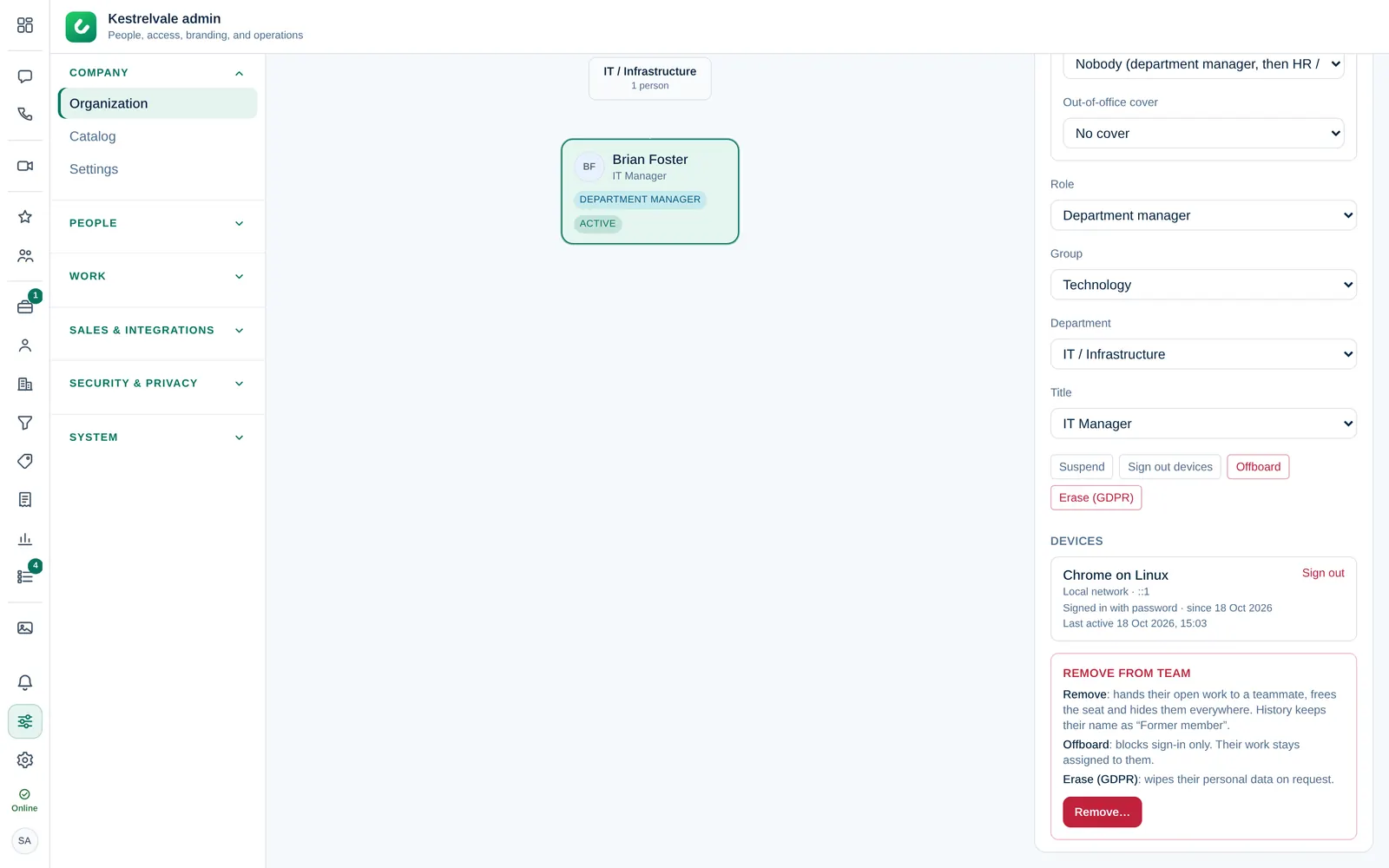
Which option to choose
| Option | Use it when | Can it be undone? |
|---|---|---|
| Suspend | Someone should not sign in for a while, for example during an investigation or long leave. They are signed out and cannot sign in. Their work stays assigned to them. | Yes, with Restore. |
| Offboard | Someone has left and their work can stay with their name. They lose access immediately, all devices are signed out and they are removed from every chat. Their seat is freed. | No. |
| Remove | Someone has left and their open work must go to a teammate. Their seat is freed and they disappear from people lists and pickers. | No. |
| Erase (GDPR) | The person asks for their personal data to be deleted. See GDPR requests. | No. |
In past messages and activity, people who were removed keep their name with the tag Former member.
Suspend and restore
- Select Suspend.
- Confirm with Confirm in Suspend this account?.
The person is signed out on all devices. When they try to sign in, they see Invalid email or password, the same message as for a wrong password, so nobody can tell from the sign-in page which accounts are suspended. To give access back, open them again and select Restore.
Offboard
- Select Offboard.
- Read Offboard this person? and select Confirm.
Their leads, deals and tasks stay assigned to them. Reassign them yourself afterwards, or use Remove instead.
Remove and hand over work
- Under Remove from team, select Remove….
- Dromix lists what they own: Open leads, Open deals, Open tasks, Assigned conversations, My Work items and approvals and Open booking links.
- Under Hand their work over to, choose a teammate.
- If people report to them, Dromix shows that they will report to this person's own manager instead, or to no one.
- Type the person's name to confirm and select Remove teammate.
Owner and Company admin accounts are locked in Organization. Only the Owner can remove a Company admin, and nobody can remove the Owner.
Other actions in the panel
- Sign out devices: signs the person out everywhere, for example after a lost phone. They can sign in again.
- Reset MFA: they set up their authenticator again at the next sign-in. Shown only when they use two-step verification.
- Unlock: lifts a lock after too many wrong passwords.
- Devices: where they are signed in, with Last seen.