
Clock in and out
Use the Time clock to record when you arrive and leave, why it needs your location, and why a stamp cannot be changed afterwards.
Who can use this
OwnerCompany adminHRDepartment managerMemberRequirements
- Time clock switched on
If your company uses the time clock, you record your working day in Dromix, like holding your card to a card reader. Guest Guests cannot clock in.
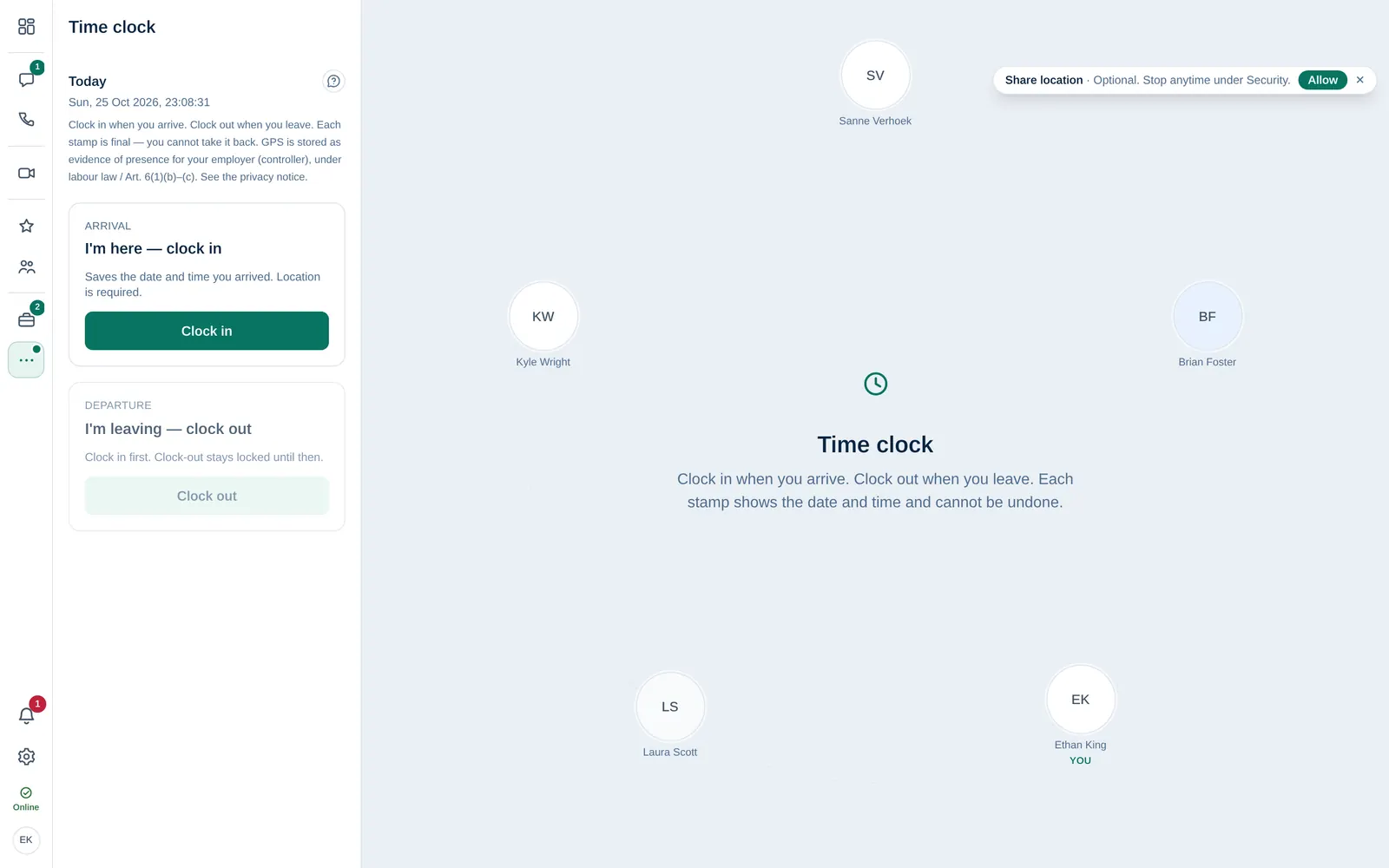
Clock in and out
- Open Time clock in the menu, or select the Time clock counter on the Dashboard.
- When you arrive, select Clock in under I'm here — clock in.
- If your browser asks, allow location. Without location, you cannot clock in.
- When you leave, select Clock out under I'm leaving — clock out.
Each day has one Arrival and one Departure. Clock-out stays locked until you have clocked in. When both are recorded, you see Both stamps for today are recorded.
Each stamp is final. You cannot take it back or change it. If you clocked in or out by mistake, tell your manager or HR.
Why location is needed
Dromix stores your GPS location with each stamp as evidence that you were present, for your employer under labour law. It is only saved when you clock in or out, not in between.
If you see Could not read location. Try again near a window., move closer to a window or outside and try again. On a computer without location, use your phone.
Which day counts
The day is counted in your company's time zone. The Dashboard reminds you with You haven't clocked in today if you have not clocked in yet.
Who sees your stamps
Owner and Company admin see the stamps and the last known location in Company → Attendance and Company → Map. They switch the time clock on or off in Company → Settings → Time clock & location.