
Manage a channel and its members
Rename a group channel, change its topic, add or remove people and leave a channel, and see who can manage which kind of channel.
Who can use this
OwnerCompany adminHRDepartment managerMemberGuestRequirements
None beyond the role
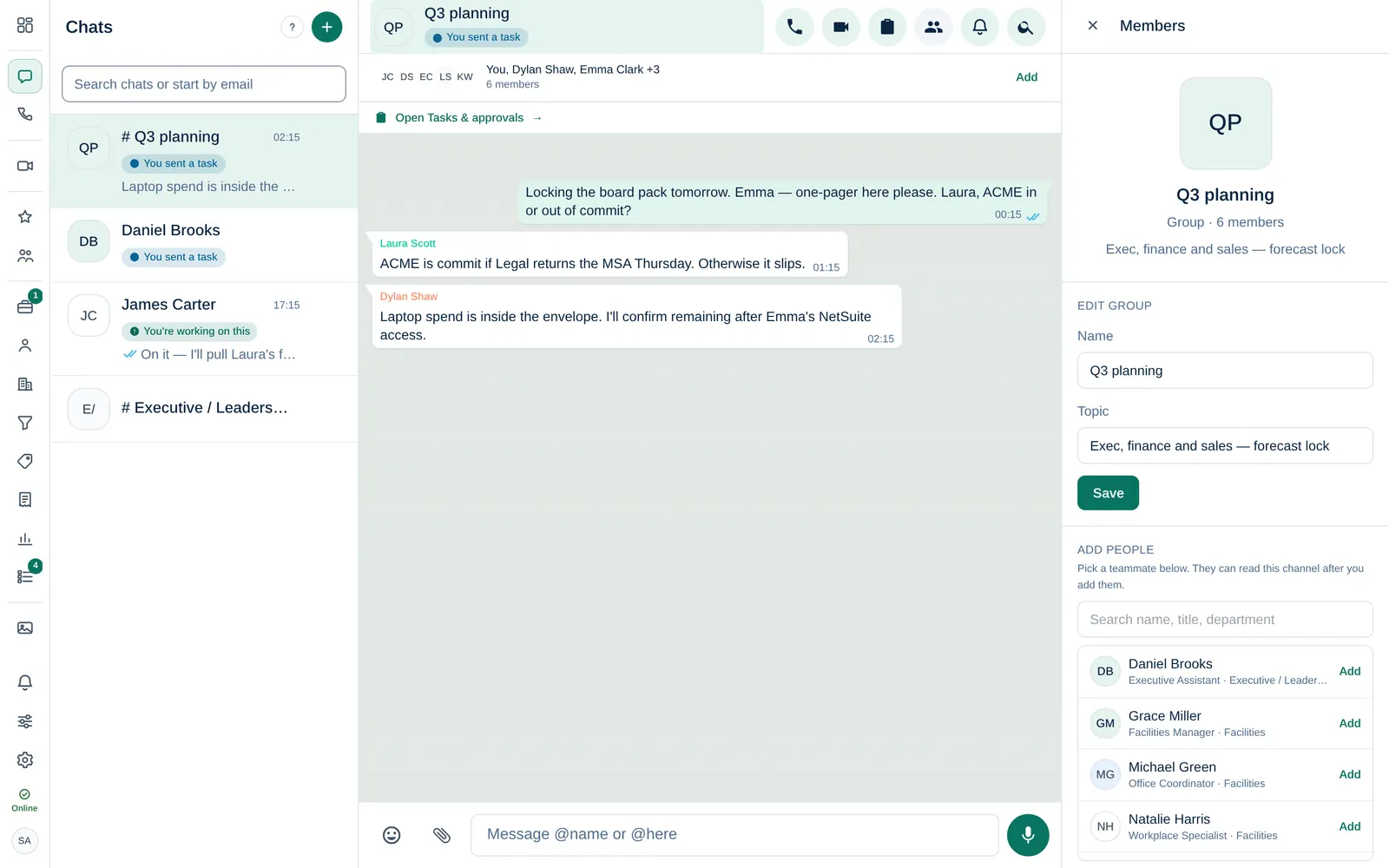
Open a channel and select its name at the top or the Members button. On a phone, open the chat menu and choose Members and info. The panel shows the topic, the members and the pinned messages.
Who can manage a channel
| Channel | Who can rename it, change the topic and add or remove people |
|---|---|
| Group channel | The person who created it, Owner Company admin HR Department manager |
| Announcement channel | Owner Company admin HR |
| Direct chat | Nobody; a direct chat always has two people |
Member Members manage the channels they created. Guest Guests cannot manage channels.
Rename a channel or change its topic
- In the panel, go to Edit group.
- Change the Name or the Topic.
- Select Save.
Add people
- In the panel, go to Add people.
- Search by name, title or department and select a teammate.
They can read the channel from then on. Because messages are encrypted, the channel key is shared from your device; if Dromix says Chat key is still loading, wait a moment and try again.
Remove someone
Select Remove next to the person in the member list and confirm. They no longer have access to the channel.
Leave a channel
Select Leave group (in an announcement channel: Leave channel) at the bottom of the panel and confirm. You stop receiving its messages.
Department channels
Each department has its own channel. As soon as a Company admin sets your department, you join it automatically. The first time, a colleague who is already in the channel must be online to share the key with you, so it can take a moment.