
Turn modules on or off
Switch on Calendar, WhatsApp, Instagram, Facebook, Email and the time clock for your company, and choose who uses them.
Who can use this
OwnerCompany adminRequirements
None beyond the role
Some parts of Dromix are off until a Company admin switches them on. Then people get the matching screens, or connect their own accounts.
Integrations
Open Company admin → Sales & integrations → Integrations. Each app shows Off or Active.
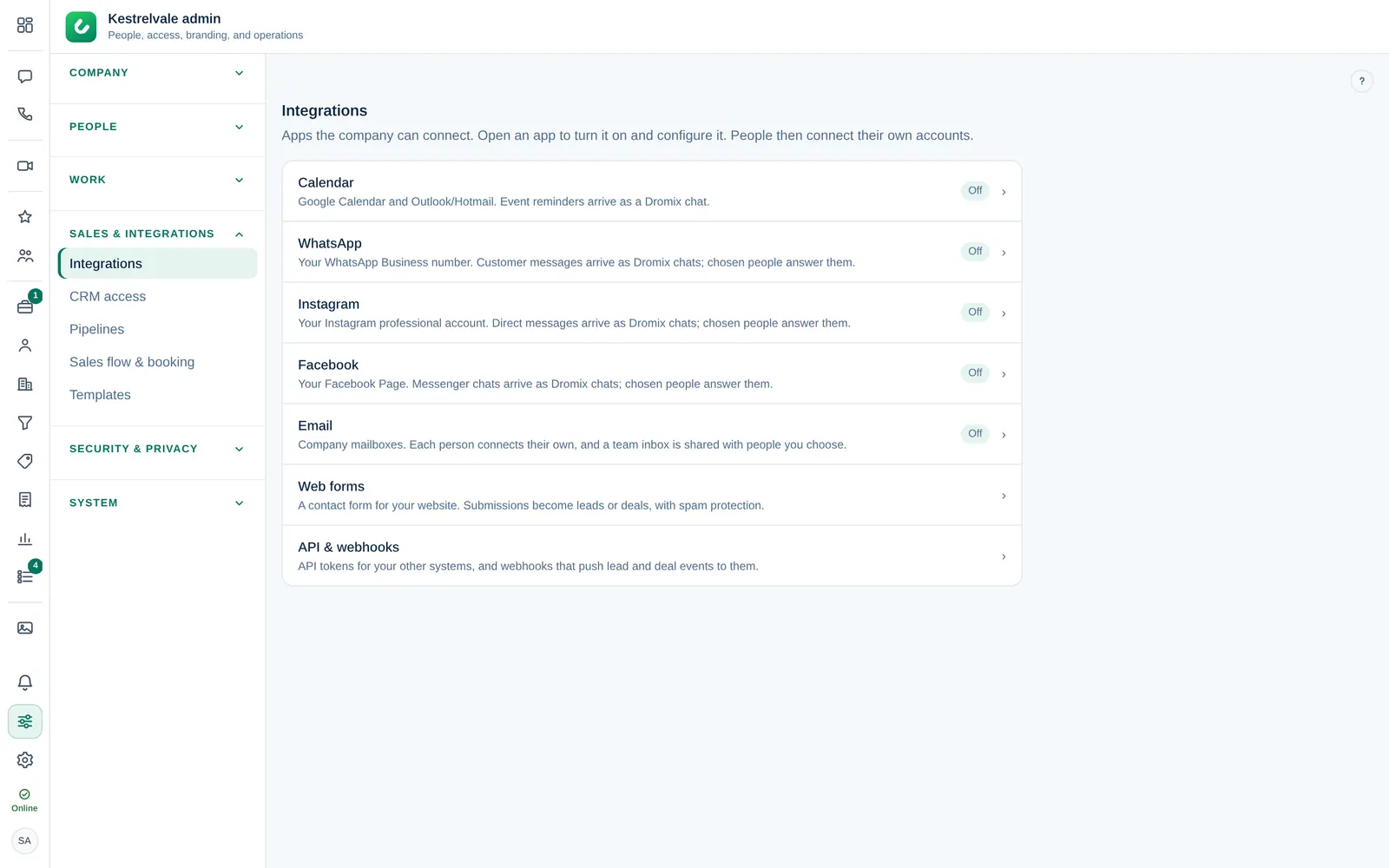
| App | What it does | After you turn it on |
|---|---|---|
| Calendar | Google Calendar and Outlook/Hotmail. Event reminders arrive as a Dromix chat. | Each person connects their own calendar from Integrations in their Settings menu. |
| Your WhatsApp Business number. Customer messages arrive as Dromix chats. | Add the people who answer under Access. | |
| Direct messages of your Instagram professional account. | Add the people who answer under Access. | |
| Messenger chats of your Facebook Page. | Add the people who answer under Access. | |
| Company mailboxes. | Each person connects their own mailbox; you can share a team inbox with chosen people. | |
| Web forms | A contact form for your website. Submissions become leads or deals. | – |
| API & webhooks | API tokens and webhooks for your other systems. | – |
Turn an app on
- Select the app in Integrations.
- Enter the values the setup guide on the right asks for, for example the keys from your company's Meta app for WhatsApp, or the Google and Microsoft client IDs for Calendar.
- Tick Active and save (for example Save WhatsApp).
- For WhatsApp, Instagram and Facebook: under Access, select the people who answer customers and choose Give access.
People on a channel's Access list become channel agentsChannel agent A person chosen to answer a WhatsApp, Instagram or Facebook channel. Channel agents get CRM access automatically. and get CRM accessCRM access Permission to open Leads, Contacts, Companies and the Deals board. Owners and Company admins always have it; other people get it through their department, a personal grant, or access to a messaging channel. automatically. Until you add someone, customer messages are kept but nobody sees them.
Turn an app off
Open the app, untick Active and save. For WhatsApp, customer messages are then ignored until you turn it back on. Existing chats and data are kept.
Time clock and location
- Open Company → Settings → Time clock & location.
Tick Time clock and location sharing and select Save time clock & location.
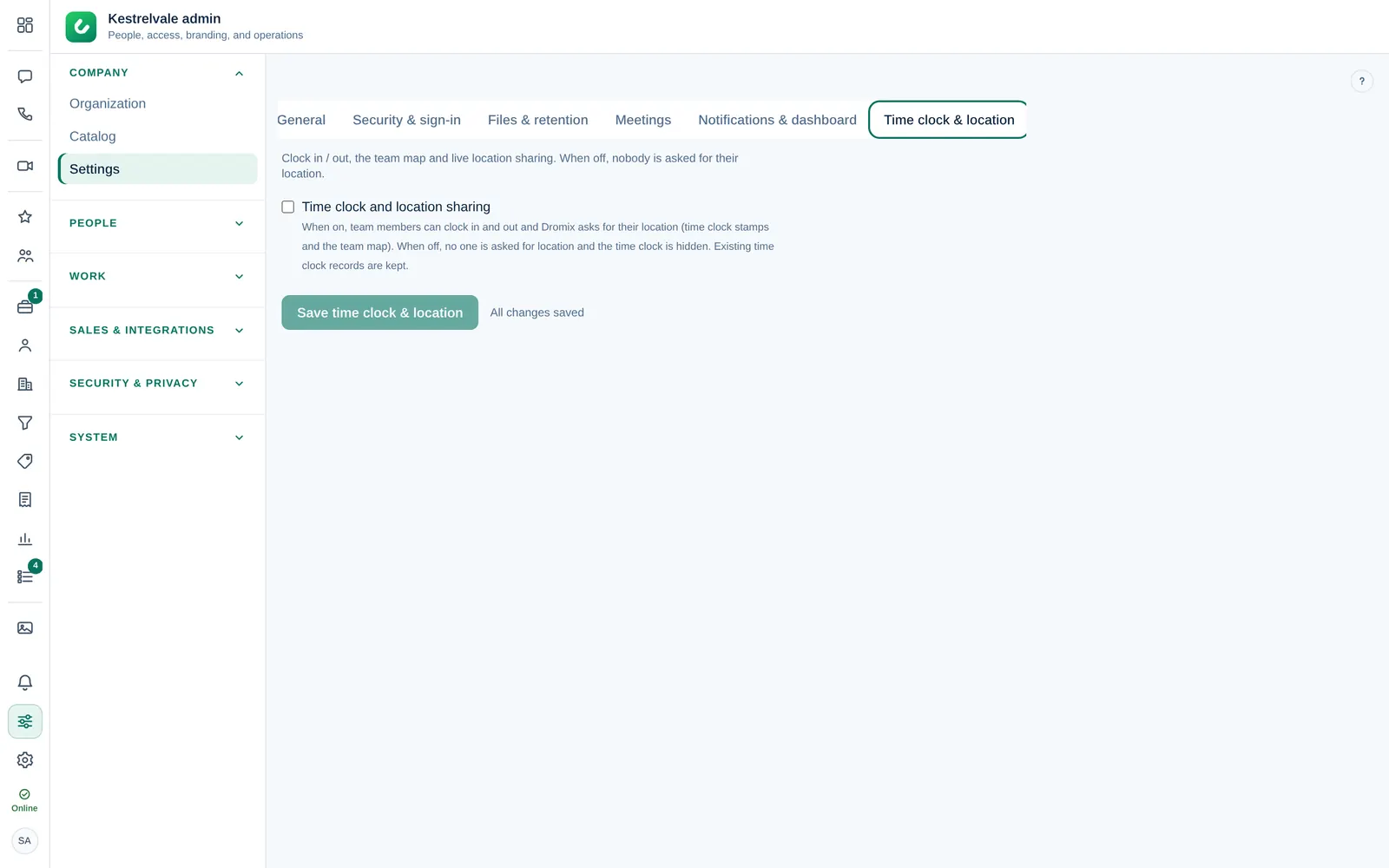
While it is on, team members see Time clock in the More menu (three dots) of the left rail and can clock in and out, and Dromix asks for their location for time clock stamps and the team map. While it is off, nobody is asked for their location and the time clock is hidden. Existing time clock records are kept.
Other settings
Company → Settings has more company-wide switches, for example Security & sign-in (allowed email domains, Require authenticator app (TOTP) for every account), Meetings and Leads (automatic lead assignment and the first-reply target).
Only the Owner and Company admins can change these settings.