
Invite people and choose a role
Send an invite link, pick the right role for each person, and make someone a Department manager after they join.
Who can use this
OwnerCompany adminRequirements
- A free seat on the license
People join Dromix by invitation only. You create an invite for an email address, choose a roleRole What a person can open in Dromix: Owner, Company admin, HR, Department manager or Member. Every person has exactly one role. Guest accounts are no longer available; outside people join meetings and webinars with a link., and Dromix gives you a personal sign-up link that is valid for 7 days.
The six roles
Every person has exactly one role. The role decides which parts of Dromix they can open. Department and job title come from the Catalog and do not change access.
| Role | What they can do | How someone gets it |
|---|---|---|
| Owner | Everything a Company admin can do, plus inviting Company admins, backups and the license. There is one Owner per workspace. | Created during the first setup. Nobody can invite an Owner. |
| Company admin | The full Company admin console: people, catalog, settings, integrations, CRM access, pipelines and the audit log. Always has CRM access. | Invite. Only the Owner can choose this role. |
| HR | Phone, employee ID and email in the directory, company announcements, and the team floor on the dashboard. No admin console. | Invite. |
| Department manager | Approves requests from their department, sees the team report and gets lead escalations for the department. | Not at invite time. Set later in Organization. |
| Member | Chats, calls, meetings, My work and their own tasks. Leads, Contacts and Deals only with CRM accessCRM access Permission to open Leads, Contacts, Companies and the Deals board. Owners and Company admins always have it; other people get it through their department, a personal grant, or access to a messaging channel.. | Invite (the default). |
CRM access is separate from the role. A Member, HR person or Department manager sees Leads, Contacts and the Deals board only when their department has CRM access or they got a personal grant. See Your first 10 minutes as a Company admin.
Guest accounts are no longer available. People outside your company join a meeting or webinar with its link, without an account. See Join a meeting as a guest. Existing guest accounts can no longer sign in.
Invite someone
Open Company admin → People → Invites.
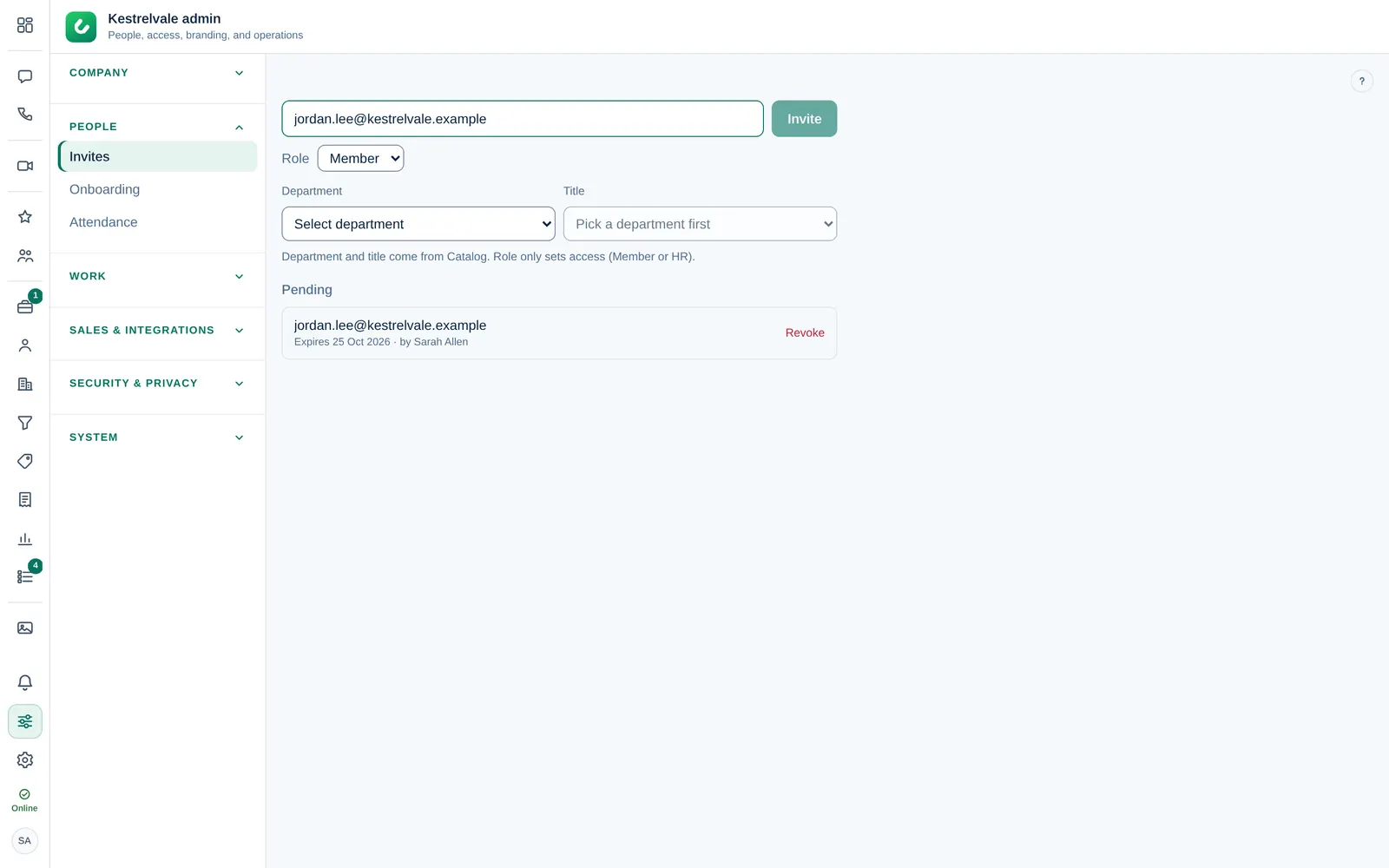
- Type the person's work email address.
- Choose a Role: Member, HR or Company admin Owner (only the Owner sees this option).
- For Member and HR, pick a Department and a Title. Both come from Company → Catalog, so add missing departments there first. For a Company admin they are optional.
- Select Invite. Copy the invite link that appears and send it to the person, or let Dromix email it (see Access from day one and email invites). The link works once and expires after 7 days.
Inviting the same email again cancels the earlier link and creates a new one.
When the person opens the link, they enter their name and a password and land in Dromix with the role you picked.
Access from day one and email invites
Under Access from day one in Invites, and in the setup wizard, you can also give each new Member or HR person access before they join: CRM access (all pipelines; the pipelines it covers are listed under the checkbox), brands, team inboxes and channels. Dromix stores it on the invite and applies it when the person accepts. Brands give CRM access and membership of the brand's team inbox. The company itself is not in the list; give access to its main inbox under team inboxes.
If the system email works, tick Send the invite by email and Dromix emails the link for you; otherwise the option is not shown and you copy the link. Pending invites have Send reminder, which emails a new link and cancels the old one. Without a system email the button is Copy a new link.
Make someone a Department manager
Department manager is not in the invite list on purpose: the role only makes sense for someone who already sits in a department.
- Invite the person as a Member with their department and title, and wait until they have joined.
- Open Company admin → Company → Organization and select the person.
In the panel on the right, change Role to Department manager. The change is saved immediately.
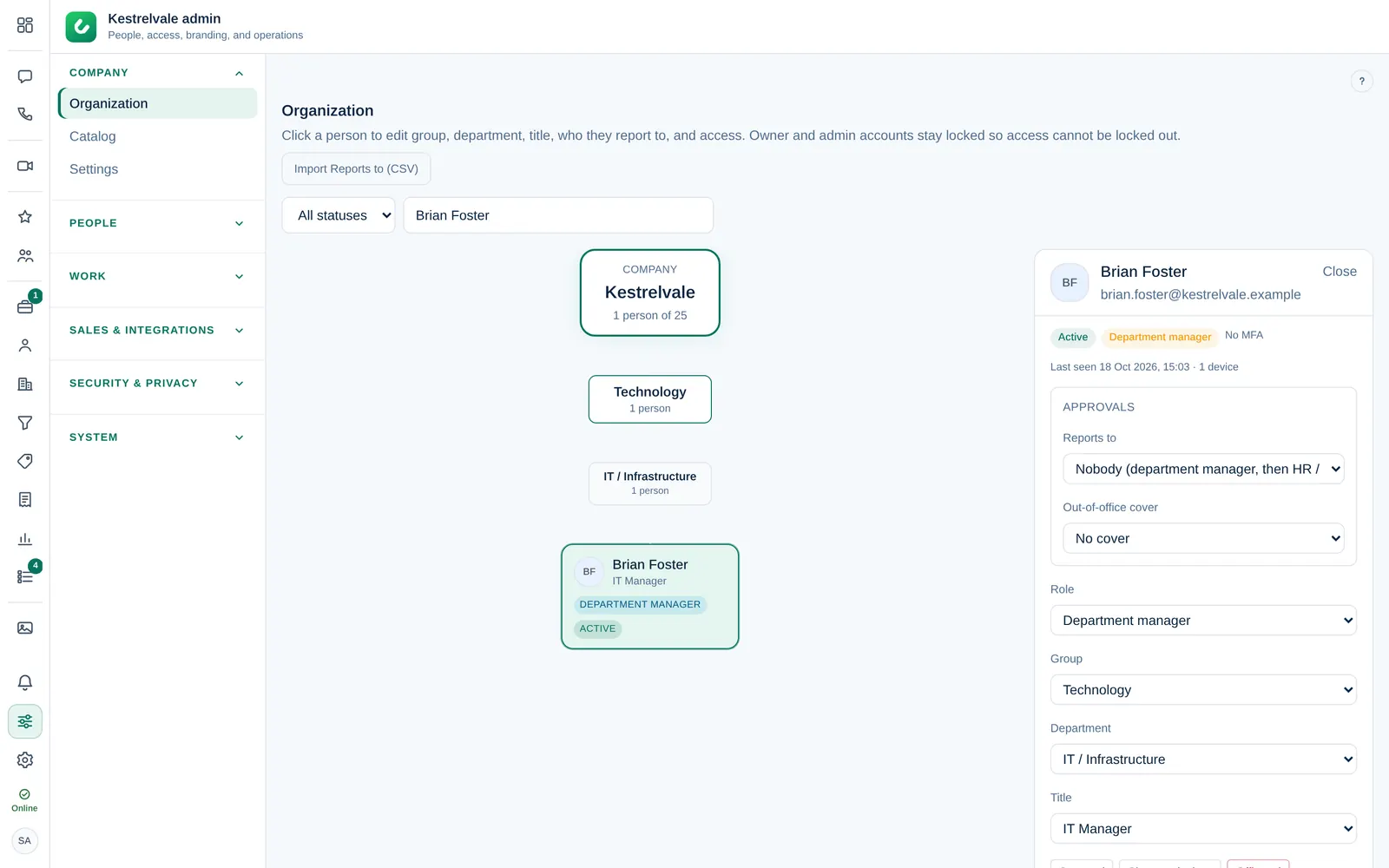
The same Role select switches people between Member, Department manager and HR. Only an Owner or Company admin can make someone HR.
The roles of the Owner and Company admins cannot be changed in Organization. Their accounts are locked there so nobody removes the last administrator by mistake.
Things to know
- Each active person uses one seat of your license. When all seats are used, Invite is disabled; System → License shows your seat use.
- Company → Settings → Security & sign-in can limit invites to your company email domains.
- Every invite and role change is written to the audit log.