
Deal list, filters and saved views
Switch Deals to the List view, sort and filter by owner, tags and fields, save views for the team and change many deals at once.
Who can use this
OwnerCompany adminHRDepartment managerMemberRequirements
- CRM access (department, personal grant or channel)
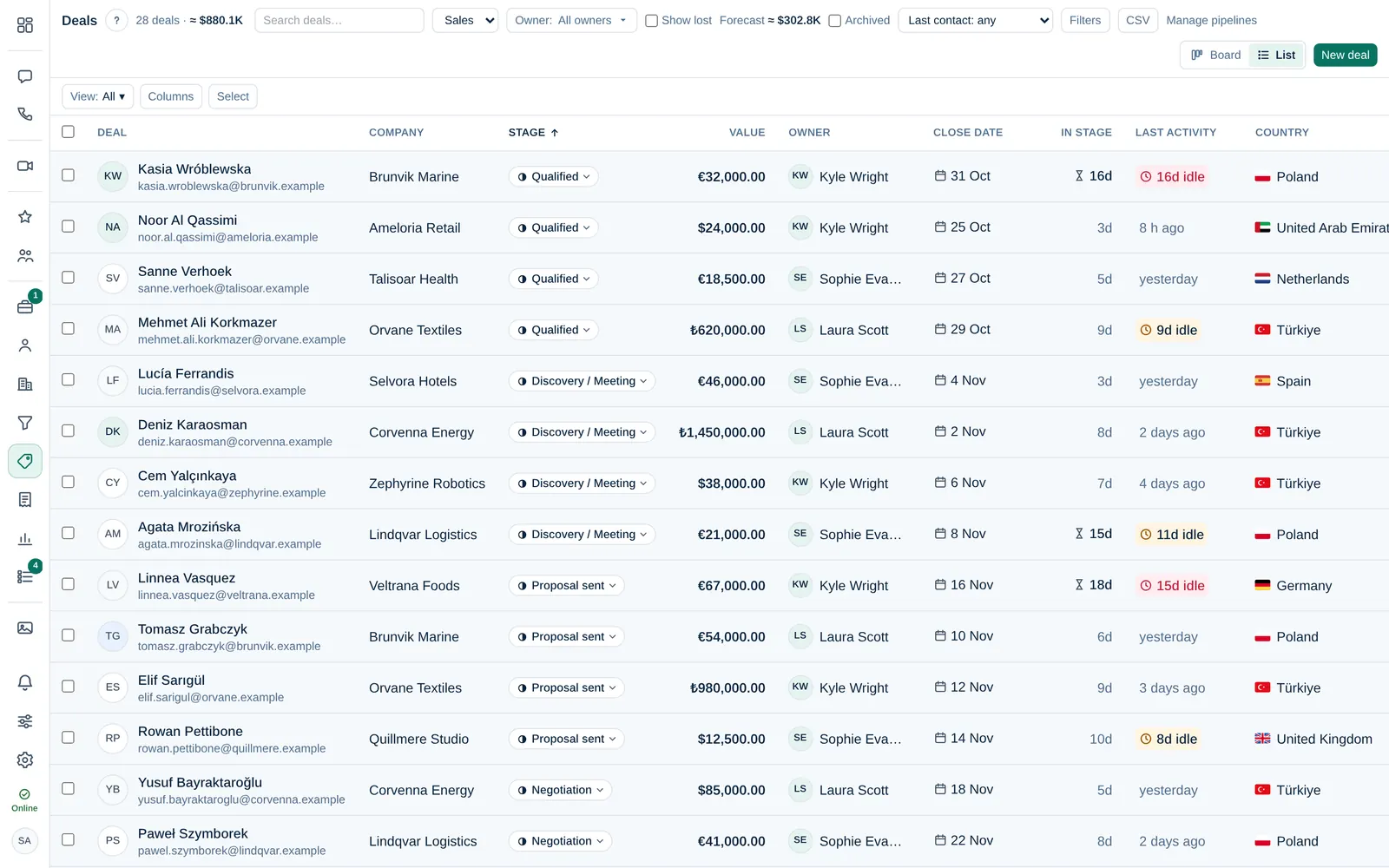
Deals has two views: the Board with one column per stage, and the List, a table you can sort and filter.
Switch views
Select Board or List in the toolbar. The pipeline picker at the top chooses which pipeline you see.
In the list, each row shows the deal, company, stage, value, owner, close date, time in stage and last activity. Select a column header to sort, or use Sort: Biggest value first, Recent activity, Most idle first, Close date (soonest), Name (A–Z), Owner (A–Z) or Longest in stage. Columns chooses which columns are shown.
Filter
- Search deals… finds a deal by name.
- Filter by owner: My deals, Unassigned or one or more people. Show all owners clears it.
- Show lost shows lost deals too; Archived shows only archived deals.
- + Add field filter… filters by tags (has any of, has all of, has none of) and custom fields.
The line above the list sums up what you see, for example the pipeline, owner filters and whether lost deals are included.
Without CRM access you only see deals you own or observe: Showing deals you own or observe.
Save a view
- Set the filters, columns and sort you want.
- Open View: and choose Save as new view….
- Give it a Name. Tick Share with the team so everyone who can open this list sees it.
Choose a view under My views or Shared with the team. Open the list with this view makes it your default. Only you and Owners or Company admins can change a shared view.
Change many deals at once
- Tick the deals in the list (or Select all deals in the list).
- Open Actions ▾ and choose Change owner, Change stage, Add tag, Remove tag, Set field, Archive, Restore or Export selected.
Deals you are not allowed to change are skipped, and Dromix tells you how many. Owner and Company admin also see Delete permanently.