
Get paid and record payments
Turn on card, PayPal or bank transfer payments, record payments you received by hand, set invoice numbering and send overdue reminders.
Who can use this
OwnerCompany adminHRDepartment managerMemberRequirements
- CRM access (department, personal grant or channel)
Every invoice email has a Pay now link. On that page the customer sees the payment methods your company turned on. Online payments mark the invoice paid automatically; anything else you record yourself.
What the customer sees
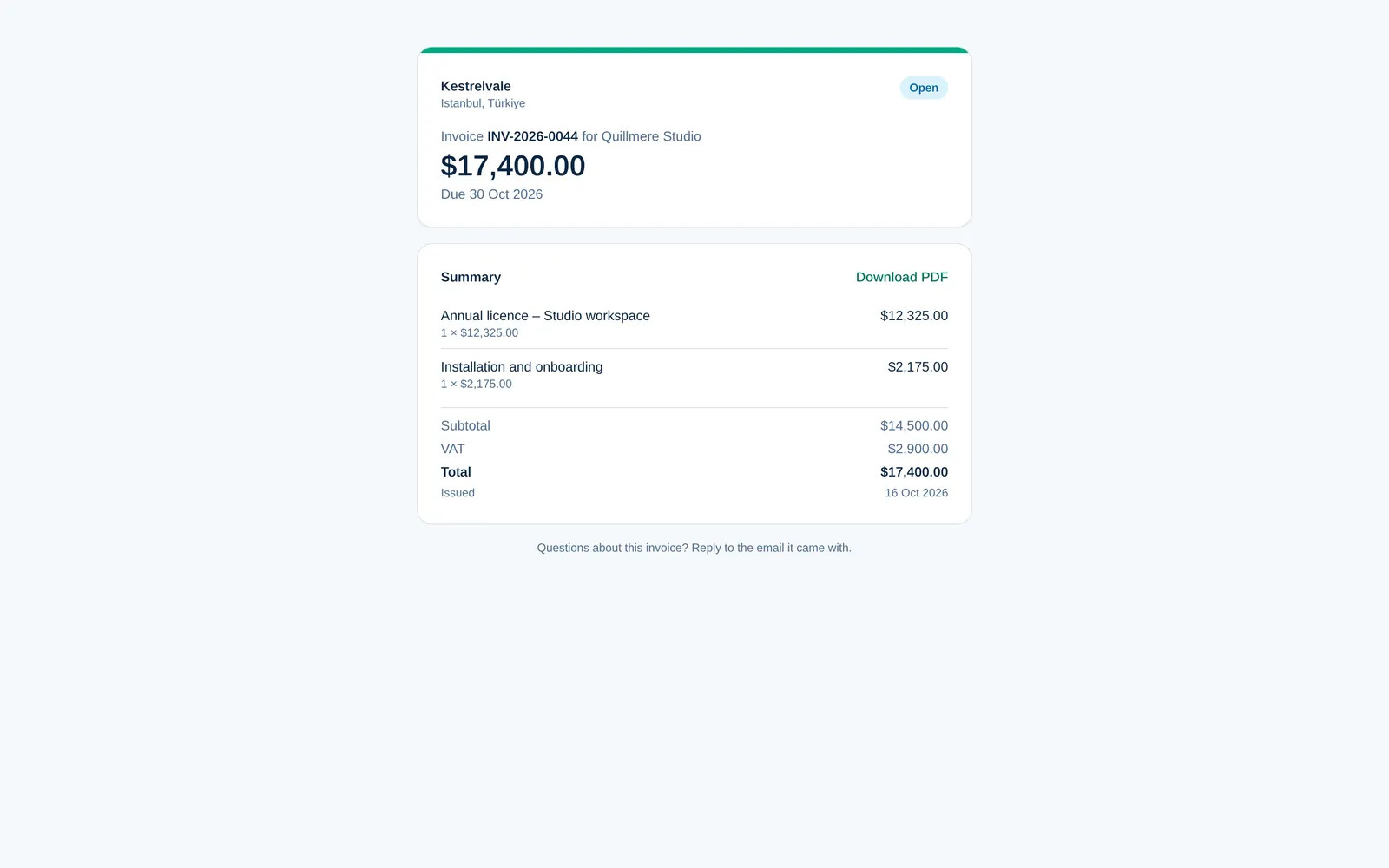
The Pay now page shows the invoice, its total and due date, and:
- a button per online method, for example Pay 1,200.00 € — Card (Stripe). The customer pays on a secure checkout page; your company never sees their card details.
- Pay by bank transfer, with the account holder, bank, IBAN and the reference to use.
- Download PDF.
When the payment is through, the page says Paid in full. Thank you! and the invoice shows Paid. After a card payment with Stripe, the customer also gets the invoice by email with a short Payment received note.
Record a payment by hand
For bank transfers, cash and other payments:
- Open the invoice and select Record payment.
- Enter the Amount, Paid on date and Method, for example Bank transfer or Cash.
- Add a Reference, such as the bank reference, and a Note if you like.
- Select Record payment.
Part payments are fine: the invoice shows Partially paid and the Balance due. Under Payments, each payment shows who recorded it, or Online.
Set up payments and numbering
Owner Company admin Open Company admin → Company → Settings → Invoicing:
- Payment methods: card payments with Stripe are set up in Company admin → Sales & integrations → Payments (Stripe), with Test and Live keys (see Connect Stripe and take payments). Set up Card (iyzico) or PayPal here with the keys from that provider, and turn on Accept bank transfer. Keys are encrypted when saved and are never shown again.
- Bank details: account holder, bank name, IBAN, SWIFT / BIC and optional instructions. They are printed on invoices.
- Numbering: the Format with
{PREFIX},{YEAR}and{SEQ}, the prefixes for invoices and credit notes, and Start again from 1 every year. Next invoice looks like shows an example. - Tax & invoice defaults: tax name and rate, payment terms, currency, notes and footer.
- Products & services: a link to Products, where you keep what you sell for proposals, contracts and invoices.
- Permissions & reminders: Who can create and send invoices, and whether to tell the invoice owner when an invoice becomes overdue.
Overdue reminders
With Email overdue reminders to customers on, Dromix emails the customer after the Days after the due date you choose, up to 5 times, for example 3, 7, 14. Reminders are sent from the mailbox or system email the invoice was sent from, with the pay link. For deals in a brand pipeline they come from its brand inbox; without one, no reminder is sent and the deal shows why.