
Blur or replace your video background
Hide what is behind you in a meeting with blur, a built-in picture or your own image, before you join or during the call.
Who can use this
OwnerCompany adminHRDepartment managerMemberRequirements
None beyond the role
You can blur the room behind you or show a picture instead. The effect is applied on your own computer or phone before your video is sent, and it stays on every time you turn your camera on.
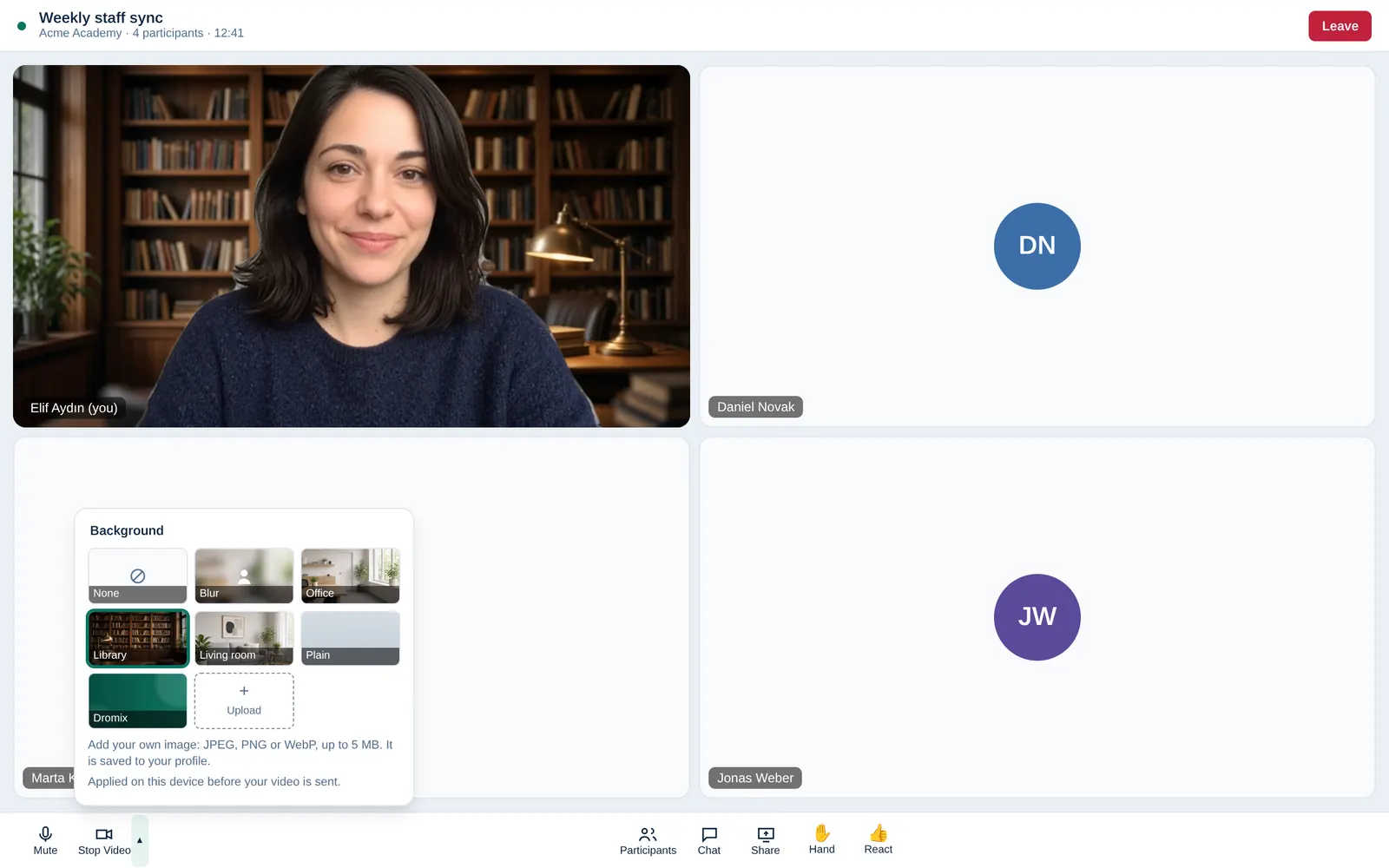
Choose a background
- In a meeting, select the small arrow (Camera options) next to Start Video / Stop Video. On a phone, select More › Background.
- Choose None, Blur or a picture: Office, Library, Living room, Plain or Dromix.
Your choice is saved to your profile and used again in your next meeting, on all your devices.
Before you join
When you start or join a video call in a group chat, a camera check opens first. Choose a background there, see how you look, and select Join now. Meetings that you join from Meetings start with your camera off: choose a background before you turn the camera on, and it is used from the first moment.
When the background is preparing
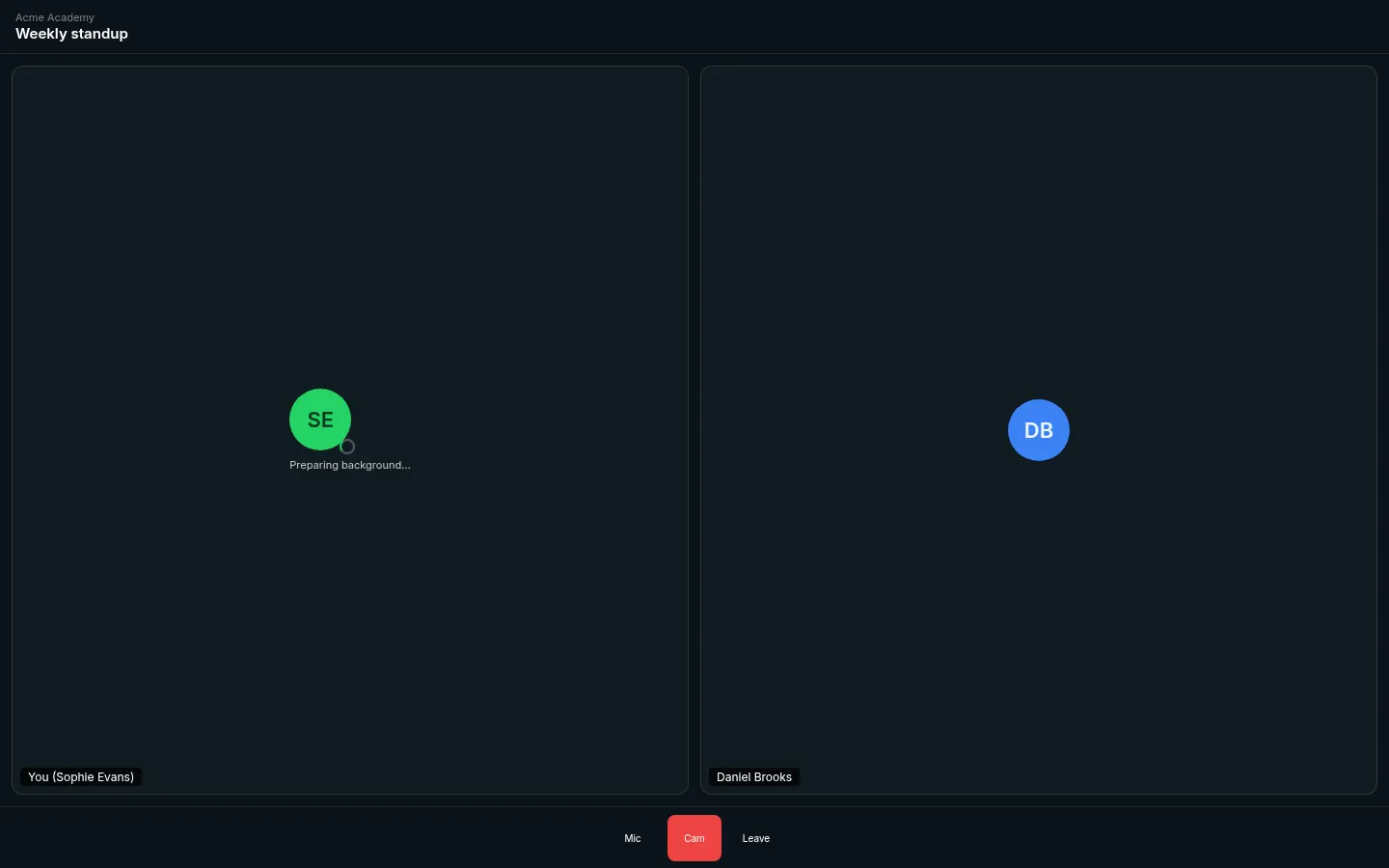
If you selected Blur or a picture, Dromix never shows your real room while the effect loads. Your own tile shows your avatar with Preparing background…. Other people keep seeing your camera-off avatar until the first frame with the background is ready. If loading fails, you can Try again or Turn on without background — the camera does not fall back to the real room by itself.
After you sign in, Dromix quietly downloads what the effect needs into your browser’s cache (unless Data Saver is on or the connection is very slow), so the next time you open the camera there is little or no wait.
Use your own image
- Open the Background picker and select Upload.
- Choose a JPEG, PNG or WebP image of up to 5 MB. A landscape (16:9) image looks best.
You keep one image at a time; uploading a new one replaces it. To delete it, select × on Your image. Only you can see the file itself; others see it only behind you in your video.
Good to know
- The option is hidden in browsers and devices that cannot run it. It works in current Chrome and Edge and in the Dromix desktop app. In Firefox and Safari it depends on the version.
- It uses extra processor power. On an older or slower device, Dromix may turn the background off to keep your video smooth.
- On a laptop or desktop computer, Dromix may use a more accurate background model of about 16 MB (downloaded once into the cache after sign-in). Phones, tablets and slower devices use a lighter model.
- Good, even light and a plain wall behind you give the cleanest edges.
- Customers who join with a guest link select Background in the meeting toolbar. They can use Blur and the built-in pictures, which are saved in their browser, but cannot upload an image. Prefetch for guests starts on the join page while they type their name.