
Let customers book a meeting
Send a customer a booking link for a deal, so they pick a free time in your calendar, and close times when you are not available.
Who can use this
OwnerCompany adminHRDepartment managerMemberRequirements
- Owner or observer of the deal
Instead of emailing back and forth about a time, send the customer a booking link. They pick one of the deal owner's free times, and the meeting is added to the deal.
Create a booking link
- Open the deal and choose the Meeting tab. Customer booking is at the top.
- Under Customer booking, select Create booking link.
- Select Copy and send the link to the customer, for example in the deal's chat or email.
The deal needs an owner first, because free times come from the owner's calendar. With the sales flow, Dromix can email the link when the deal enters Discovery / Meeting.
What the customer sees
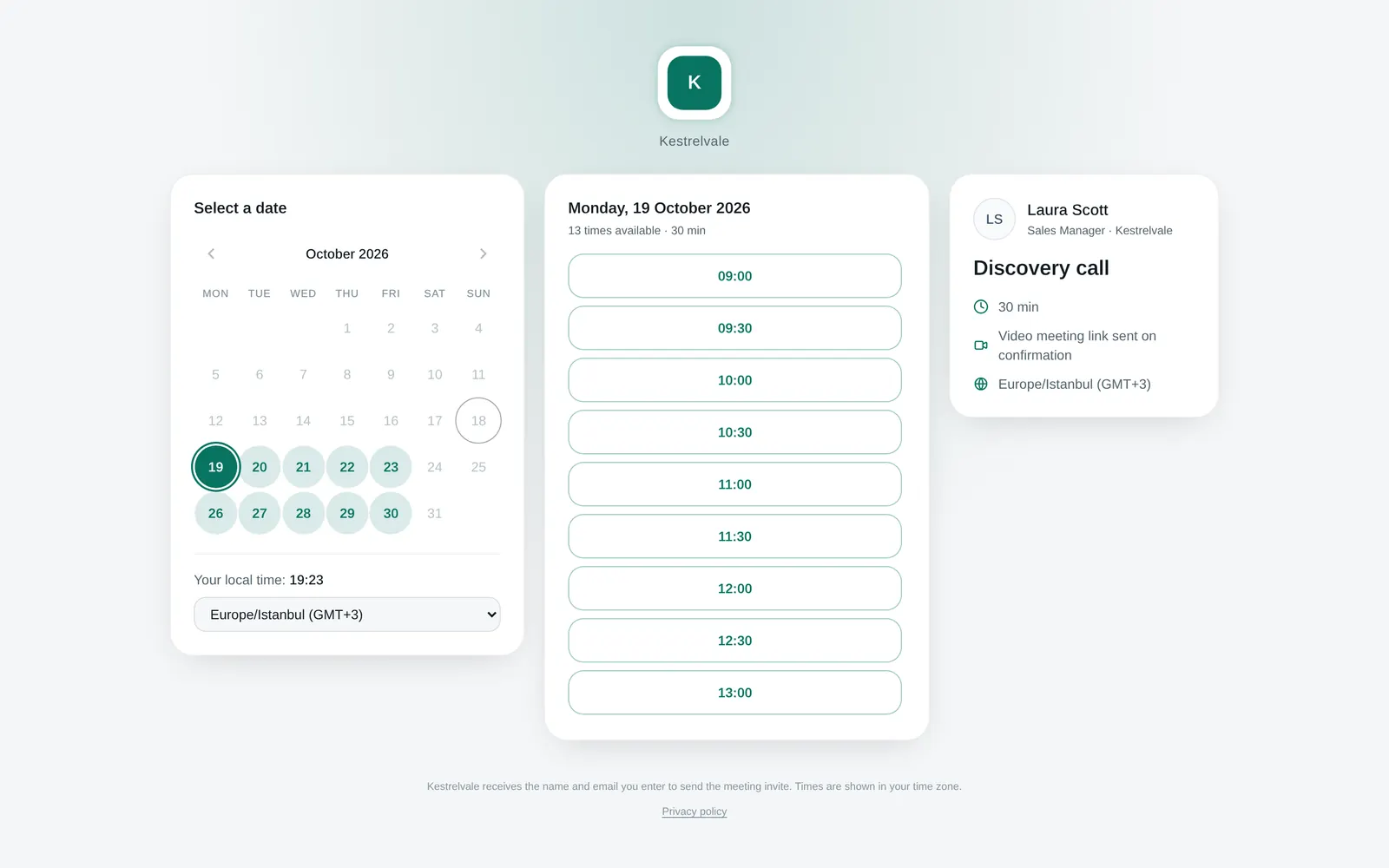
The customer picks a highlighted day and a time, shown in their own time zone, enters Your name and Email for the invite, and selects Book meeting. They get a calendar invite with the video meeting link. With the same link they can Reschedule or Cancel meeting later.
On the deal's Meeting tab, Customer booking then shows Booked, and the meeting is listed under Meetings with its time and guest link. Select Replace to make a new link; the old one stops working, and a booked meeting stays as it is.
Which times are free
Customers see the deal owner's working hours for that day:
- the company working hours (with the lunch break taken out, if it is on), or
- the owner's own hours, if they set them under My availability,
- plus time they opened on a date, minus time they closed.
Dromix then leaves out times when the deal owner:
- has a Dromix meeting or is busy in Google Calendar or Outlook, if they connected their calendar. Busy all-day events (for example Out of office) close the whole day. Only here the Buffer is kept free before and after;
- is on approved leave or set to Away. Half-day leave still closes the whole day.
If the connected calendar cannot be read, customers see no times until it works again, and the owner gets a notification. If the deal owner changes, the link the customer already has shows the new owner's times; a meeting that is already booked stays with its host.
Booking settings per brand or pipeline
The duration, buffer, days, hours, minimum notice, days ahead and meeting title can differ per brand or pipeline: the pipeline's settings win, else the brand's, else the company's in Sales flow & booking. The time zone and holidays stay company-wide, and free times always come from the deal owner's calendar. See Documents & booking defaults.
If a brand or pipeline sets its own days or hours, those replace the company working hours for its deals, and own hours or opened time only count inside them.
Your weekly hours and one-off changes
- Under Customer booking, select My availability. Company admins also find it under Sales flow & booking → Team availability and can choose any team member there.
- At the top, the label shows which rules apply, for example Rules: pipeline override (Sales): the same rules as the customer's booking page for this deal.
- Under Weekly hours, choose Follow company hours or Own hours. With own hours, set one or more time ranges per weekday (+ Add hours), also on days the company does not work, and select Save hours.
- In the grid, click a 30-minute cell to open or close it on that date only. Time outside the company hours is shown as Extra time (outside company hours). A dot marks times customers can start a meeting.
- Close day closes a whole date; Reset day brings the date back to your weekly hours. Select Show 00:00–24:00 to open early or late hours.
Team members edit only their own week; owners and company admins can edit anyone's.