
Your dashboard
What the Dashboard shows you each day, from reminders and decisions to charts, and which cards depend on your role.
Who can use this
OwnerCompany adminHRDepartment managerMemberGuestRequirements
None beyond the role
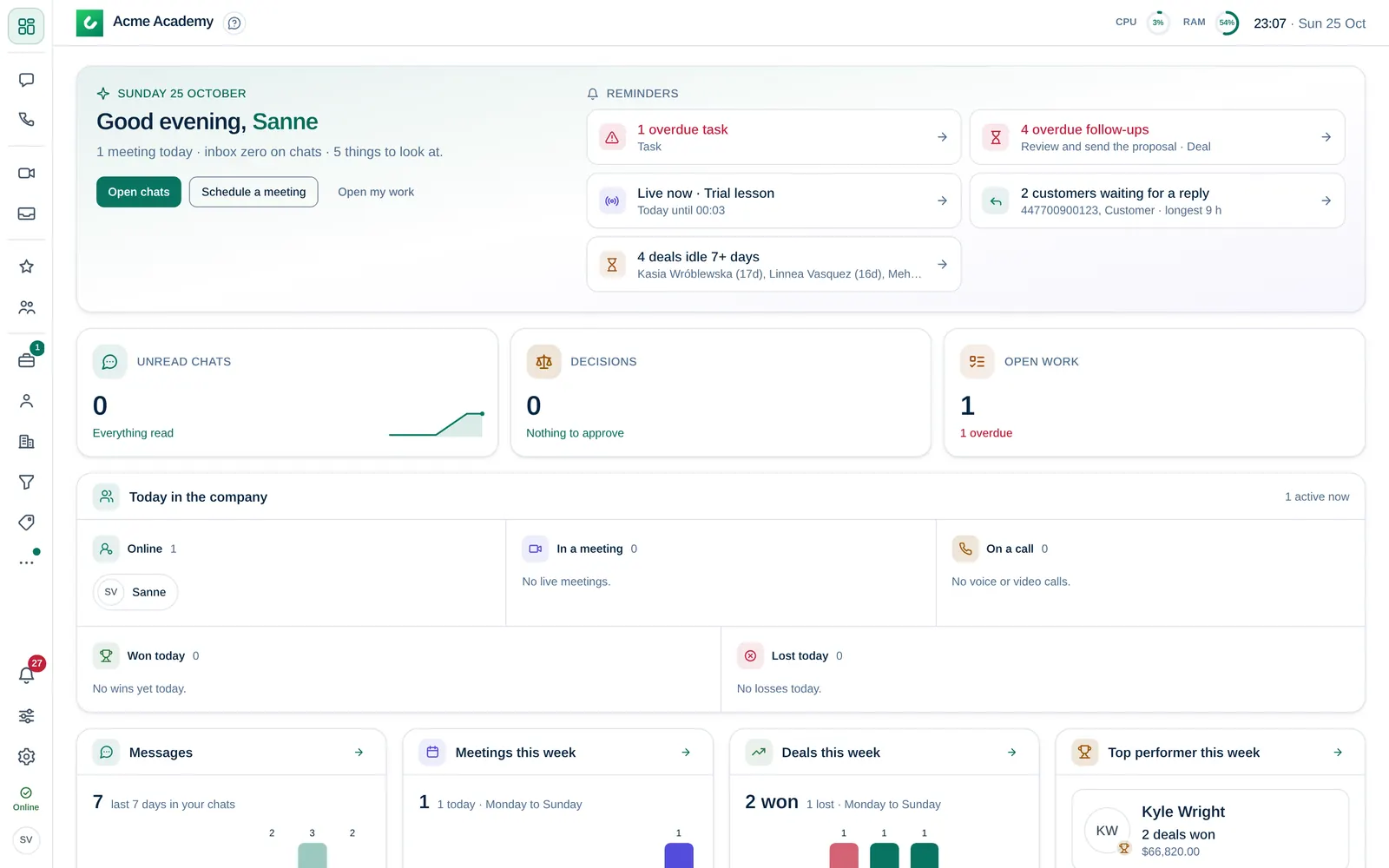
The Dashboard is the first screen after you sign in. It collects what needs you today, so you can start there and jump straight to the right place.
Greeting and reminders
At the top, Dromix greets you and sums up your day in one line. The buttons Open chats, Schedule a meeting and Open my work take you straight there.
Reminders lists what needs attention now, for example:
- overdue tasks and overdue follow-ups on leads and deals,
- approvals waiting for you,
- meetings today, or a meeting that is live now,
- customers waiting for a reply,
- your deals that have been idle for 7 days or more,
- that you have not clocked in yet today (when the time clock is on).
When nothing is waiting, you see You're all caught up. Select a reminder to open it.
The counters
| Counter | What it counts | Opens |
|---|---|---|
| Unread chats | Unread messages, split into team chats and WhatsApp, Instagram and Facebook | Chats |
| Decisions | Approvals waiting for you, and how many are overdue | My work |
| Open work | Requests and tasks assigned to you, with the next due date | My work |
| Time clock | Whether you are clocked in (only when the time clock is on) | Time clock |
Charts
Below the counters, the Dashboard shows the last days in charts:
- Messages: messages received and sent in your chats over the last 7 days.
- Meetings this week: your meetings, Monday to Sunday.
- Deals this week: deals won and lost (with CRM accessCRM access Permission to open Leads, Contacts, Companies and the Deals board. Owners and Company admins always have it; other people get it through their department, a personal grant, or access to a messaging channel., or when you own deals).
- Top performer this week: deals won per person, if your company shows this card.
- Work you closed and the open deals per stage of the main pipelinePipeline The ordered list of stages a deal goes through, from first contact to Won or Lost. A company can have several pipelines, for example one per product line..
Each chart has a link to the matching screen.
Cards that depend on your role
| Card | Who sees it |
|---|---|
| Today in the company: who is online, in a meeting or on a call, deals won and lost today | Owner Company admin HR |
| Server load (CPU and memory) next to the clock, and the disk space warning | Owner Company admin |
| First week progress | Anyone with an open onboarding checklist |
| Counters, reminders and charts | Everyone except Guests |
Guest Guests see a short greeting, their unread chats and Open chats.
Owners and Company admins can hide the top performer card in Company → Settings → Notifications & dashboard (Show top performer card on dashboard).