
Send, reply to and edit messages
Write messages, mention people, attach files and voice notes, reply in a thread, react, forward, pin, edit and delete messages in Dromix chats.
Who can use this
OwnerCompany adminHRDepartment managerMemberGuestRequirements
None beyond the role
Messages between colleagues are encrypted: only the people in the chat can read them.
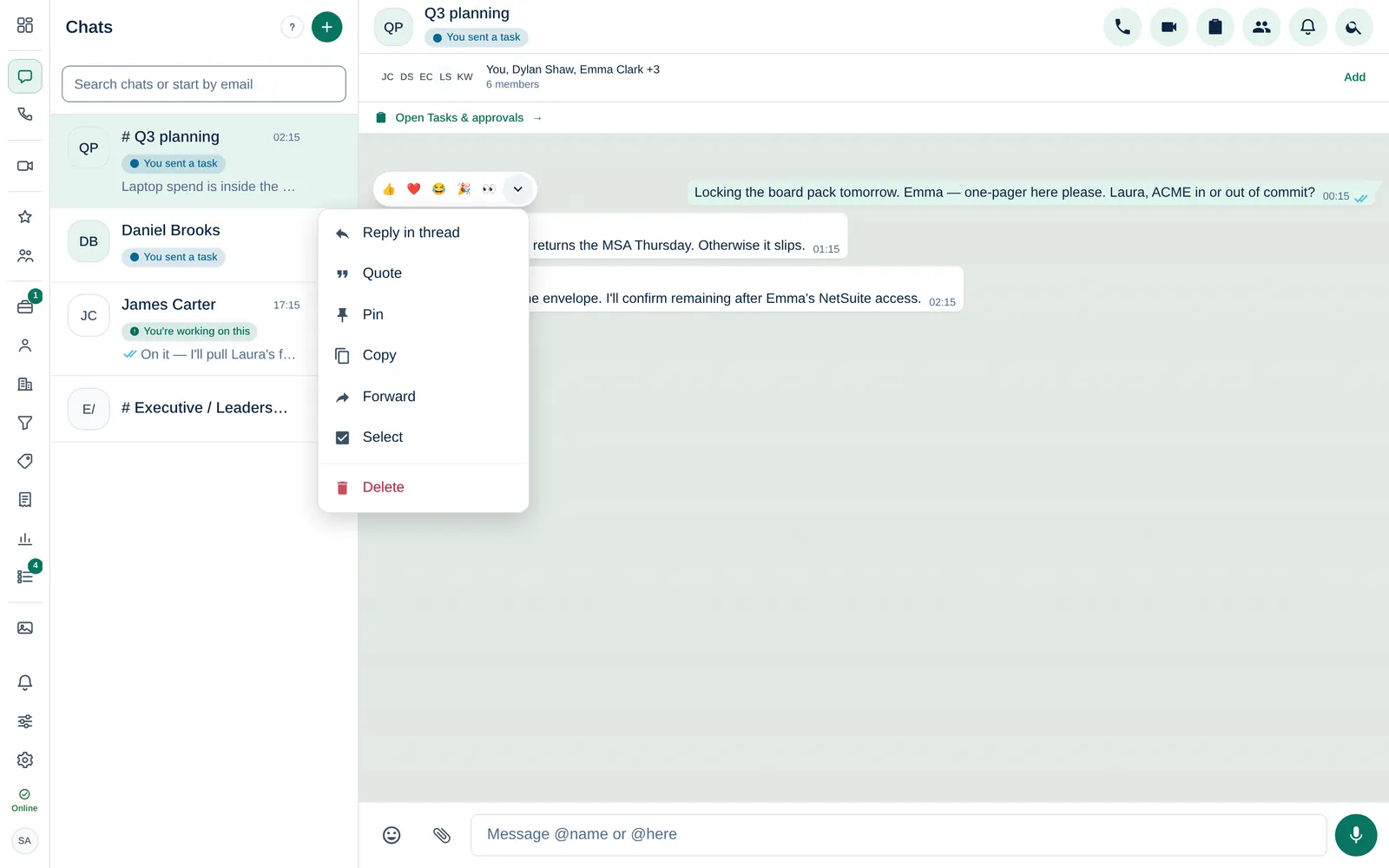
Write a message
- Open Chats and select a chat.
- Type in the message field and press Enter to send. Shift + Enter starts a new line.
- In a channel, type @ and a name to mention someone. @here notifies everyone in the channel.
To attach a photo or file, select Attach file. Your company sets the maximum file size.
To send a voice message, select the microphone while the message field is empty, speak and send. You can pause and resume while recording.
Work with a message
Point at a message (on a phone, press and hold it) and open the Message menu:
| Action | What it does |
|---|---|
| Reply in thread | Opens a side thread for this message, so the main chat stays tidy |
| Quote | Quotes the message above your next reply |
| Pin / Unpin | Pins it to the top of the chat (up to 50 per chat; not for Guests) |
| Copy | Copies the text |
| Forward | Sends a copy to other chats |
| Select | Selects several messages to copy, forward or delete them together |
| Edit | Changes your own text message. It is marked as edited |
| Delete | Deletes the message |
To react, point at the message and pick an emoji: 👍 ❤️ 😂 🎉 👀.
When you delete your own message, it is deleted for everyone and shows This message was deleted. When you delete someone else's message, it is only removed from your view.
Find a message
Use the search in the chat header (Search messages). Because messages are encrypted, the search runs on your device.
Mute a chat
Open the chat menu and choose Mute notifications: for 1 hour, for 8 hours or until you turn it back on. Mentions still reach you unless you mute until you turn it back on.
Guest Guests can only use the chats they were added to.