
Approve or reject a request
Decide on approvals that are waiting for you, from My work, an email or a notification, and hand one off if someone else should decide.
Who can use this
OwnerCompany adminHRDepartment managerMemberRequirements
- Approver in the request chain
When a colleague asks for approval and you are next in the chain, the request comes to you. Usually that is because they report to you or you manage their department.
Find what is waiting for you
Open My work. Needs you counts the decisions and work assigned to you; the Dashboard shows the same number under Decisions.
Decide
Select the request in Needs you. You see its fields, the requester, the approver and the activity.
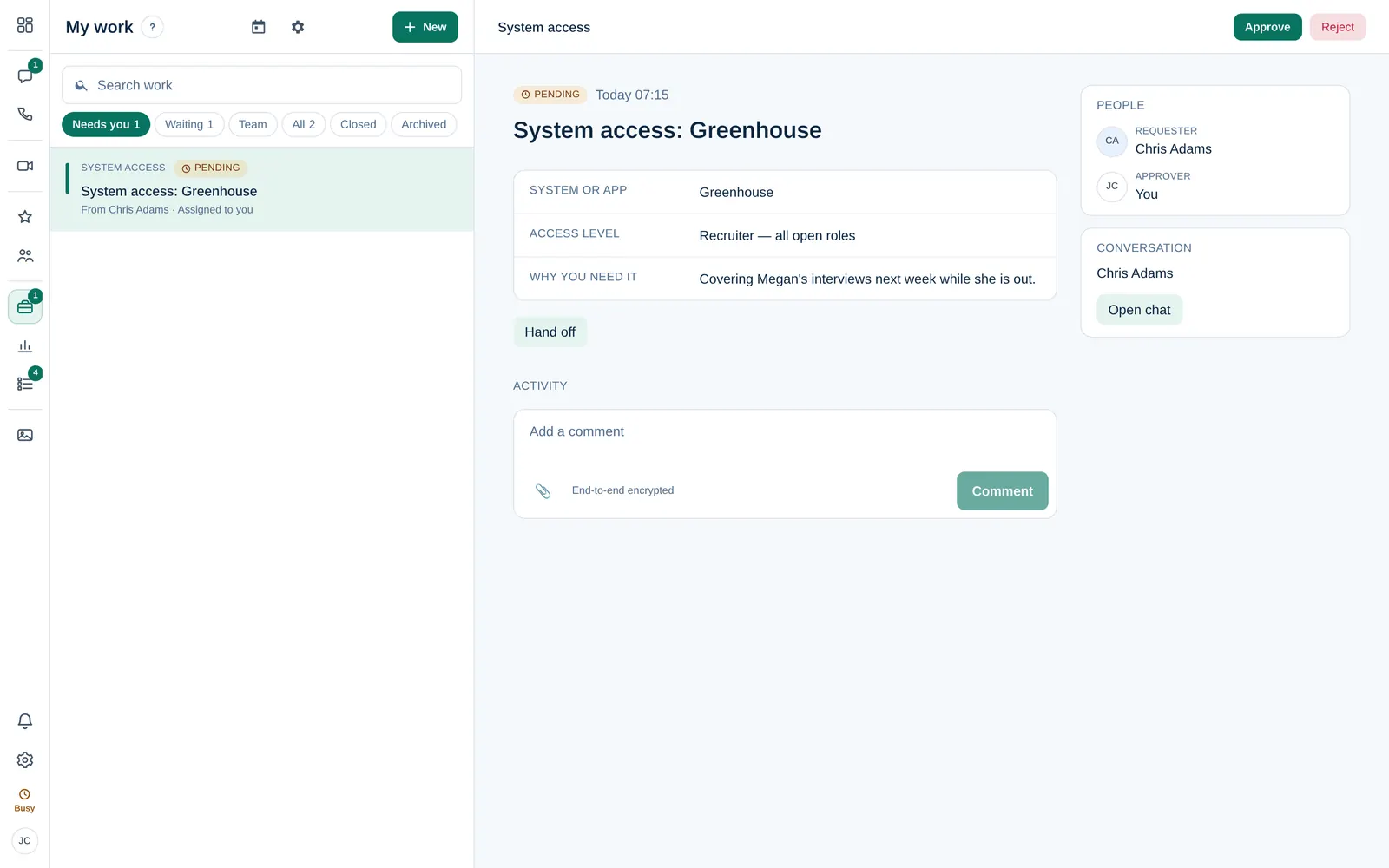
- Select Approve or Reject at the top right.
When approving, you can add a note. When rejecting, a Reason is required (up to 1000 characters), so the requester can fix it or follow up.
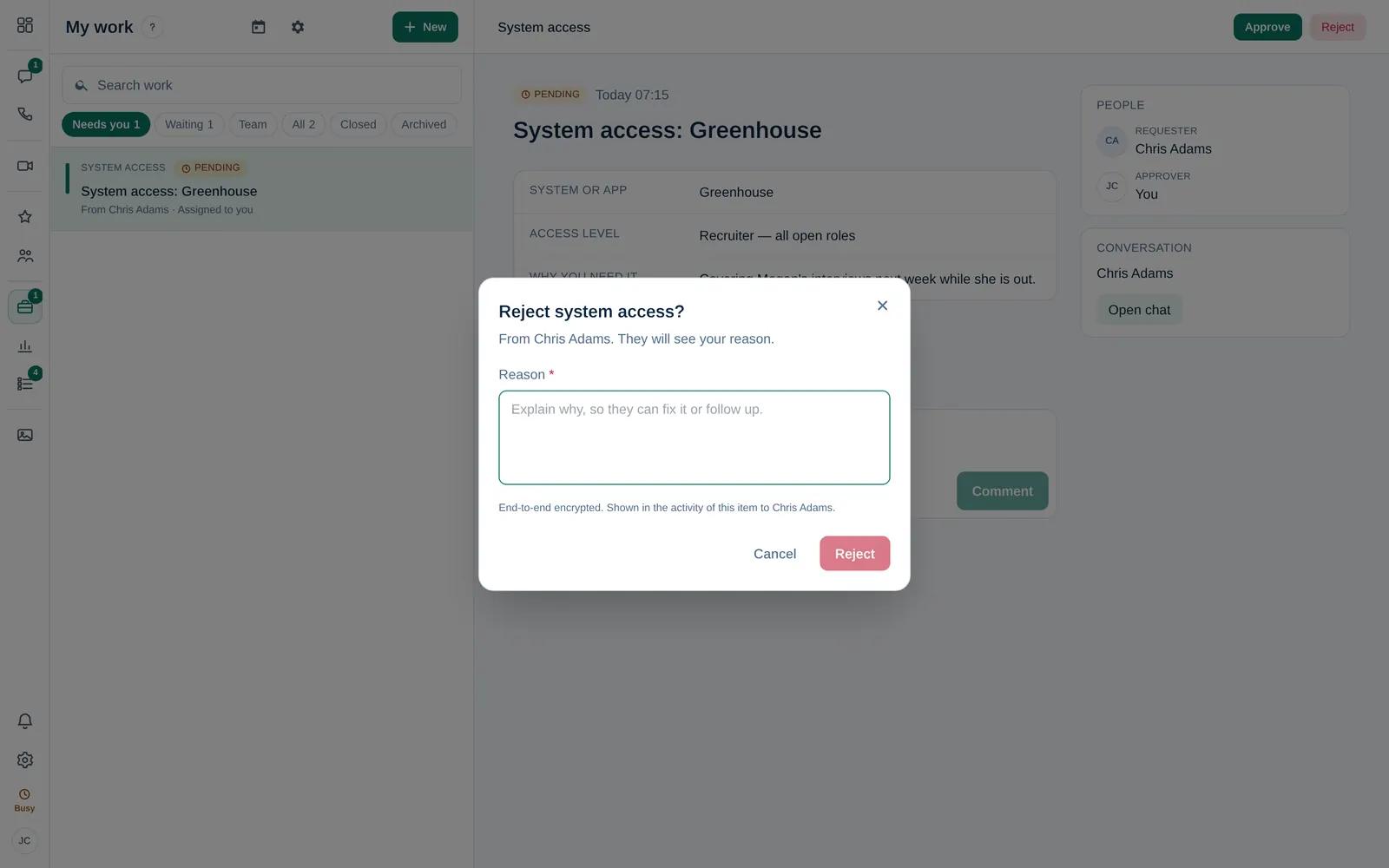
- Confirm. The requester is notified right away.
Your note or reason is encrypted and shown in the activity of the request.
You cannot decide on your own request. If an approval has several steps, each step decides in turn, and a rejection at any step closes the request.
Decide from an email or a notification
If your company turned these on in Work settings (they are on by default):
- Email: select Review and approve in the email. The link works once, for 72 hours, and you must be signed in as the approver. The request text is never in the email.
- Notification: use the Approve or Reject buttons on the notification. Reject opens Dromix so you can enter the reason. These buttons are not available on iPhone.
Leave requests that have no structured data (dates and leave type) must be approved in the app.
Hand it off
If someone else should decide, select Hand off on the request and pick a colleague. They decide instead; the timeline keeps who it was first sent to.
Company admins
Owner Company admin Owner and Company admins can decide any pending request, from My work or from Company admin → Work → All requests.