
Your profile and status
Add your photo, contact details and time zone to your profile, and set a status such as Busy or Away so colleagues know if you can reply.
Who can use this
OwnerCompany adminHRDepartment managerMemberGuestRequirements
None beyond the role
Colleagues see your profile in the Directory and in chats. A photo and a job title help them recognise you.
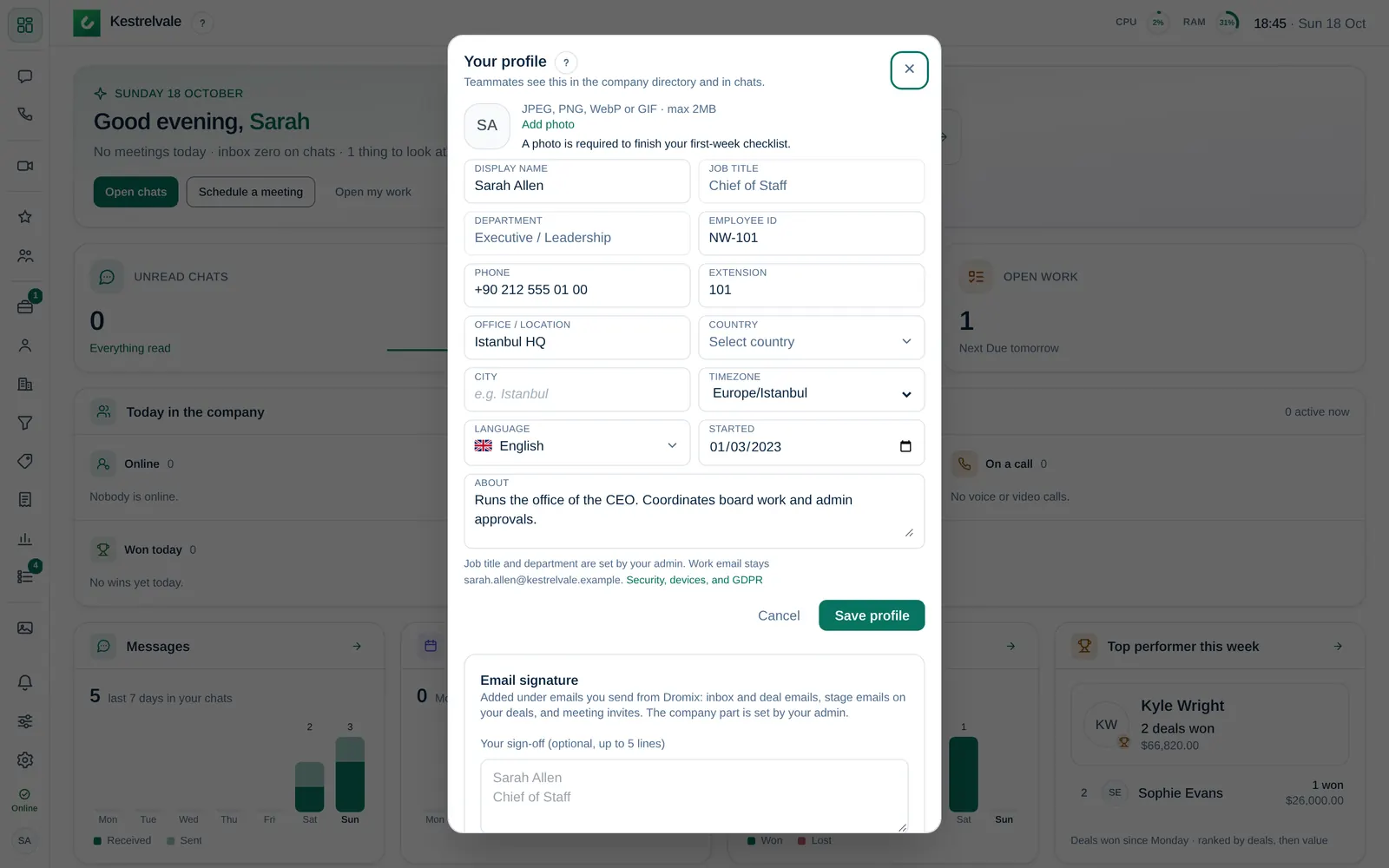
Edit your profile
- Select your picture at the bottom of the left rail (on a phone, at the top right) and choose Profile.
- Select Add photo or Change photo. JPEG, PNG, WebP or GIF, at most 2 MB.
- Fill in the fields you want to share:
| Field | Note |
|---|---|
| Display name | How your name appears everywhere |
| Job title, Department | Set by a Company admin; shown with a lock |
| Employee ID, Phone, Extension | Only Owners, Company admins and HR see your phone number and employee ID |
| Office / location, Country, City | Where you work |
| Timezone | Used for meeting times, reminders and your daily summary |
| Language | The language of Dromix for you. See Change the language |
| Started | Your first working day |
| About | What you work on and how colleagues can reach you |
- Select Save profile.
The Your first week step Complete your profile is done as soon as your profile has a photo, a job title, a department and a time zone.
Set your status
Select the status button just above your picture at the bottom of the left rail (on a phone, select your picture at the top) and choose a status:
| Status | Meaning |
|---|---|
| Available | Ready to chat |
| Busy | In a meeting |
| Do not disturb | Push notifications off |
| Away | Out of office |
You can add a short Status note, for example "Back at 14:00". Approved time off sets you to Away automatically on those days.
Security and your data
Security, devices, and GDPR at the bottom of the profile opens your security page. See Password and authenticator app.