
Send a proposal
Create a proposal from a deal, set prices, discounts and tax, get a large discount approved, send it and follow when the customer views and accepts it.
Who can use this
OwnerCompany adminHRDepartment managerMemberRequirements
- Owner or observer of the deal
A proposal is your offer to the customer, with line items and a total. The customer opens it online, and can accept it or ask for changes.
Create a proposal
- Open the deal and choose the Proposals & contracts tab.
- Under Proposals & contracts, select New proposal.
- Choose a Template, or keep the Default template, and select Create draft.
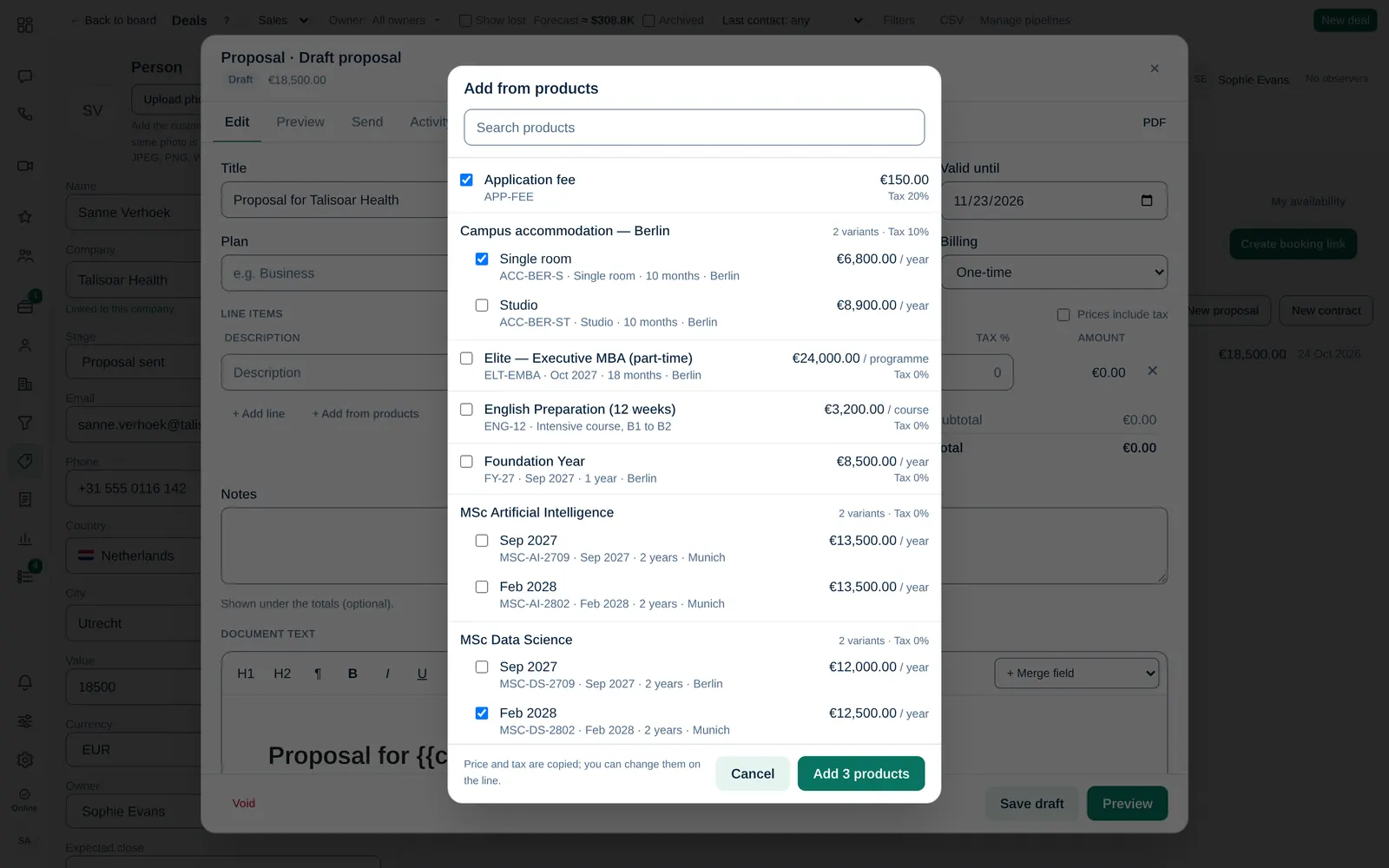
Prices start from the last proposal or the deal value. Add what you sell from your product list with + Add from products. You can change everything before sending.
If your company uses the sales flow, moving the deal to Proposal sent prepares the draft for you.
Fill it in
- Title, Currency and Valid until.
- Line items: Description, Qty, Unit price, Disc. % and Tax % for each line. Select + Add line for more, or + Add from products to tick one or more products: their name, price and tax are copied and you can still change them. Only products in the proposal's currency can be added. Tick Prices include tax if your prices are gross.
- Notes: shown under the totals.
- Document text: the text of the proposal.
Preview shows what the customer sees. Select Save draft at any time.
Default products
A new proposal starts with the default products of the deal's pipeline, at their current price: the pipeline's own products, else its brand's, else the company's. You can change or remove the lines before sending. A revised proposal copies the previous one instead. Admins set them in Documents & booking defaults.
Get a discount approved
If the discount is above your company's limit, Dromix shows, for example, Discount 15% is above the 10% limit. and A manager must approve it before you can send.
- Optionally write Why this discount?.
- Select Ask for approval. The request goes to a manager in My work.
- When you see Discount approved. You can send it., continue.
Send it
- Select Continue to send.
- Check From (your connected mailbox, or System email (no attachment)), To, Cc, Subject and Message.
- Select Send proposal and confirm.
The email has a link to the online proposal. Sent from a mailbox, the PDF is attached too. When you send it, the proposal gets its number and is frozen; later changes need a new version.
Follow the customer's answer
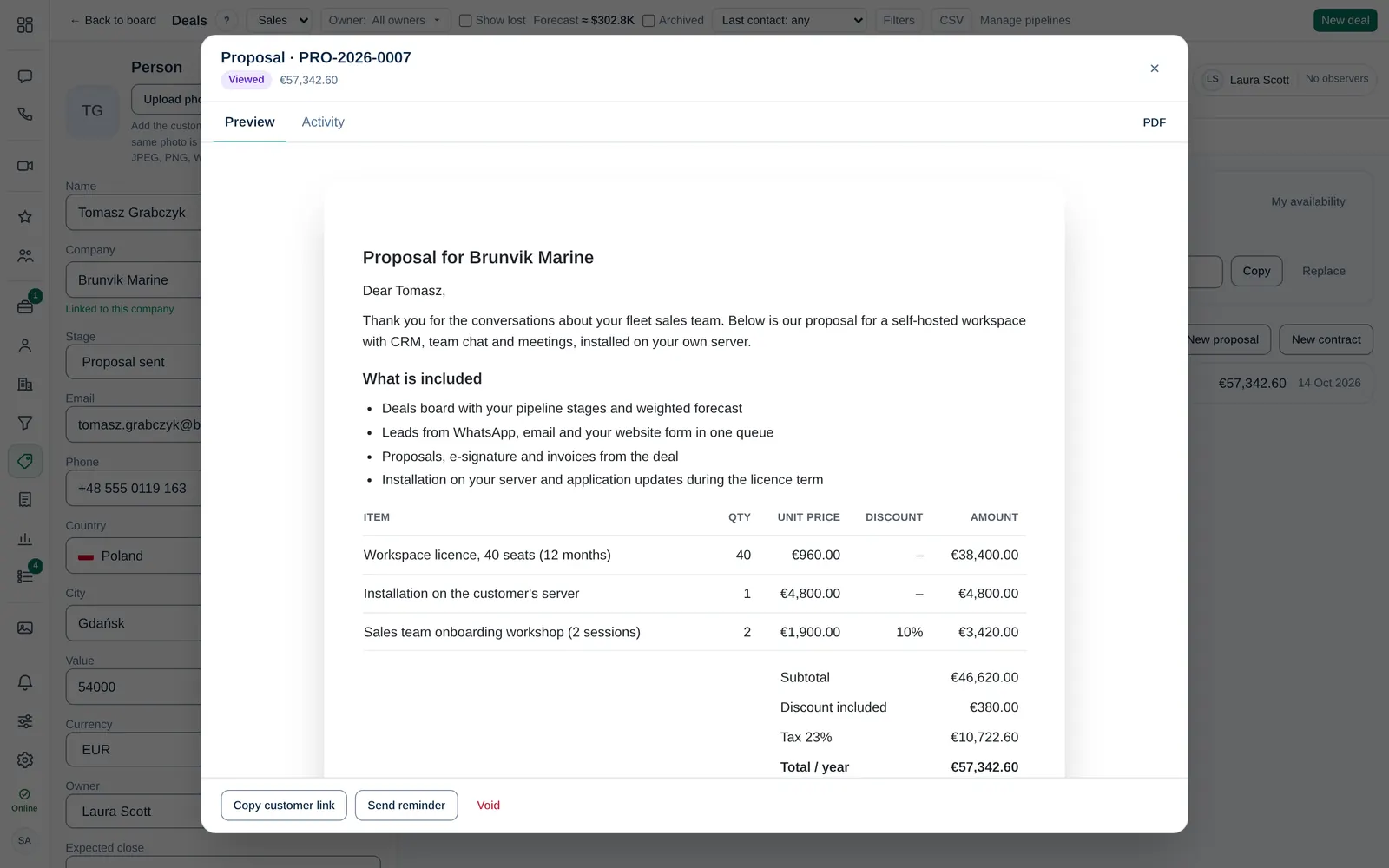
Activity shows when the proposal was Sent, Viewed and Accepted, or when the customer sent a Change request, for example asking for a discount. The deal timeline shows the same.
- Accept proposal: the customer confirms their name and email. With the sales flow, Dromix then prepares the contract. See Contracts and e-signatures.
- Request changes: you get their message. Create a new version and send it again.
- Copy customer link gives you the link to send another way. Void withdraws the proposal; the customer's link stops working.